PDF Converter
Turn PDF files into images quickly. reaConverter handles multi-page documents with options for resolution and format.

How to Convert .pdf Files in Bulk
1. Install reaConverter

2. Select PDF Files
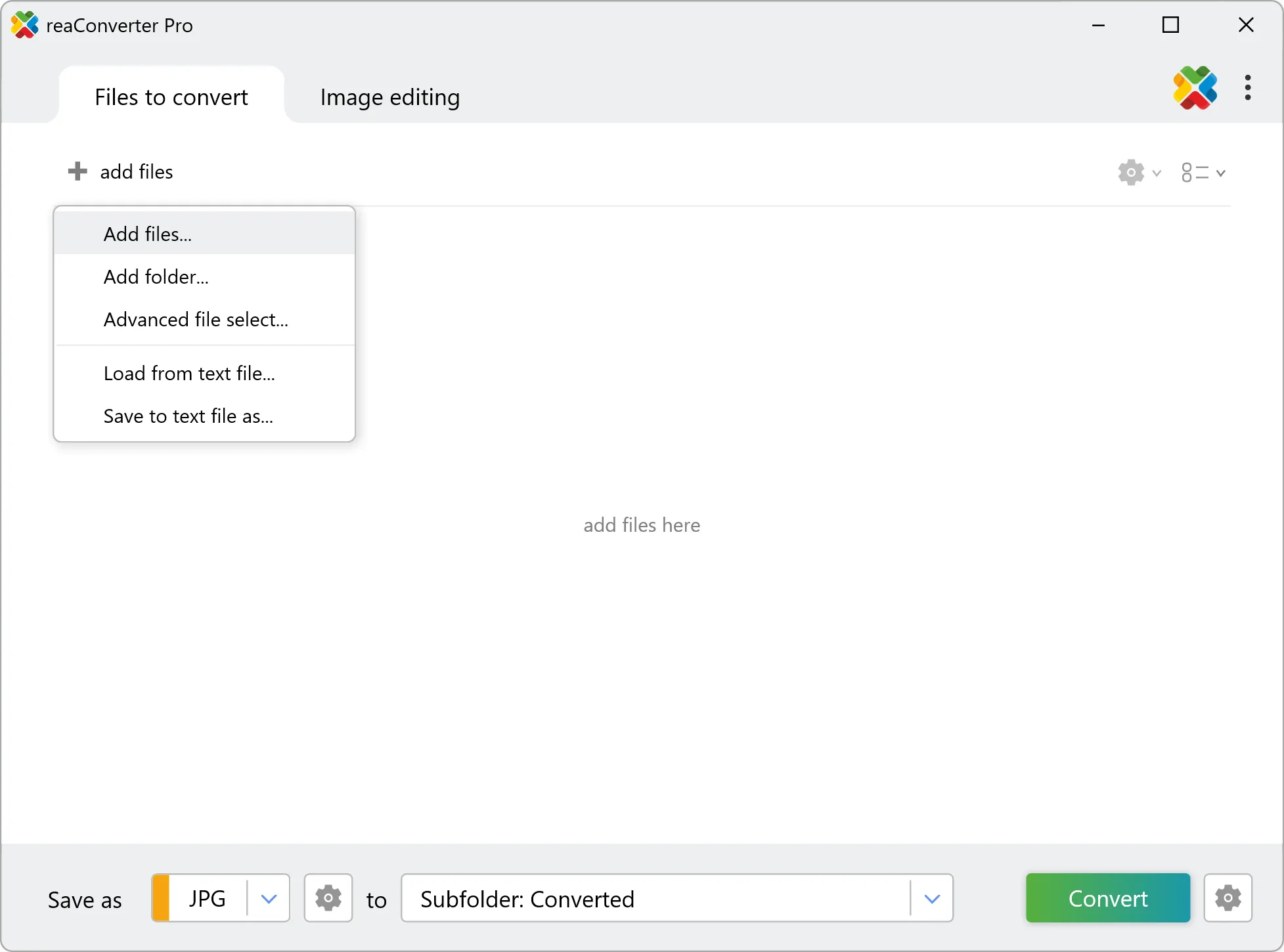
3. Start Conversion

Convert PDF on your PC
For quick and effortless PDF file handling on your PC, reaConverter offers powerful conversion tools with batch processing. Best of all, it works entirely offline — ensuring your sensitive data never leaves your computer.
Do more with your files
Converting PDF files for use in a larger project? reaConverter offers many ways to process files, so you can customize them according to your requirements.
Our range of editing options includes auto-processing options such as auto-rotate, auto-crop, watermarking and more. Change Color Space, copy Metadata, set DPI, manage ICC Profile, control Bit Depth.

User Reviews
Average User Rating:Last updated on March 30, 2026




PDF files: Frequently Asked Questions
What are PDF files?
The PDF (Portable Document Format) file format is a file format developed by Adobe Systems in the 1990s. It is a popular format for sharing documents that contain text, images, and other elements. PDF files can be created from a variety of sources, including word processing software, desktop publishing software, and even scanned documents. PDF files are designed to be platform-independent, meaning they can be viewed and printed on any device without requiring the original software used to create the document. PDF files can also be password-protected and encrypted for added security. Adobe Acrobat Reader is the most commonly used software for viewing and editing PDF files.
Can reaConverter open PDF files?
reaConverter fully supports the PDF file format – open, edit, and export PDF files to any other popular file format with ease.
How do I change PDF to another format?
reaConverter is a user-friendly tool for converting PDF files. Once installed on your computer, it allows you to convert all your .pdf files at once with just a few clicks. You can even convert pdf images directly from Windows Explorer using the right-click menu — fast and convenient.
Why choose offline conversion with reaConverter?
Keep your sensitive data 100% private with offline processing that never exposes files to cloud risks. Our software meets strict compliance standards (GDPR, HIPAA, CCPA) while handling confidential documents for legal, healthcare and financial sectors.
Can I convert PDF online?
If you only want to convert a few PDF files, you are welcome to try our free online PDF converter.
How can I turn PDF files on my computer to another format?
The best way to convert PDF files on your PC is to get a quality piece of software, such as reaConverter. This software is extremely efficient in managing a wide range of batch files conversions, including conversion from PDF.
How can I automate PDF files conversion?
reaConverter supports all the essential automation features, such as right-click сonversion and Watch Folders, for the most efficient automated file conversion in any software of its kind.
Can I convert PDF files using scripts or the command-line interface?
reaConverter provides full access to all its features from the Windows command-line shell, including the command-line pdf converter.
What else can I do with reaConverter?
Convert RAW formatsConvert GIS filesConvert CAD formatsSet picture bit depthConvert PDF
What formats can I convert a PDF file to?
What types of files can I convert to PDF format?
Discover more
