Free TIF Converter
TIF conversion that keeps your files private. reaConverter runs offline on your PC with full batch processing.


How to Convert .tif Images in Bulk
1. Install reaConverter Lite

2. Select TIF Files
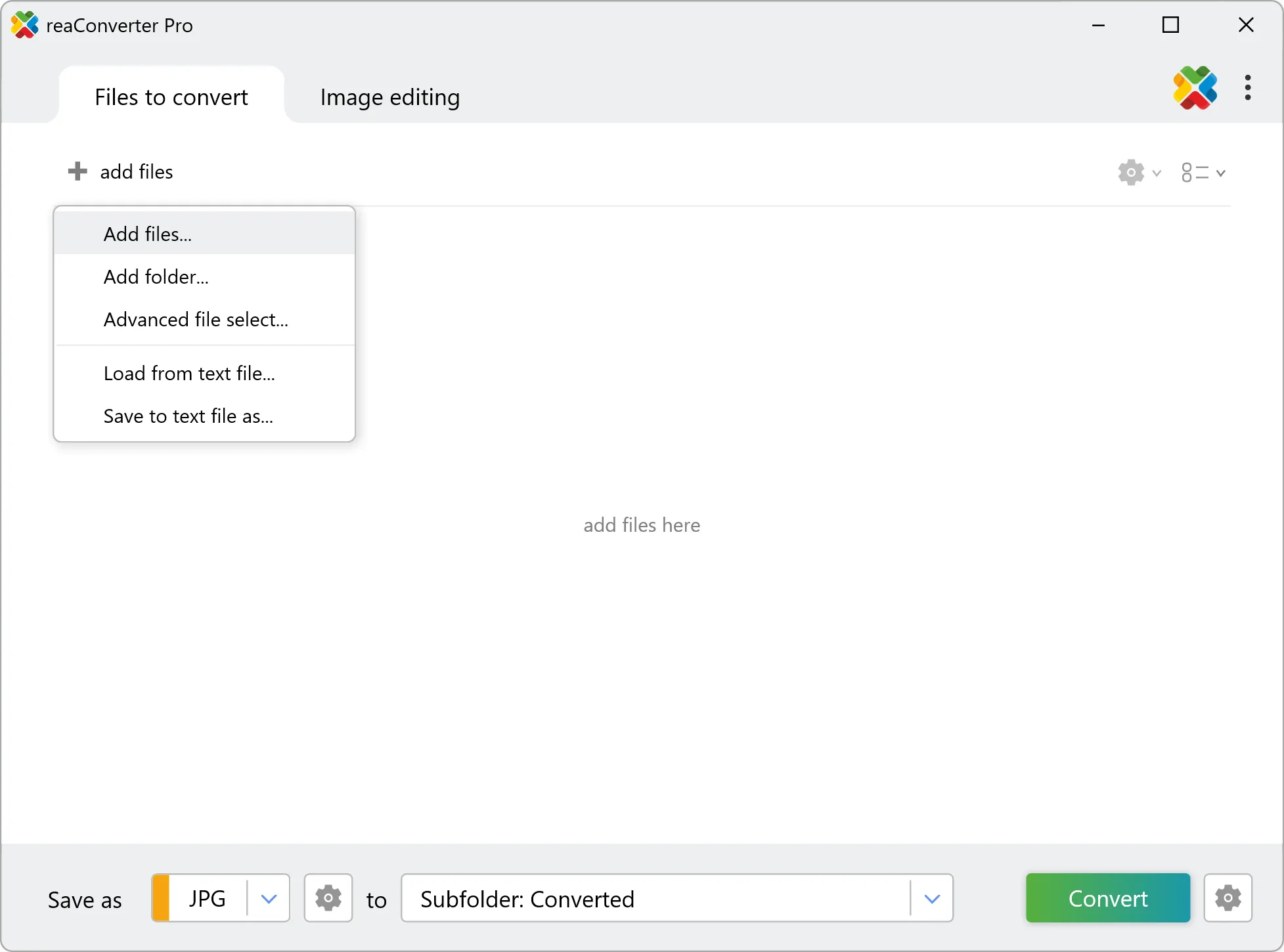
3. Start Conversion

Convert TIF on your PC
- Convert hundreds of TIF images in seconds
- Clean, intuitive interface
- Right-click conversion straight from Windows
- No internet required — fully offline
- Ideal for everyday conversion tasks
Do more with your images
Converting TIF images for use in a workflow? Touch up, transform, apply editing and effects to your images during conversion.
Our range of editing options includes such image processing actions as Resize, Rotate, Crop, Color Replace, Watermarks and more. Adjust actions include RGB, HLS, HSV, Brightness and Contrast. Auto-processing options are also available, such as auto-rotate and auto-crop.

User Reviews
Average User Rating:Last updated on March 30, 2026




TIF images: Frequently Asked Questions
What are TIF files?
The Tagged Image File (TIF) is a digital image file format that is commonly utilized for storing high-quality images, including photographs and graphics that feature a broad spectrum of colors, thanks to its lossless compression technique. TIF files are ideal for professional printing and publishing industries since they support multiple layers and can be edited without compromising quality. Nevertheless, due to their larger file sizes, they are not as suitable for web use as other image formats.
Can reaConverter open TIF files?
reaConverter fully supports the TIF image format – open, edit, and export TIF files to any other popular file format with ease.
Is reaConverter free?
Yes — reaConverter Lite is completely free to use! It offers powerful batch image conversion, right-click integration, and support for popular formats, all without requiring an internet connection. For advanced features like automation, metadata editing, and support for rare formats, you can upgrade to the Pro edition anytime.
How do I change TIF to another format?
reaConverter is a user-friendly tool for converting TIF files. Once installed on your computer, it allows you to convert all your .tif files at once with just a few clicks. You can even convert tif images directly from Windows Explorer using the right-click menu — fast and convenient.
Can I convert TIF online?
If you only want to convert a few TIF images, you are welcome to try our free online TIF converter.
How can I turn TIF files on my computer to another format?
The best way to convert TIF images on your PC is to get a quality piece of software, such as reaConverter. This software is extremely efficient in managing a wide range of batch files conversions, including conversion from TIF.
How can I automate TIF files conversion?
reaConverter supports all the essential automation features, such as right-click сonversion and Watch Folders, for the most efficient automated file conversion in any software of its kind.
Can I convert TIF files using scripts or the command-line interface?
reaConverter provides full access to all its features from the Windows command-line shell, including the command-line tif converter.
What else can I do with reaConverter?
Change format settingsChange DPICopy metadata (EXIF, IPTC)Convert Gerber filesCrop image
What formats can I convert a TIF file to?
What types of files can I convert to TIF format?
Discover more
