FAQ
CINE to DCM Conversion
What are CINE files?
The CINE format is associated with Phantom digital cameras, produced by Vision Research. They usually contain raw video data, which allows for future corrections and editing during digital post-production, such as improving white balance, adjusting colors and lights etc. Due to the fact that they contain uncompressed image data, CINE files tend to have very large sizes. Depending on the settings of the camera with which they are created, some CINE file versions can also contain compressed data, in which case they are smaller in size. In both cases, however, they remain incompatible with the largest number of image and video viewers.
What are DCM files?
A DCM file is a DICOM file, meaning it follows the Digital Imaging and Communications in Medicine (DICOM) standard for storing, transmitting, and managing medical imaging data. This standard ensures interoperability between medical imaging equipment and software, allowing images to be shared across scanners, servers, workstations, and network systems. DCM files are most commonly used in hospitals, clinics, and private medical practices that rely on medical imaging equipment such as CT, MRI, and ultrasound devices.
Can reaConverter convert CINE to DCM?
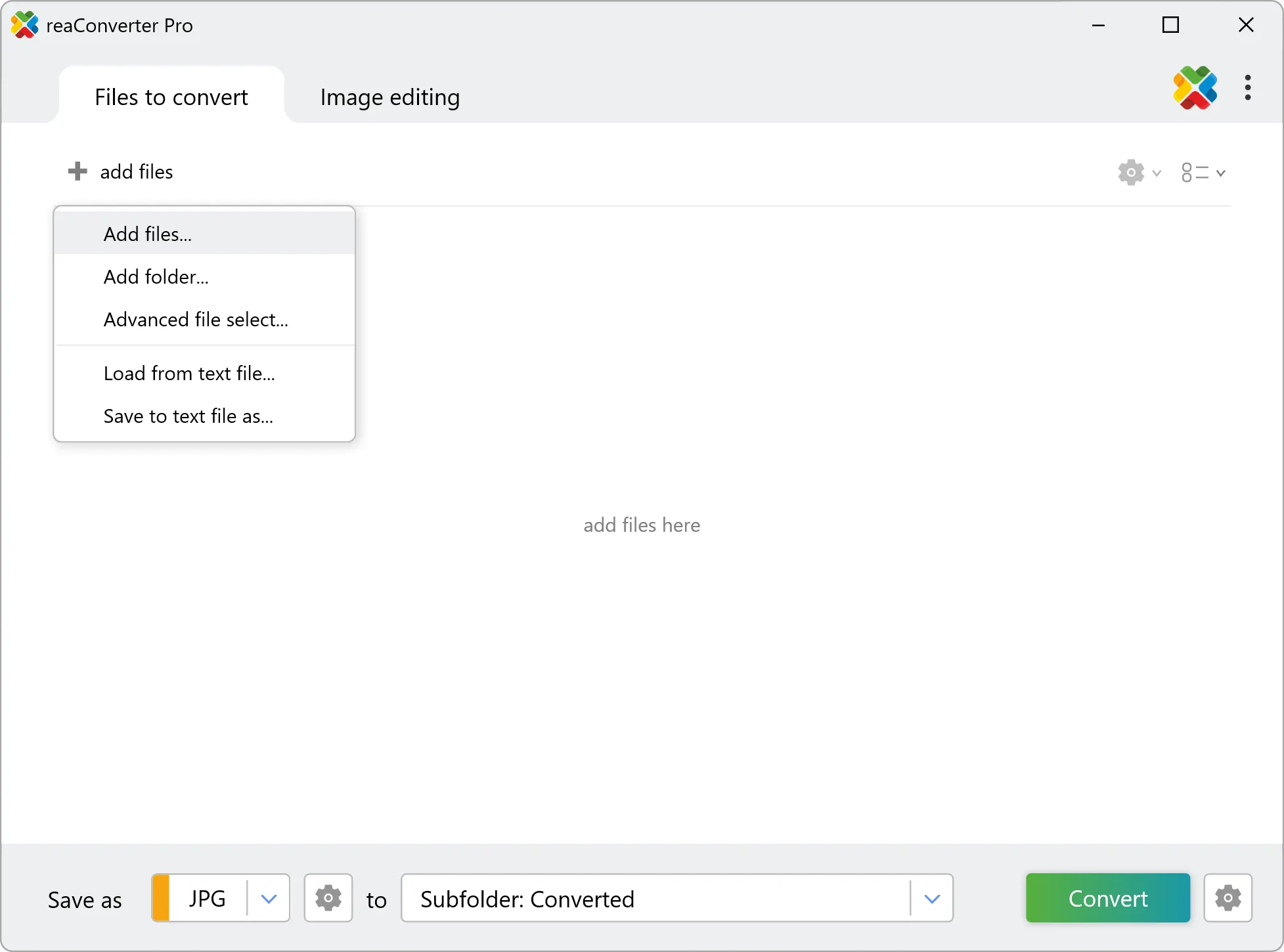
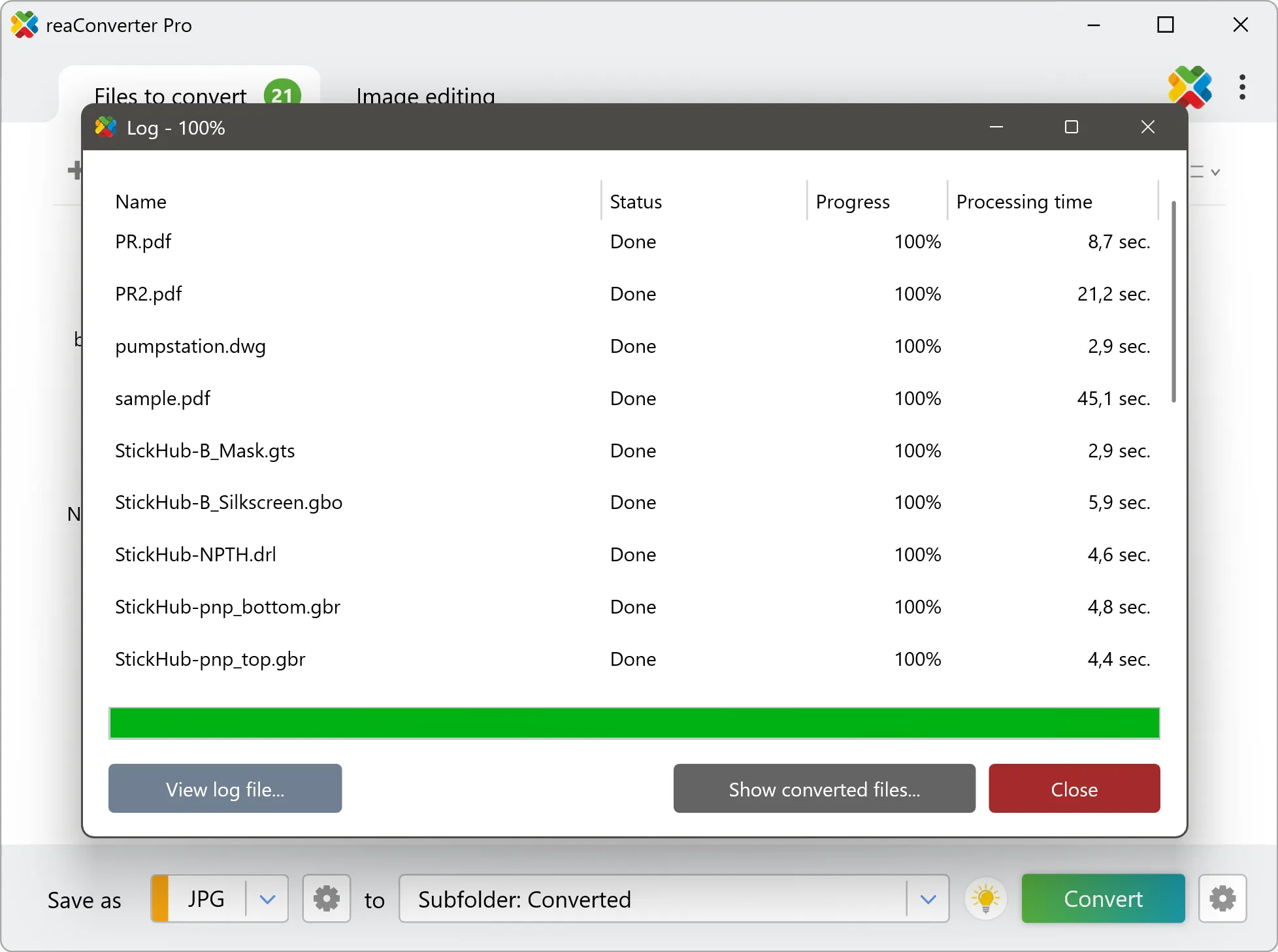
Yes! reaConverter instantly converts .cine to .dcm with perfect quality preservation. With its batch processing feature, you can convert multiple files at once in just a few clicks. You can even convert CINE photos directly from Windows Explorer using the right-click menu — fast and convenient.
What is reaConverter used for?
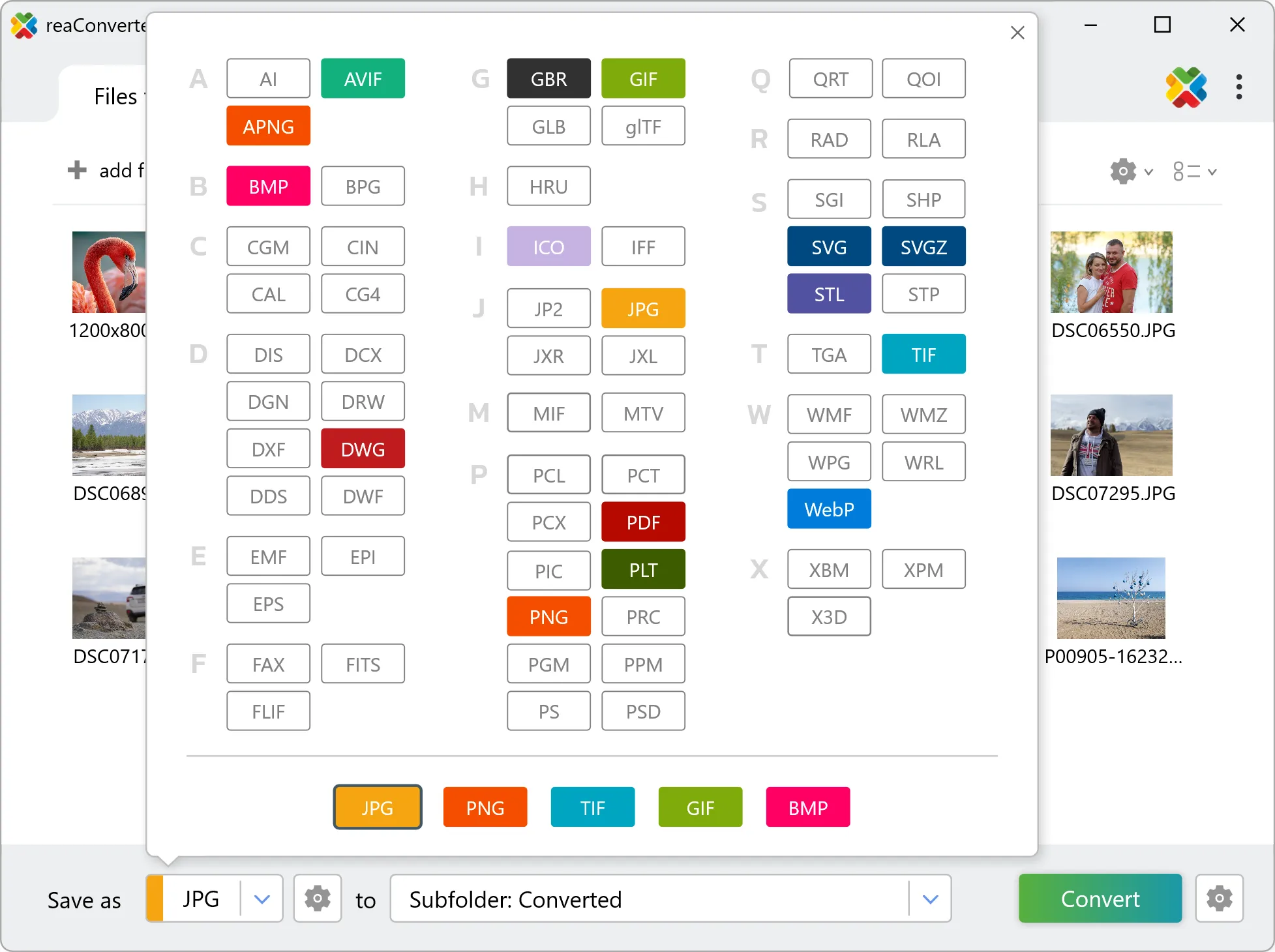
reaConverter is a software program used for converting images and other types of files from one format to another. It supports a wide range of file formats and allows users to convert multiple files at once, making it a valuable tool for graphic designers, photographers, and other professionals who work with digital images. reaConverter also includes features for resizing, cropping, and editing images, along with batch processing capabilities that help automate repetitive tasks.
Can I convert CINE to DCM online?
If you only need to convert a few CINE files to DCM format, feel free to try our free online free online CINE to DCM converter — perfect for small batches with no installation needed!
How can I turn CINE files into DCM on my computer?
The best way to change CINEs to DCMs on your PC is to install a quality piece of software, such as reaConverter. This software is extremely efficient in managing a wide range of batch files conversions, including conversion from CINE to DCM.
How can I automate CINE to DCM files conversion?
reaConverter supports all the most useful automation features such as right-click сonversion and Watch Folders for the most efficient automated files conversion in any software of this type.
Is there a way to convert CINE files to DCM using the command prompt?
reaConverter provides full access to all its features via Windows command line, including a high-performance command-line cine to dcm converter for batch processing.
What else can I do with reaConverter?
Convert PDFAdd watermark on imageConvert CAD formatsSet file dateConvert GIS files
Related conversions
Other ways to convert CINE files, and other sources that convert to DCM.