

How to Convert Multiple DWG Files to IGES?
1. Download and Install reaConverter
Install reaConverter to convert DWG without CAD software. Lightweight setup, works independently on any Windows PC.

2. Load your DWG files
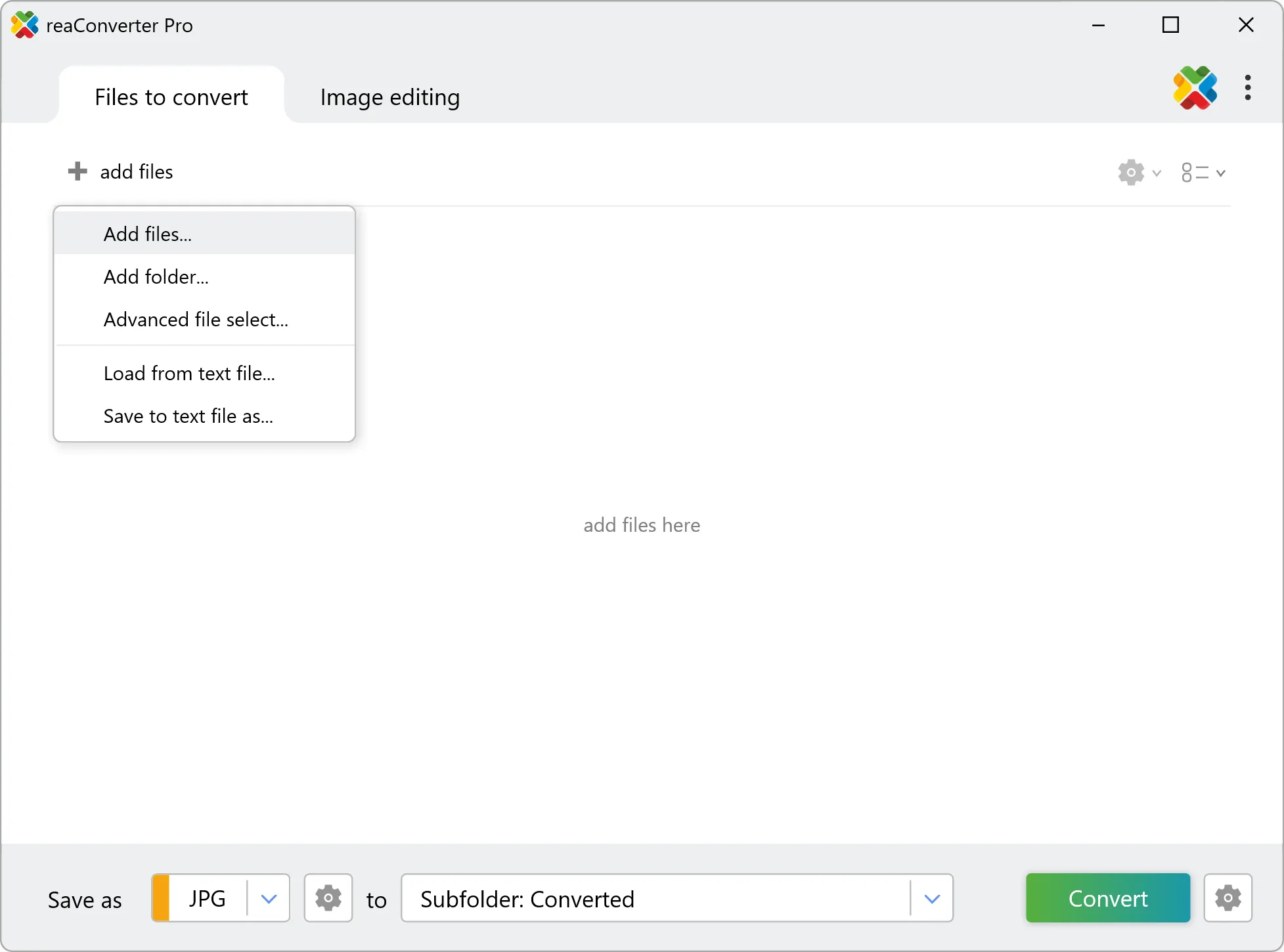
Load your DWG files into reaConverter. You can add individual files or point to folders, and the software will queue everything automatically.
Add files by dragging them in, browsing folders, or using the right-click menu from Windows Explorer.
3. Select IGES as output format
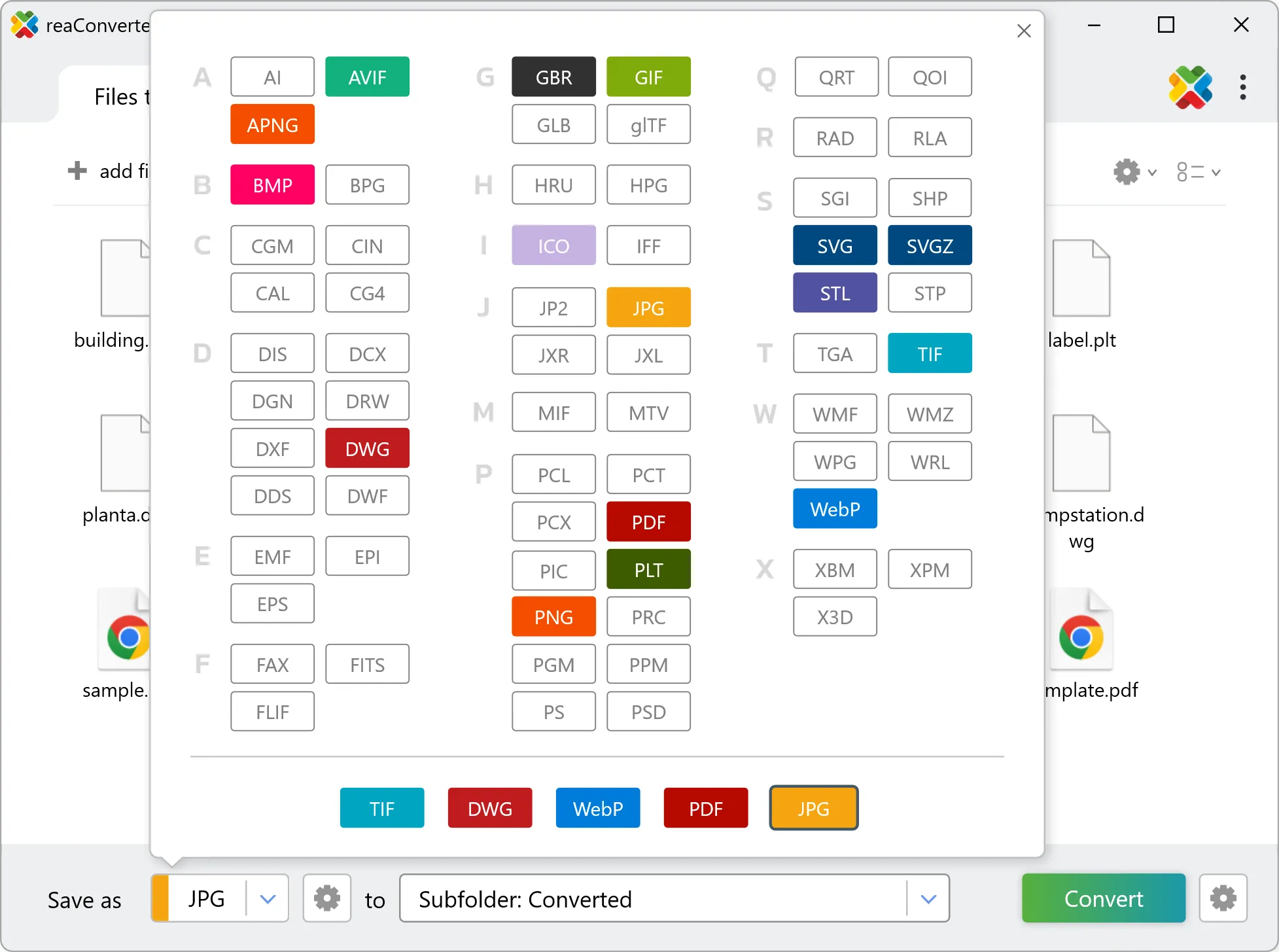
Select IGES from 700+ supported output formats. Choose your destination folder and adjust settings to match your needs.
4. Start DWG to IGES conversion
Then simply press the Convert button and your conversion will begin in no time!
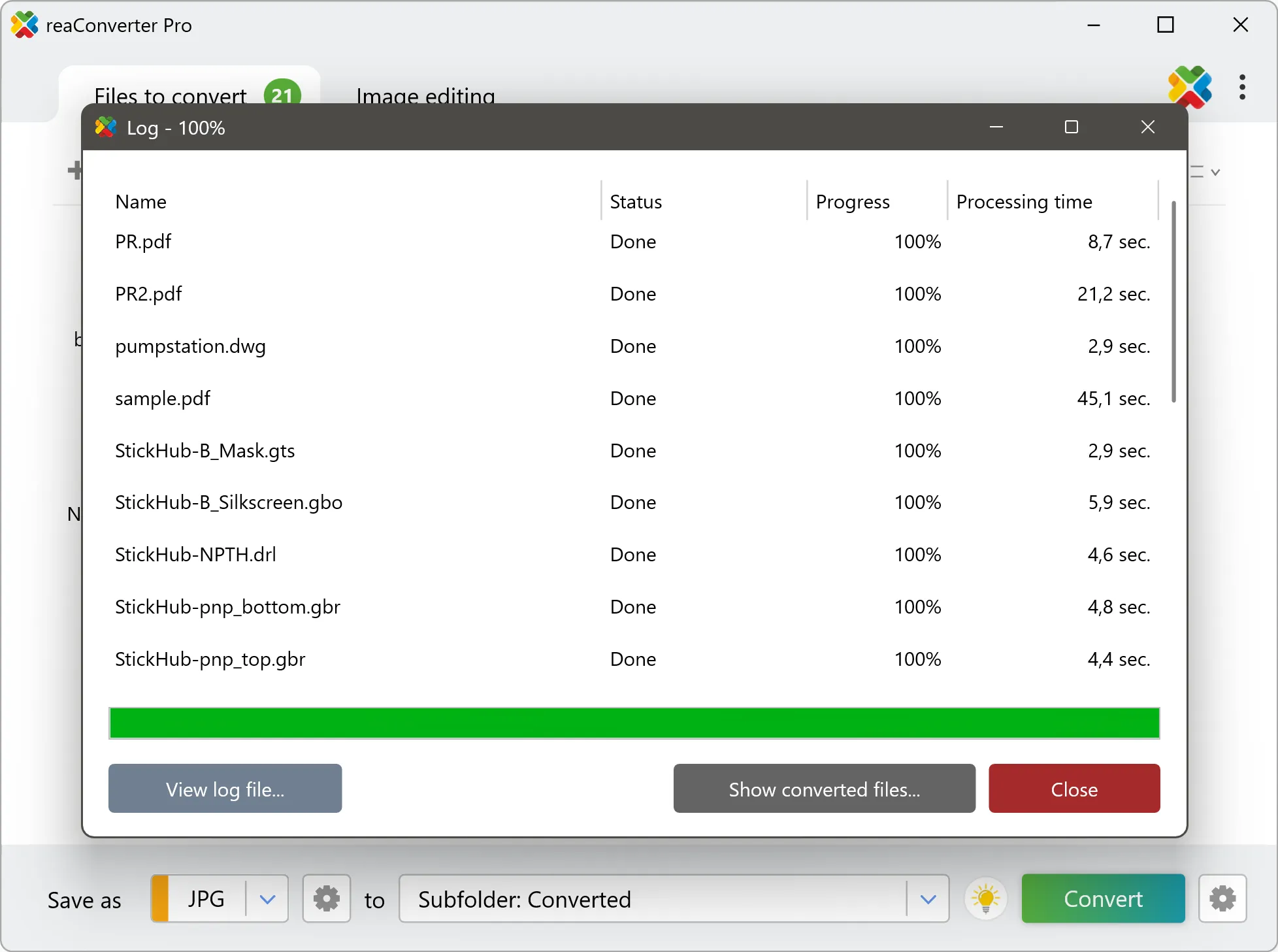
Once the conversion is complete, you can find your IGES files in the destination folder you selected.
What changes when you convert DWG to IGES
DWG and IGES both store drawing entities rather than pixels, so lines, arcs, and text come across as editable geometry. What can be left behind are objects that belong to a specific application, such as proxy entities written by a vertical CAD product. Open the result and check those areas before passing it on. One DWG file can hold several pages or frames, while IGES holds one image each. reaConverter writes a separate output file per page and numbers them, so a single input can produce a whole folder of results.