

How to Convert Multiple WEBP Images to AVIF?
1. Download and Install reaConverter Lite
reaConverter Lite is quick to download, easy to install, and ready to launch in seconds. This lightweight, standalone software is highly efficient at handling a wide range of batch image conversions. Plus, it lets you apply essential image editing options — such as resizing, rotating, or adjusting quality — during the conversion process.

2. Load your WEBP files
Open reaConverter and add your WEBP files. You can load individual files, entire folders, or even nested subfolders.
Drop your WEBP files into the window or use File menu to browse and select folders.
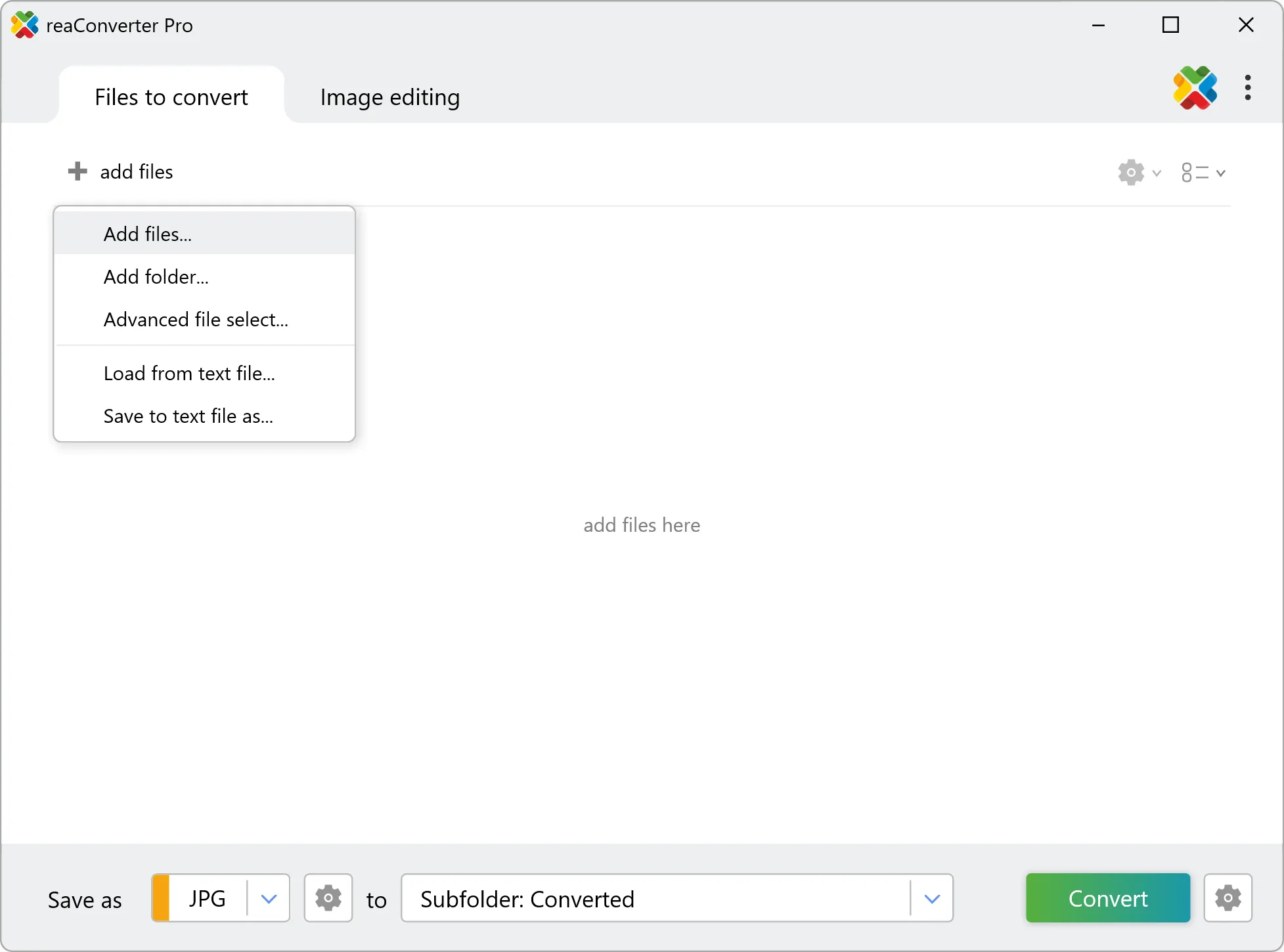
3. Select AVIF as output format
Choose AVIF as the target format. Pick a destination folder or let reaConverter save files alongside the originals.

4. Start WEBP to AVIF conversion
Hit Convert and let reaConverter do the work. The progress window shows status for each file in real time.
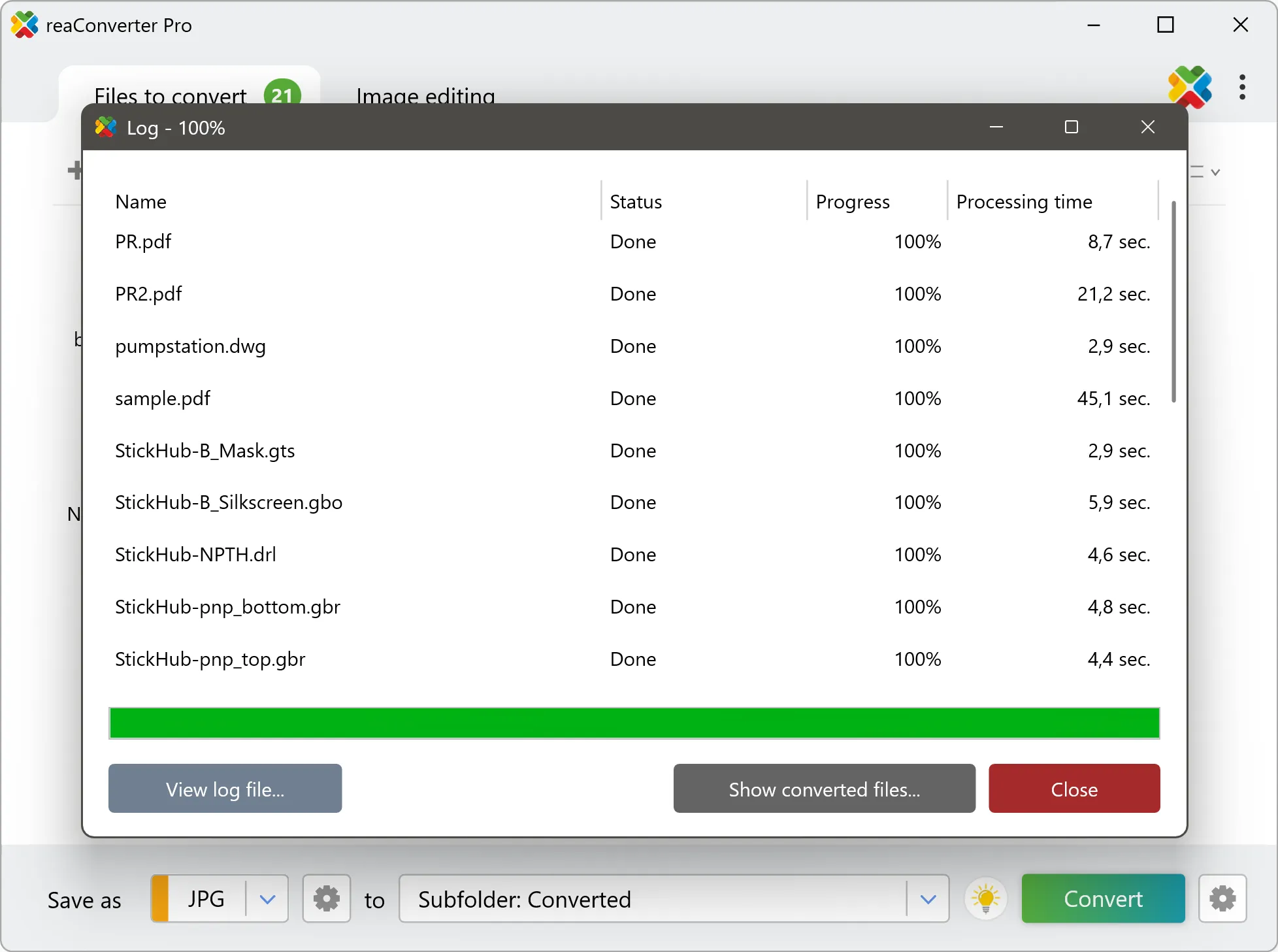
After conversion, find your AVIF files in the output folder. Click 'Show converted files' to open it directly.
How WEBP and AVIF differ in practice
WEBP and AVIF both compress by discarding data, so this is a re-encode rather than a copy. The output is built from already-compressed pixels, and the artefacts of the first encode are carried into the second. Use a high quality setting, and convert from the original whenever you still have it.