

How to Convert Multiple TIFF Images to SVG?
1. Download and Install reaConverter
Download reaConverter and install it in seconds. The setup is straightforward — no complex configuration, no extra software required. Built-in editing tools let you resize, crop, or watermark as you convert.

2. Load your TIFF files
Add TIFF files to reaConverter. One file or a thousand, the process is the same. Everything runs locally on your machine.
You can drag-and-drop files, browse to a folder, or add entire directory trees including subfolders.
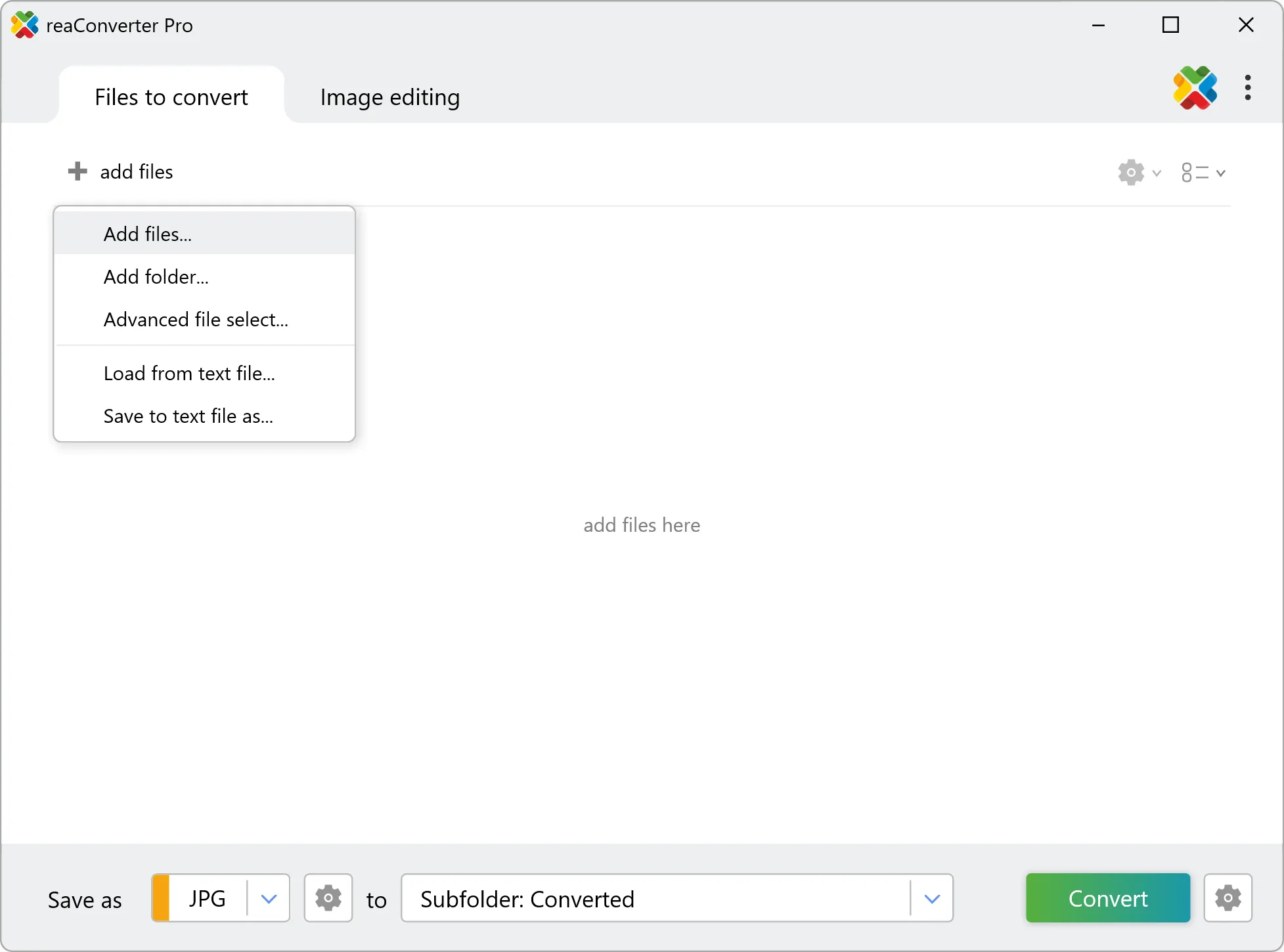
3. Select SVG as output format
Set SVG as output format and select where to save your converted files. Customize quality settings if needed.

4. Start TIFF to SVG conversion
Click the Convert button to start. reaConverter will process all your files with the settings you selected.
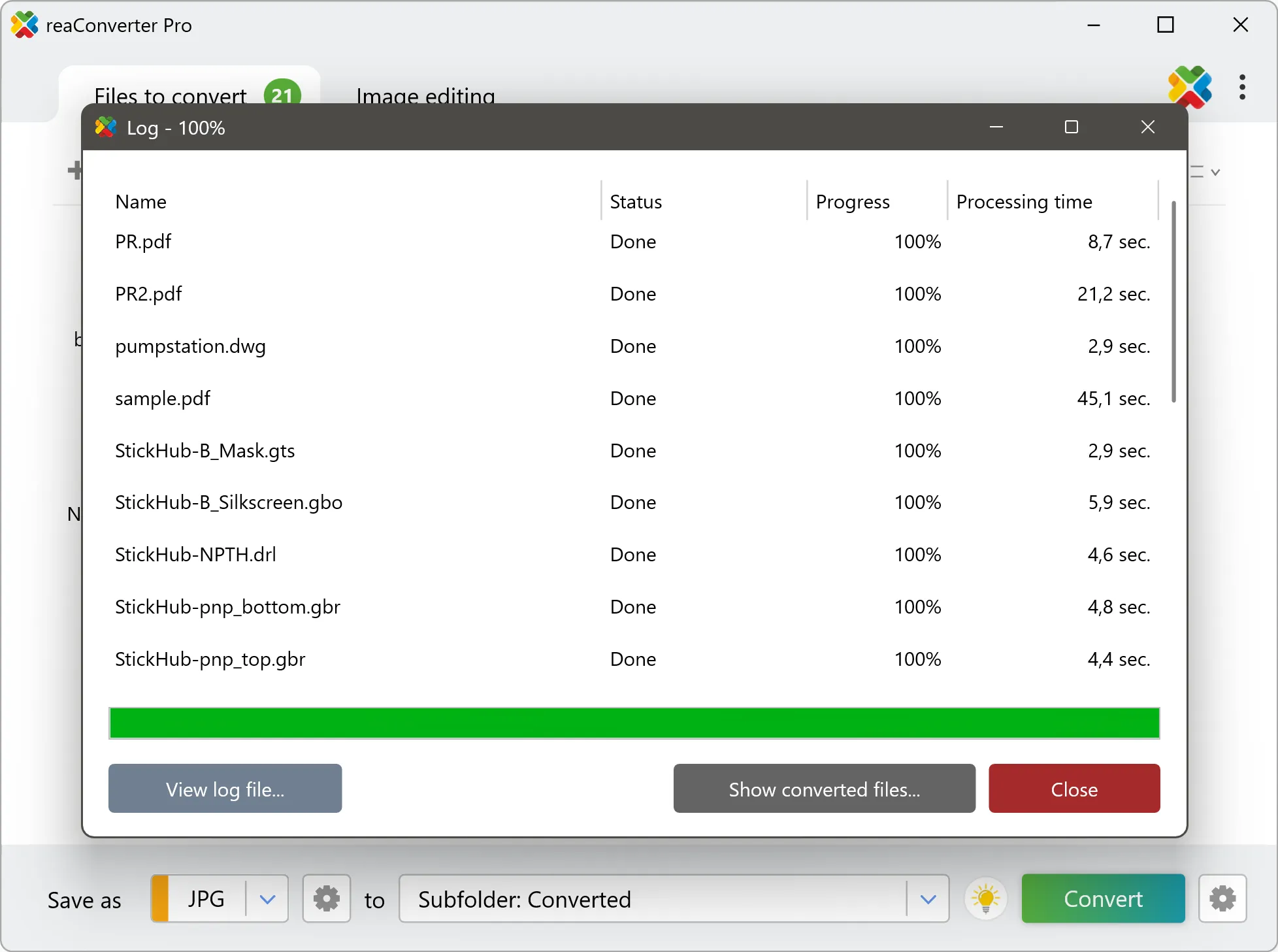
When finished, your new .svg files will be waiting in the destination folder.
TIFF to SVG: what carries over and what does not
TIFF is made of pixels and SVG is a geometry format, so the two describe images in fundamentally different ways. Check the result before sending it downstream: what matters is whether the output contains editable geometry or a picture placed inside a SVG container, and that determines whether a CAD or design tool can work with it. One TIFF file can hold several pages or frames, while SVG holds one image each. reaConverter writes a separate output file per page and numbers them, so a single input can produce a whole folder of results.