


How to Convert Multiple RW2 Images to PDF?
1. Download and Install reaConverter
Download reaConverter and install it in seconds. The setup is straightforward — no complex configuration, no extra software required. Built-in editing tools let you resize, crop, or watermark as you convert.

2. Load your RW2 files
Start reaConverter and add your .rw2 files. The software processes everything locally, so your files never leave your computer.
Add files by dragging them in, browsing folders, or using the right-click menu from Windows Explorer.

3. Select PDF as output format
Select PDF from the format list. Configure page selection and output quality for your PDF files.
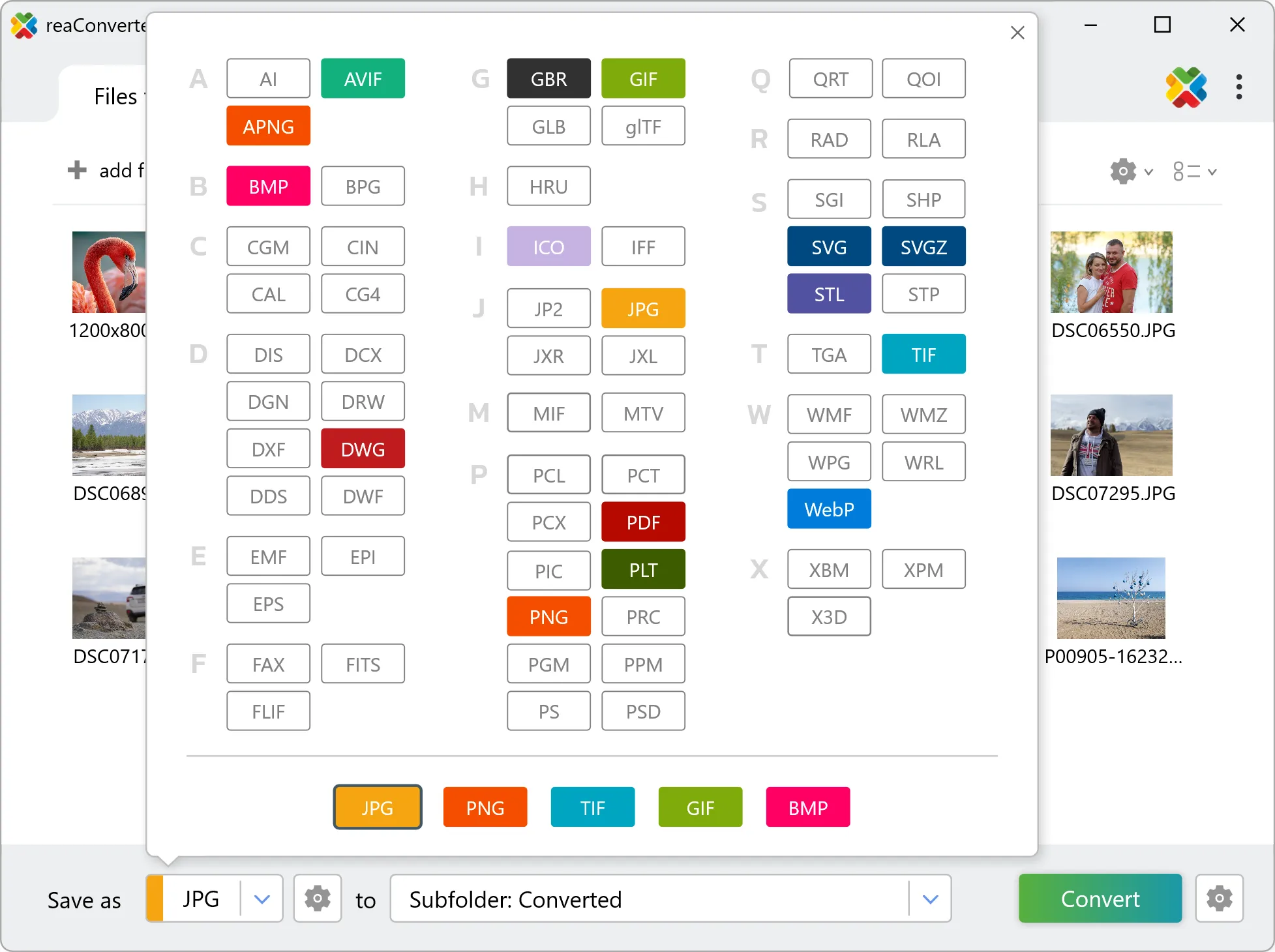
4. Start RW2 to PDF conversion
Then simply press the Convert button and your conversion will begin in no time!

Once the conversion is complete, you can find your PDF files in the destination folder you selected.
Before you convert RW2 to PDF
RW2 files hold unprocessed sensor data, so white balance and exposure are still adjustable. Converting to PDF bakes those decisions into the pixels, and highlight recovery is no longer available afterwards. Set white balance and exposure before the run rather than after. PDF is a page format, so each RW2 image is placed on a page rather than converted into something else. Two settings decide how the result looks: the DPI, which fixes how large the image sits on the page, and whether a batch becomes one file per image or a single merged document. reaConverter can do either.