FAQ
HP to PNG Conversion
What are HP files?
HPGL (.hp) File Format, short for Hewlett-Packard Graphics Language, is a file format and language used primarily for plotter and vector-based printing devices. Files with the .hp or .hpgl extension are typically plain text instructions that describe how a plotter should draw lines, curves, and text on a physical medium like paper or film.
What are PNG files?
The PNG (Portable Network Graphics) file format was designed in the mid-1990s as an improved alternative to the previously existing JPG and GIF formats, and as an extension which would be particularly web-friendly. In time, PNG files have gained a wide popularity and are highly appreciated at the moment for their ability to provide a lossless compression of images, which translates in high-quality and detailed renderings.
Can reaConverter convert HP to PNG?
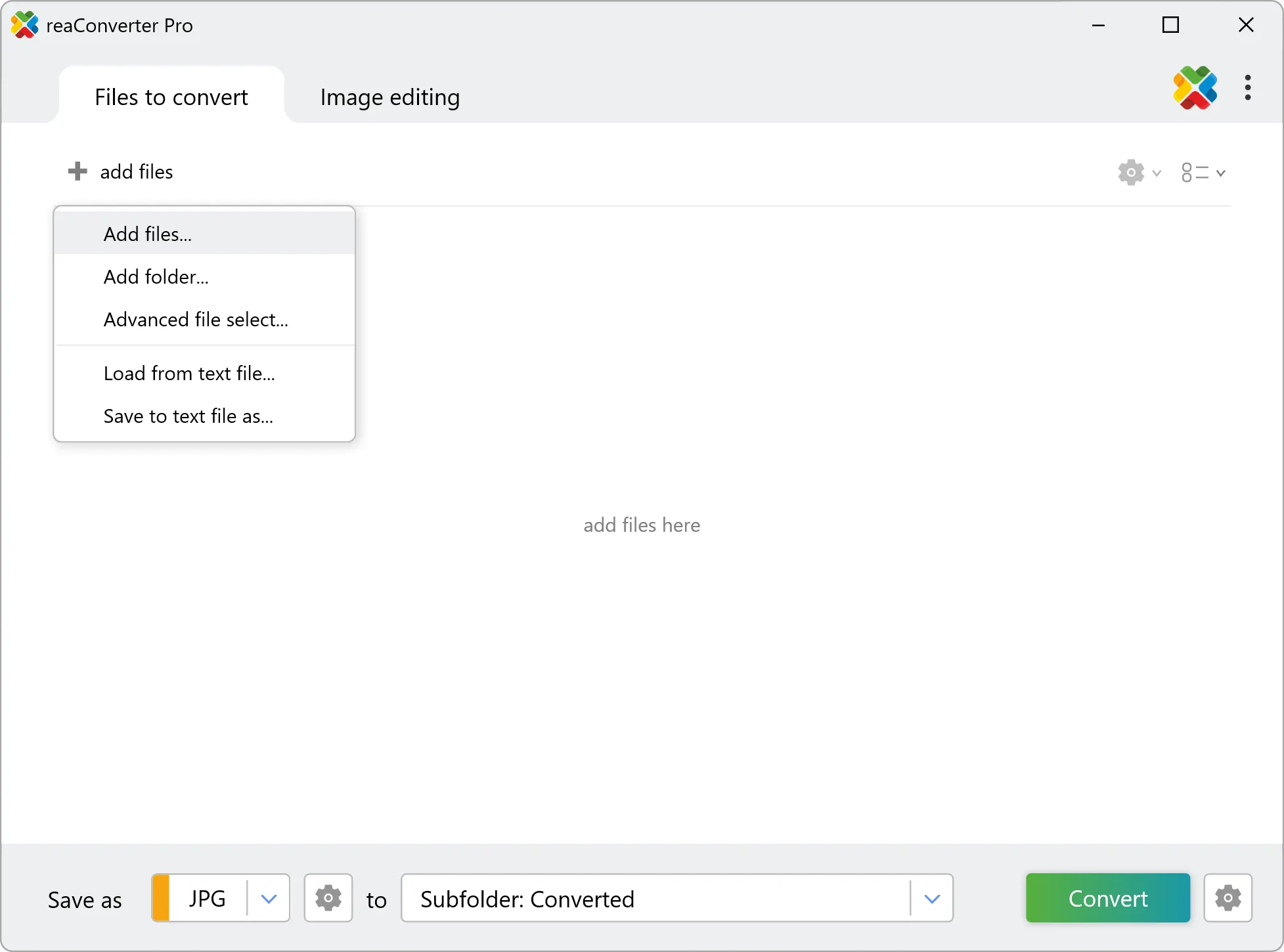
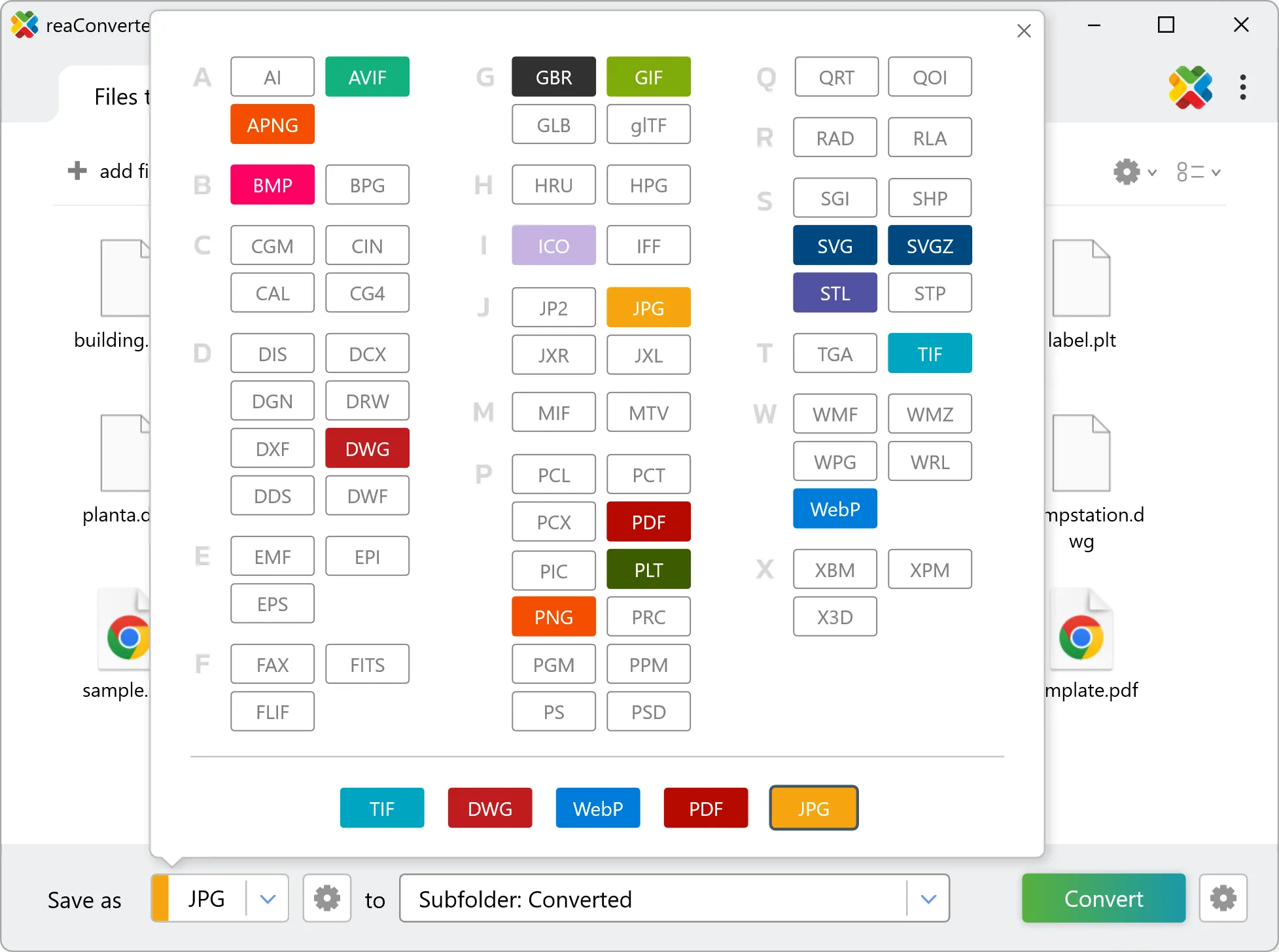
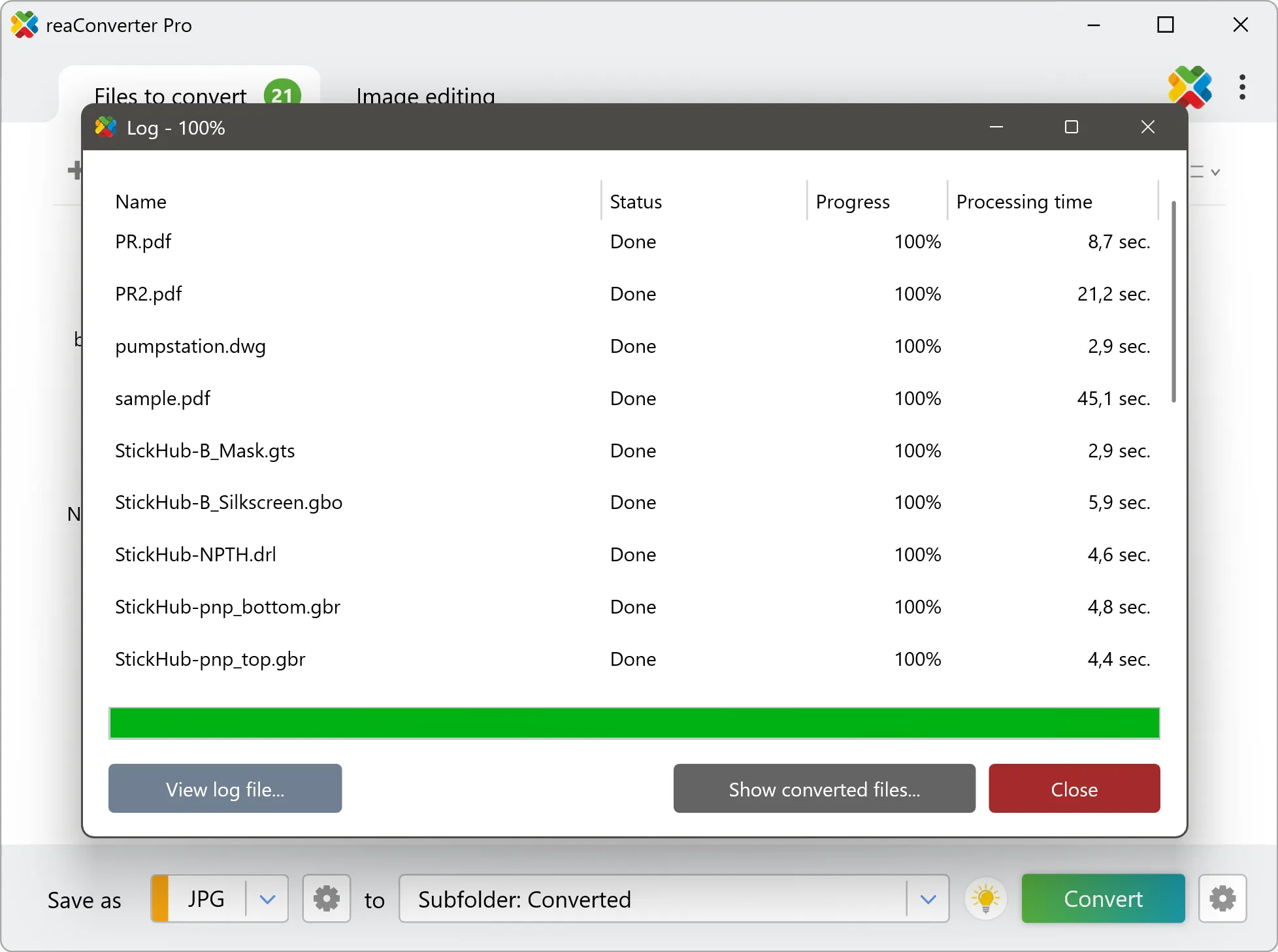
Yes! reaConverter instantly converts .hp to .png with perfect quality preservation. With its batch processing feature, you can convert multiple files at once in just a few clicks. You can even convert images directly from Windows Explorer using the right-click menu — fast and convenient.
Can I convert HP to PNG online?
If you only need to convert a few HP files to PNG format, feel free to try our free online free online HP to PNG converter — perfect for small batches with no installation needed!
How can I turn HP files into PNG on my computer?
The best way to change HPs to PNGs on your PC is to install a quality piece of software, such as reaConverter. This software is extremely efficient in managing a wide range of batch files conversions, including conversion from HP to PNG.
How can I automate HP to PNG files conversion?
reaConverter supports all the most useful automation features such as right-click сonversion and Watch Folders for the most efficient automated files conversion in any software of this type.
Is there a way to convert HP files to PNG using the command prompt?
reaConverter provides full access to all its features via Windows command line, including a high-performance command-line hp to png converter for batch processing.
What else can I do with reaConverter?
Convert vector filesChange image DPIConvert PDF filesWatermark photoChange format settings
Related conversions
Other ways to convert HP files, and other sources that convert to PNG.