

How to Convert Multiple JIG Files to DWG?
1. Download and Install reaConverter
reaConverter installs quickly on any Windows PC. No dependencies, no bloatware — just a clean setup that's ready to use immediately.

2. Load your JIG files
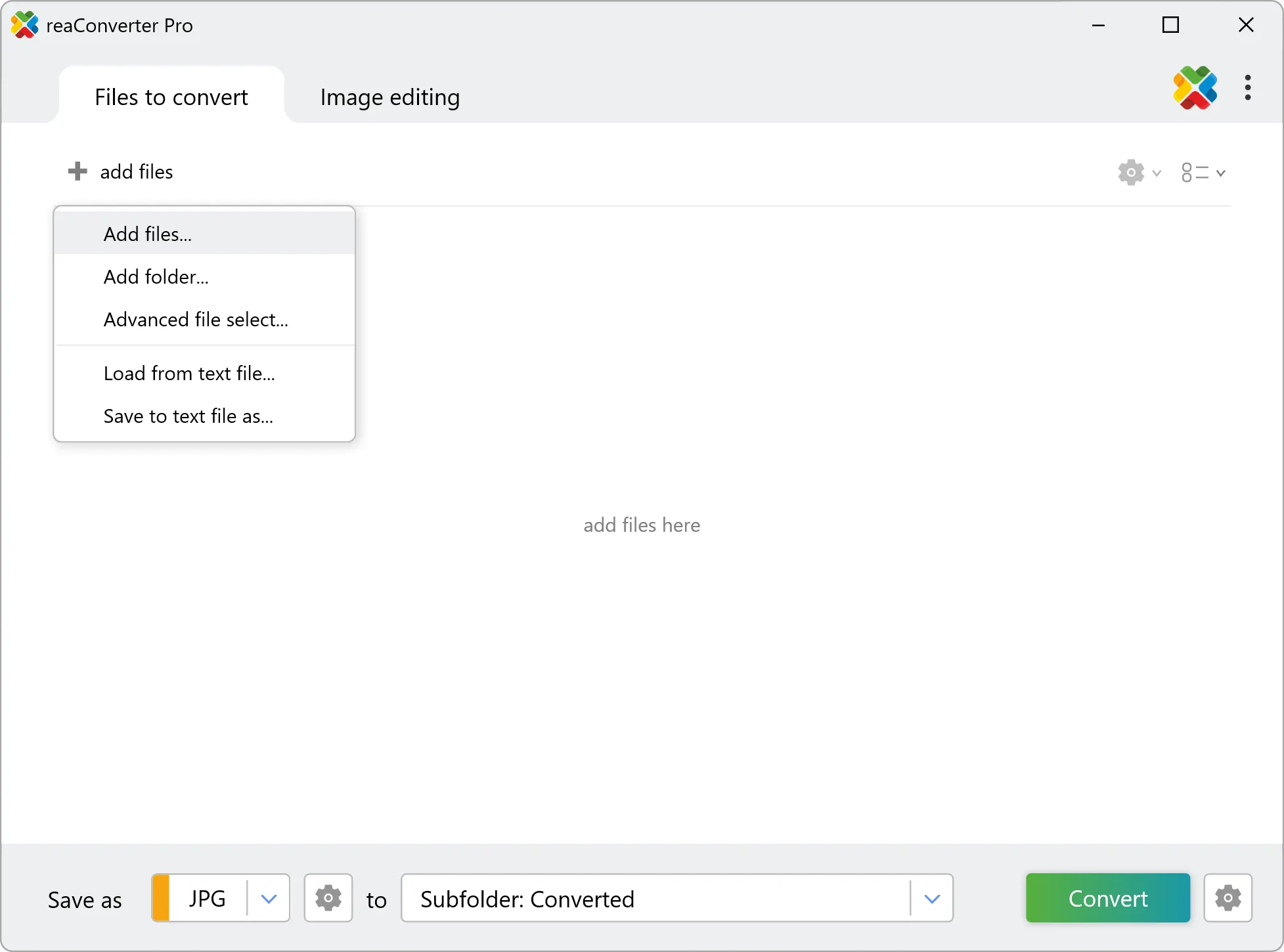
Open reaConverter and add your JIG files. You can load individual files, entire folders, or even nested subfolders.
Select JIGs from a folder or drag-and-drop them directly into the reaConverter window.
3. Select DWG as output format
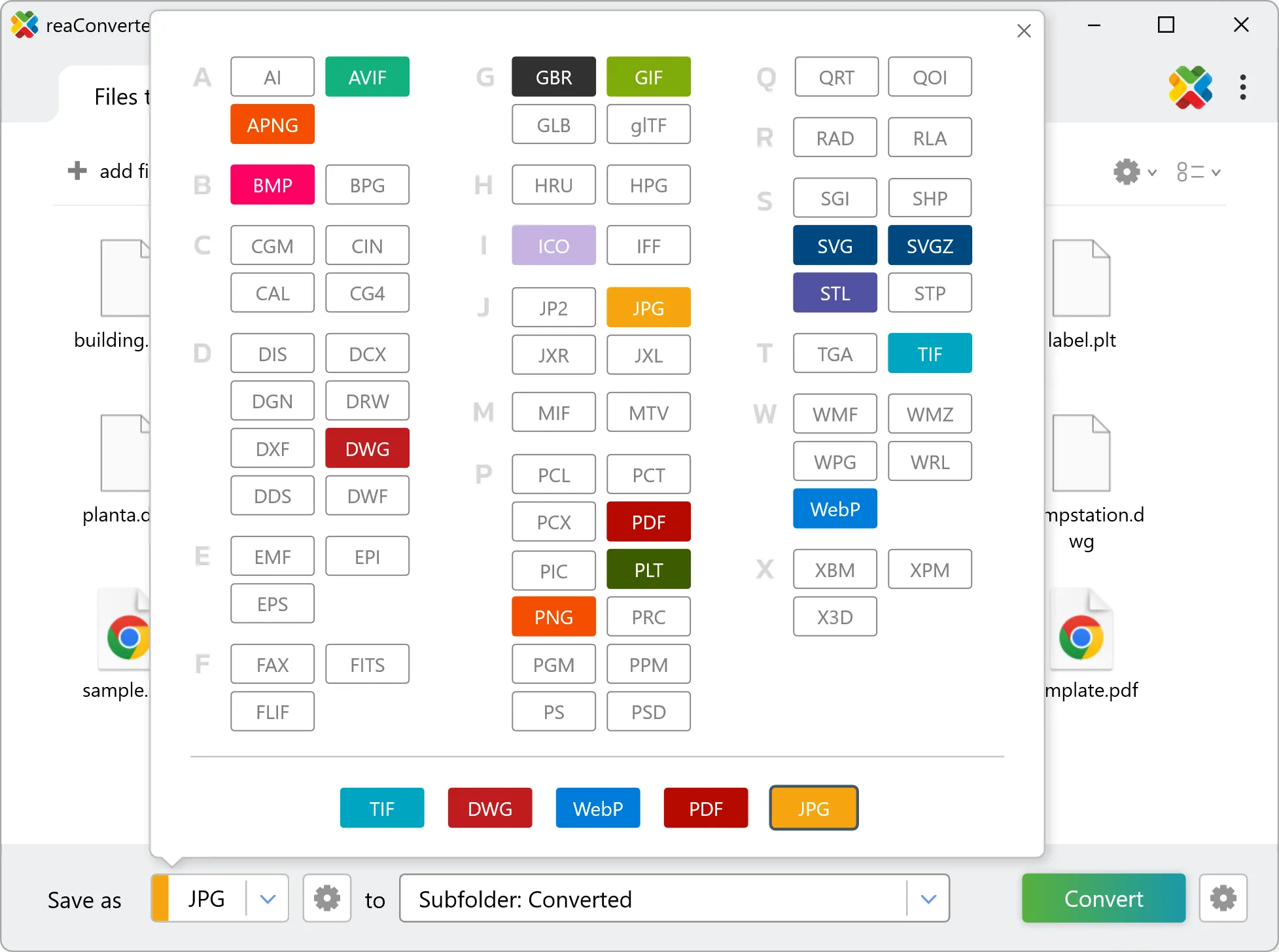
Pick DWG as output format and choose the destination folder where you want to save new .dwg files.
4. Start JIG to DWG conversion
Press the Convert button and reaConverter takes care of the rest. Processing time depends on file size and volume.
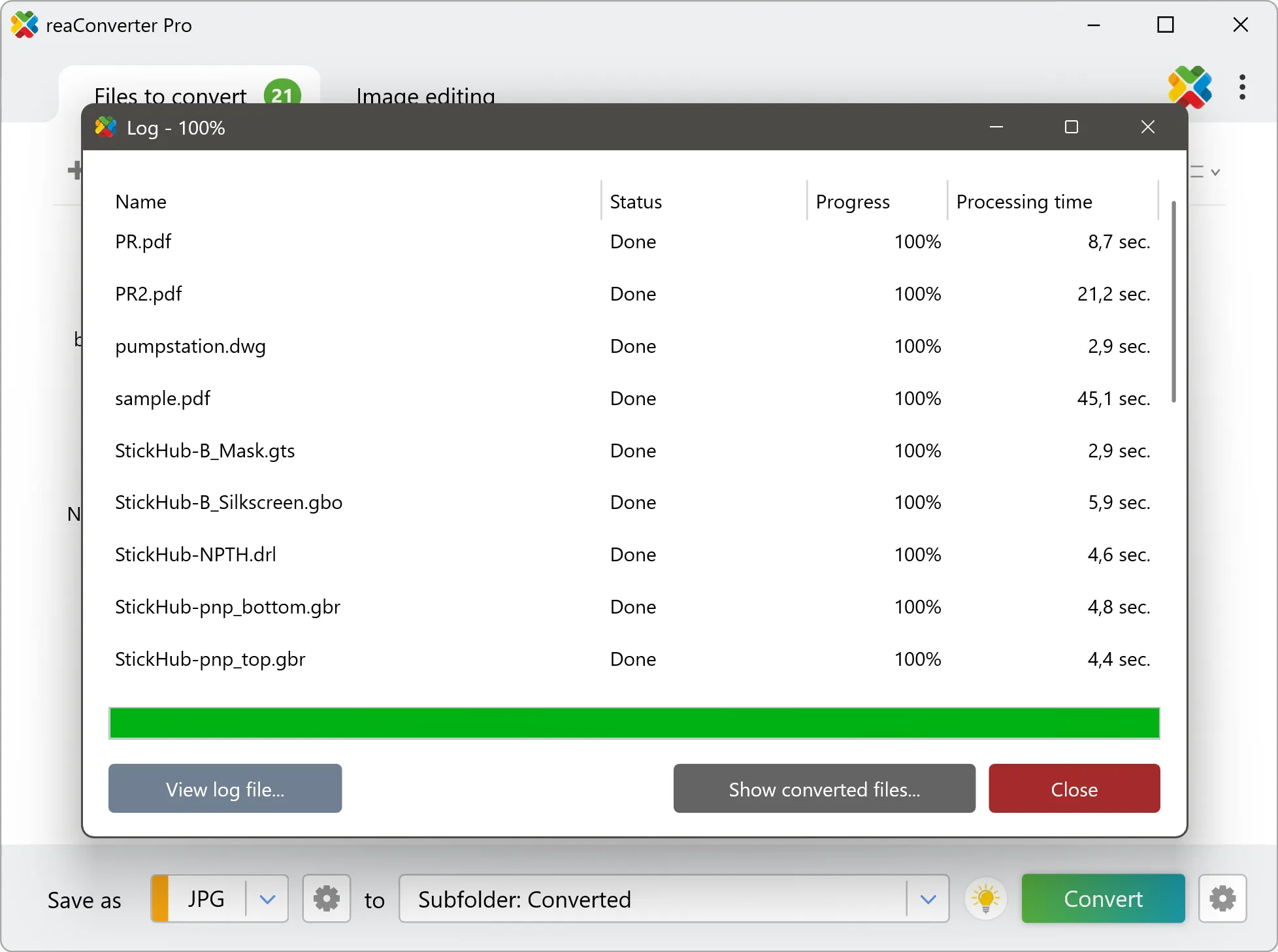
After processing, find all your new .dwg files in the output location. The log shows details for each conversion.