FAQ
KDC to JPG Conversion
What are KDC files?
KDC is a RAW image format associated with several models of Kodak cameras and is sometimes referred to as the "Kodak Photogen" format. Despite their very large size, RAW images are often preferred by professional photographers because they allow obtaining the highest degree of image quality by storing a much larger amount of details than other compressed formats, such as JPEG. RAW images can be edited to increase brightness, correct white balance, overexposure or underexposure, and generally offer a better image quality for print.
What are JPG files?
JPG is one of the most popular image file formats currently in use, often referred to as a standard for uploading images online and for displaying photographs. One of its main advantages is providing a good image quality in a relatively small file size, which is easy to store and transfer. JPG uses a type of compression that prioritizes the quality of some image sections over others, thus assuring that most favorable quality/size ratio.
Can reaConverter convert KDC to JPG?
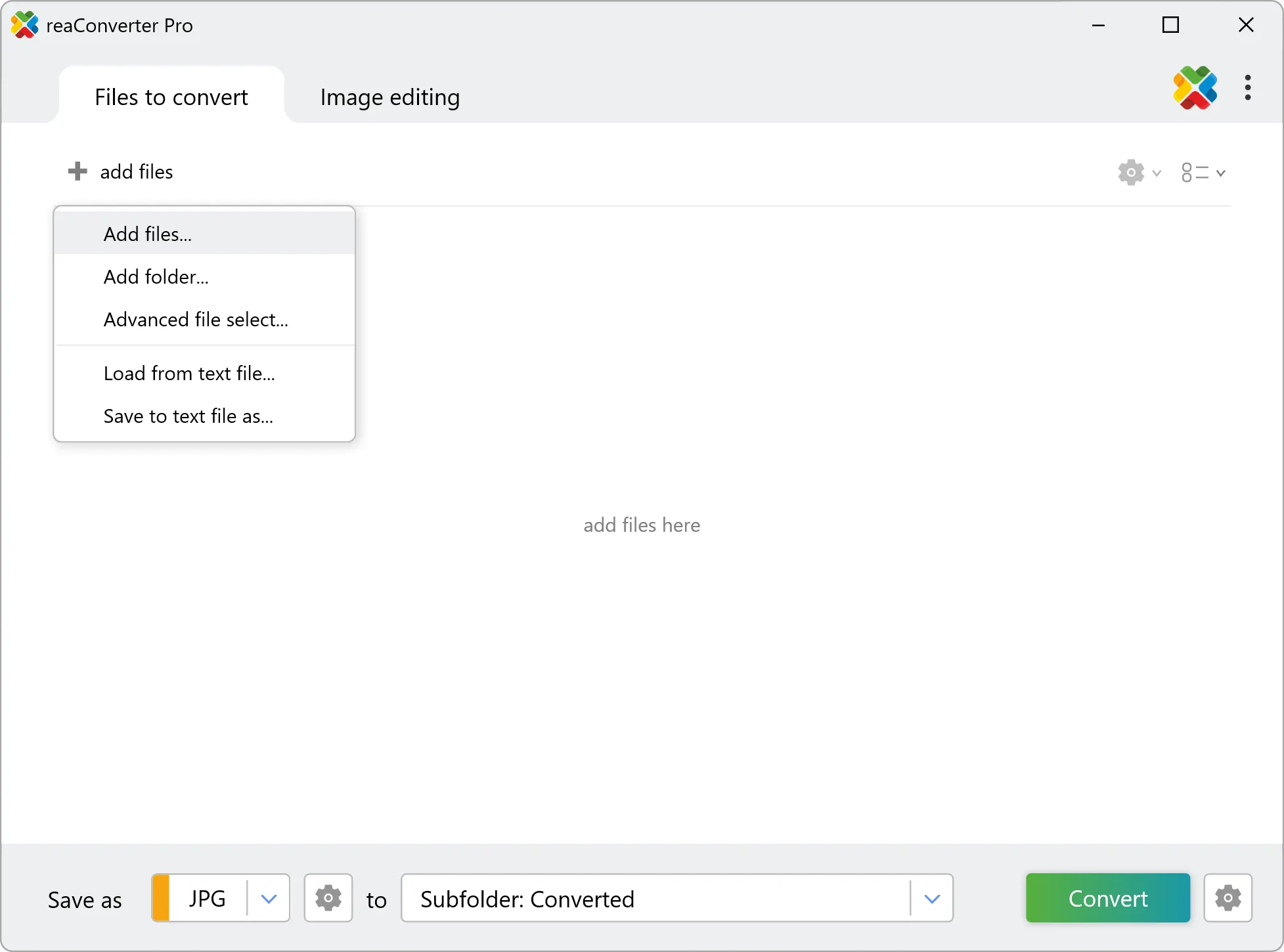
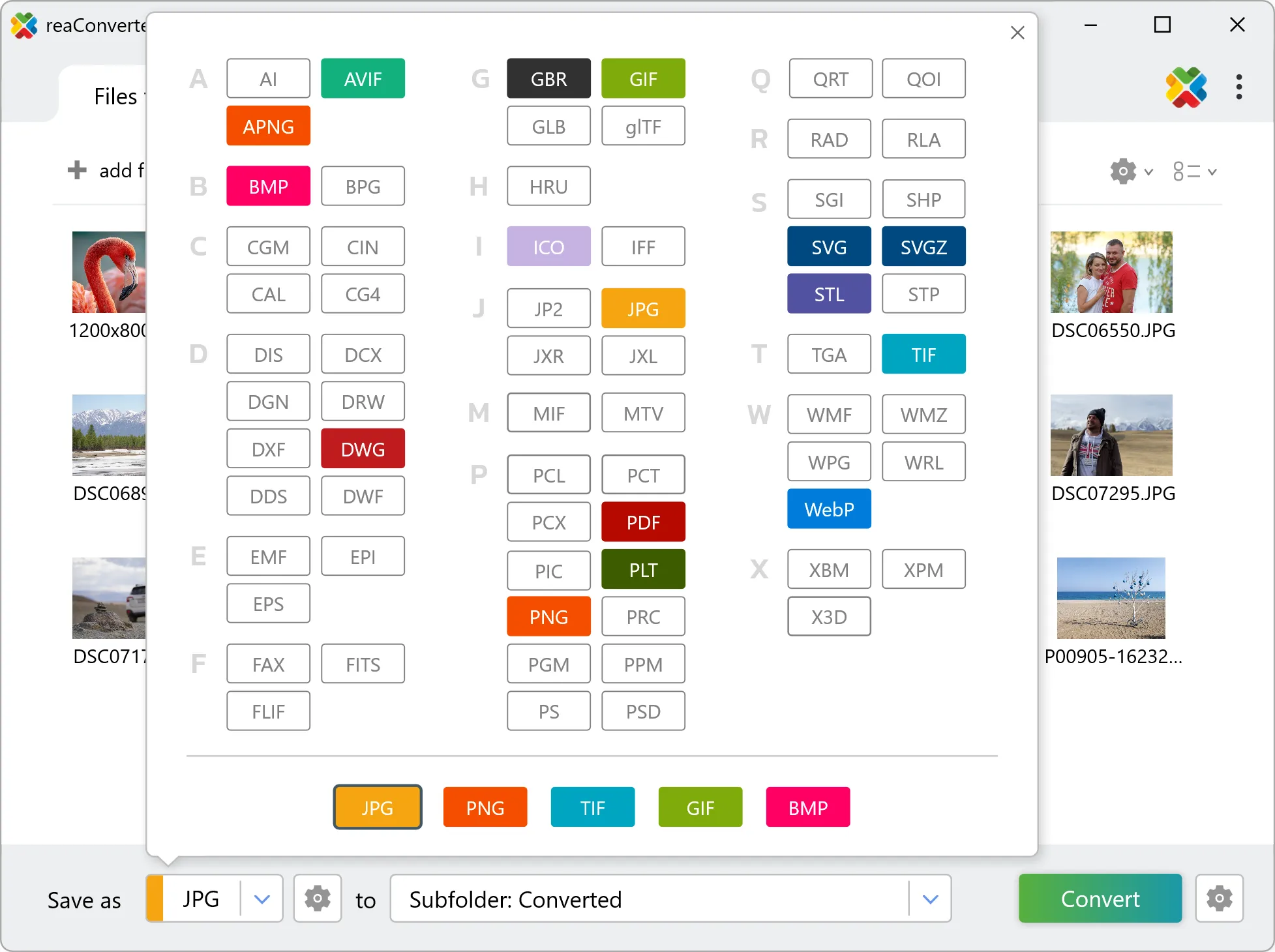
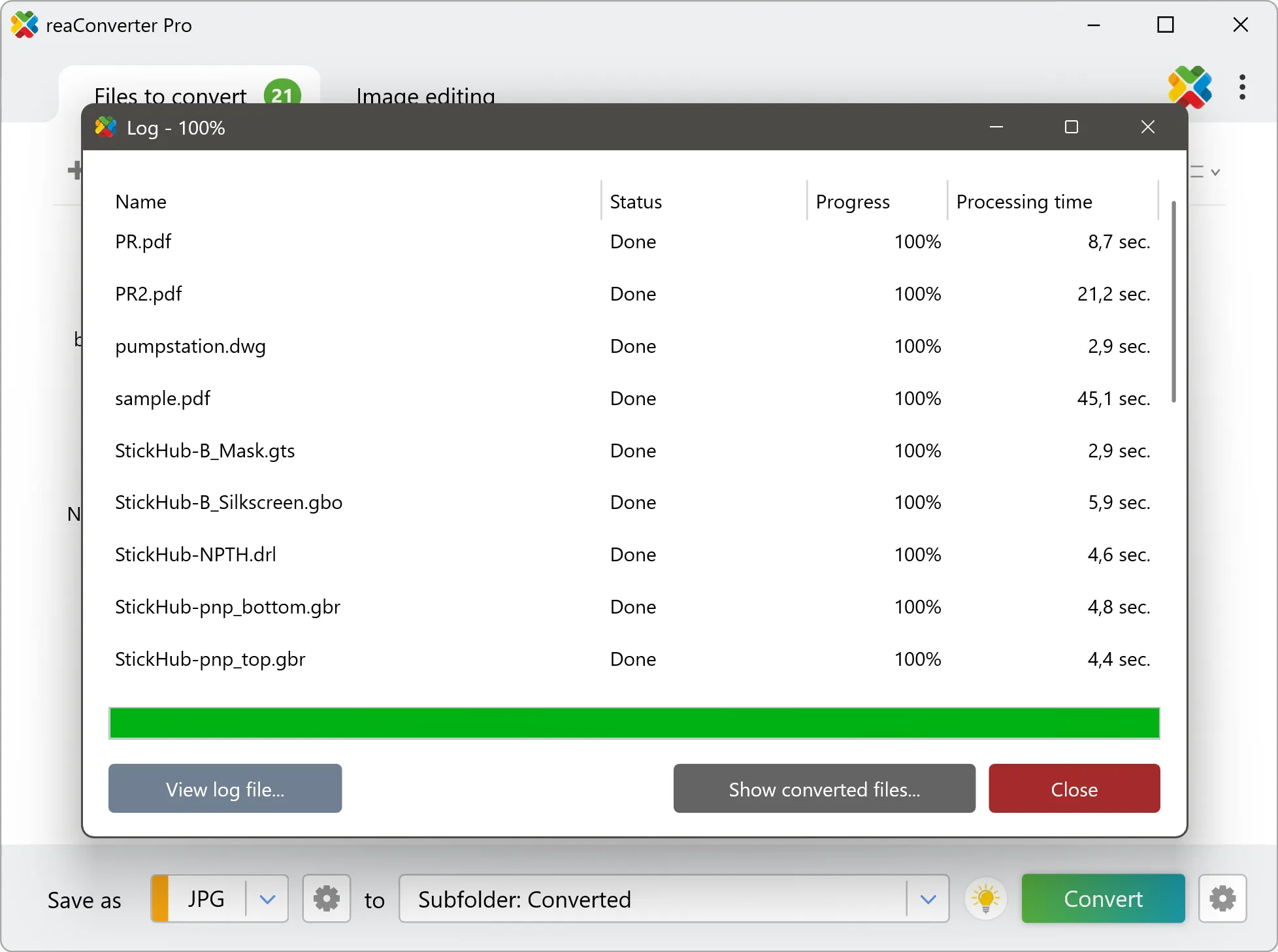
Yes! reaConverter instantly converts .kdc to .jpg with perfect quality preservation. With its batch processing feature, you can convert multiple files at once in just a few clicks. You can even convert images directly from Windows Explorer using the right-click menu — fast and convenient.
What is reaConverter used for?
reaConverter is a software program used for converting images and other types of files from one format to another. It supports a wide range of file formats and allows users to convert multiple files at once, making it a valuable tool for graphic designers, photographers, and other professionals who work with digital images. reaConverter also includes features for resizing, cropping, and editing images, along with batch processing capabilities that help automate repetitive tasks.
Can I convert KDC to JPG in my browser?
Yes — with our free web-based KDC to JPG converter, you can convert .kdc files instantly, right in your browser. No installation, no uploads — perfect for quick, local conversions.
How can I turn KDC files into JPG on my computer?
The best way to change KDCs to JPGs on your PC is to install a quality piece of software, such as reaConverter. This software is extremely efficient in managing a wide range of batch files conversions, including conversion from KDC to JPG.
How can I automate KDC to JPG files conversion?
reaConverter supports all the most useful automation features such as right-click сonversion and Watch Folders for the most efficient automated files conversion in any software of this type.
Is there a way to convert KDC files to JPG using the command prompt?
reaConverter provides full access to all its features via Windows command line, including a high-performance command-line kdc to jpg converter for batch processing.
What else can I do with reaConverter?
Convert vector filesChange image DPIConvert RAW photo formatsConvert DICOM filesCrop picture
Related conversions
Other ways to convert KDC files, and other sources that convert to JPG.