

How to Convert Multiple .qtl Files to .wmz?
1. Download and Install reaConverter
reaConverter is a standalone Windows app — download, install, and start converting QTL files in under two minutes.

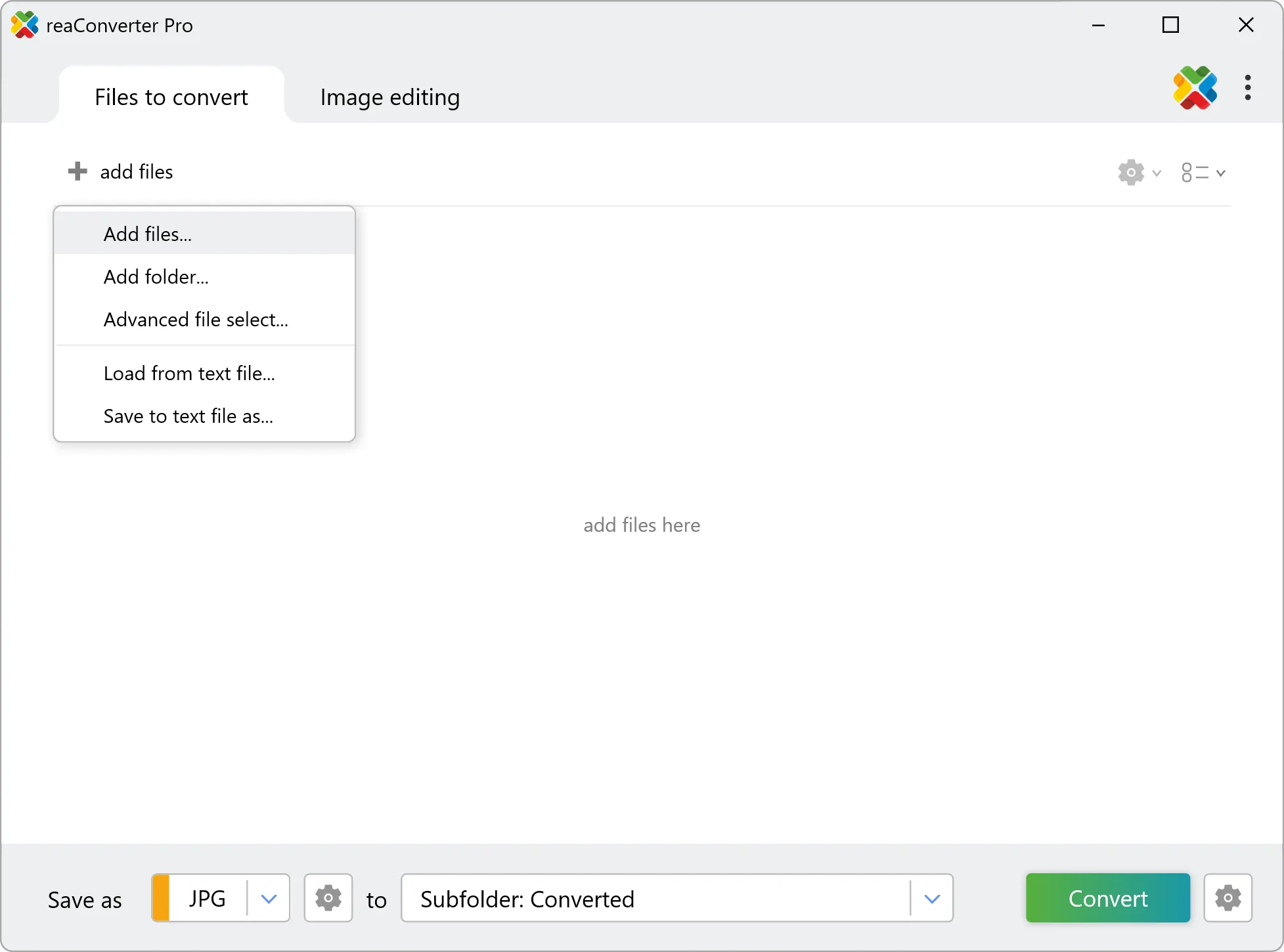
2. Load your QTL files
Add your QTL files to reaConverter. Whether it's a handful or an entire archive, the batch engine processes them efficiently.
Browse for files, drag them in, or add entire folders at once. reaConverter queues everything automatically.
3. Select WMZ as output format
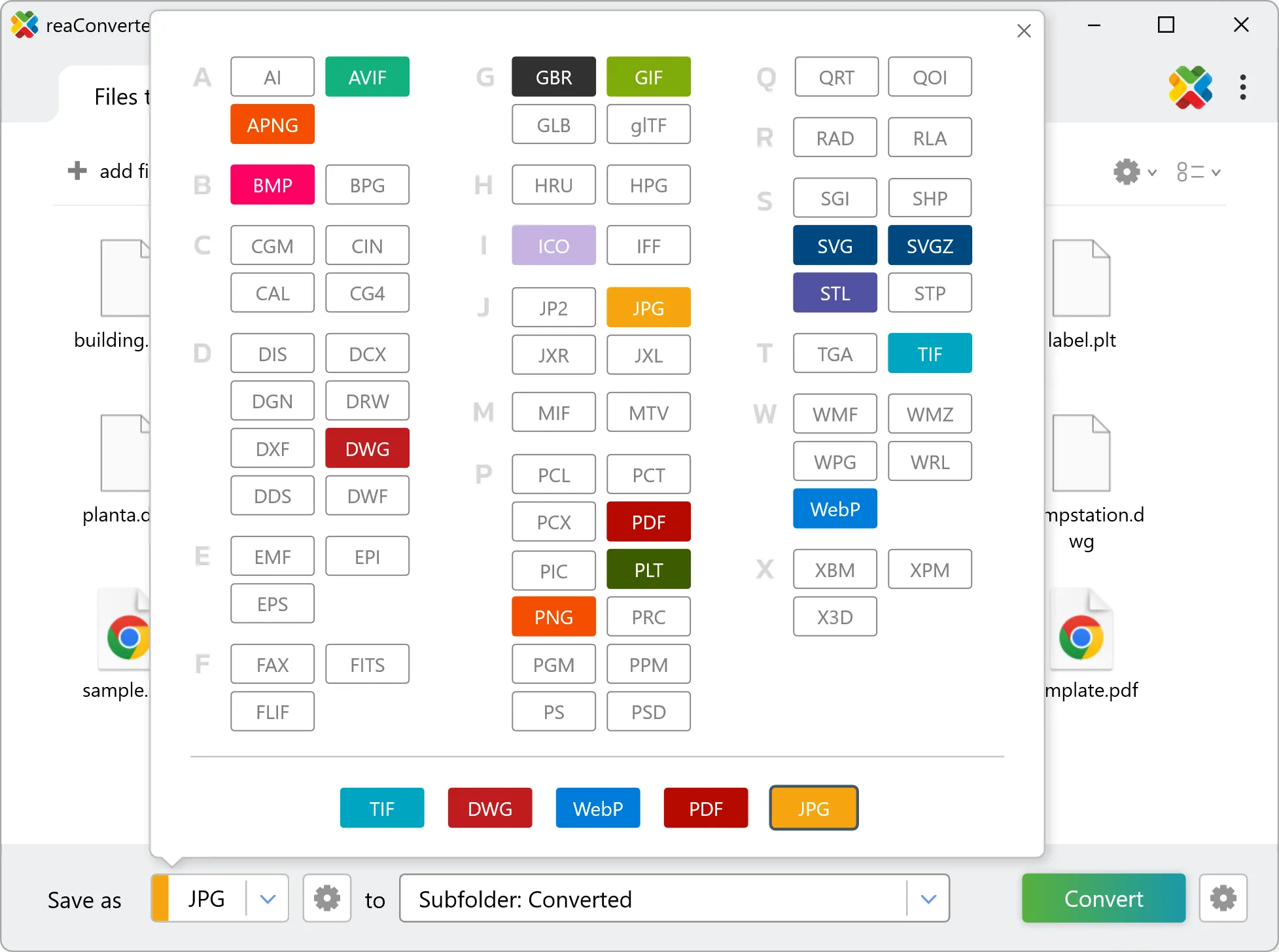
Pick WMZ as the output format. Set the destination folder and optionally configure resolution, quality, or file naming.
4. Start QTL to WMZ conversion
Start the conversion with one click. reaConverter handles everything and notifies you when it's done.
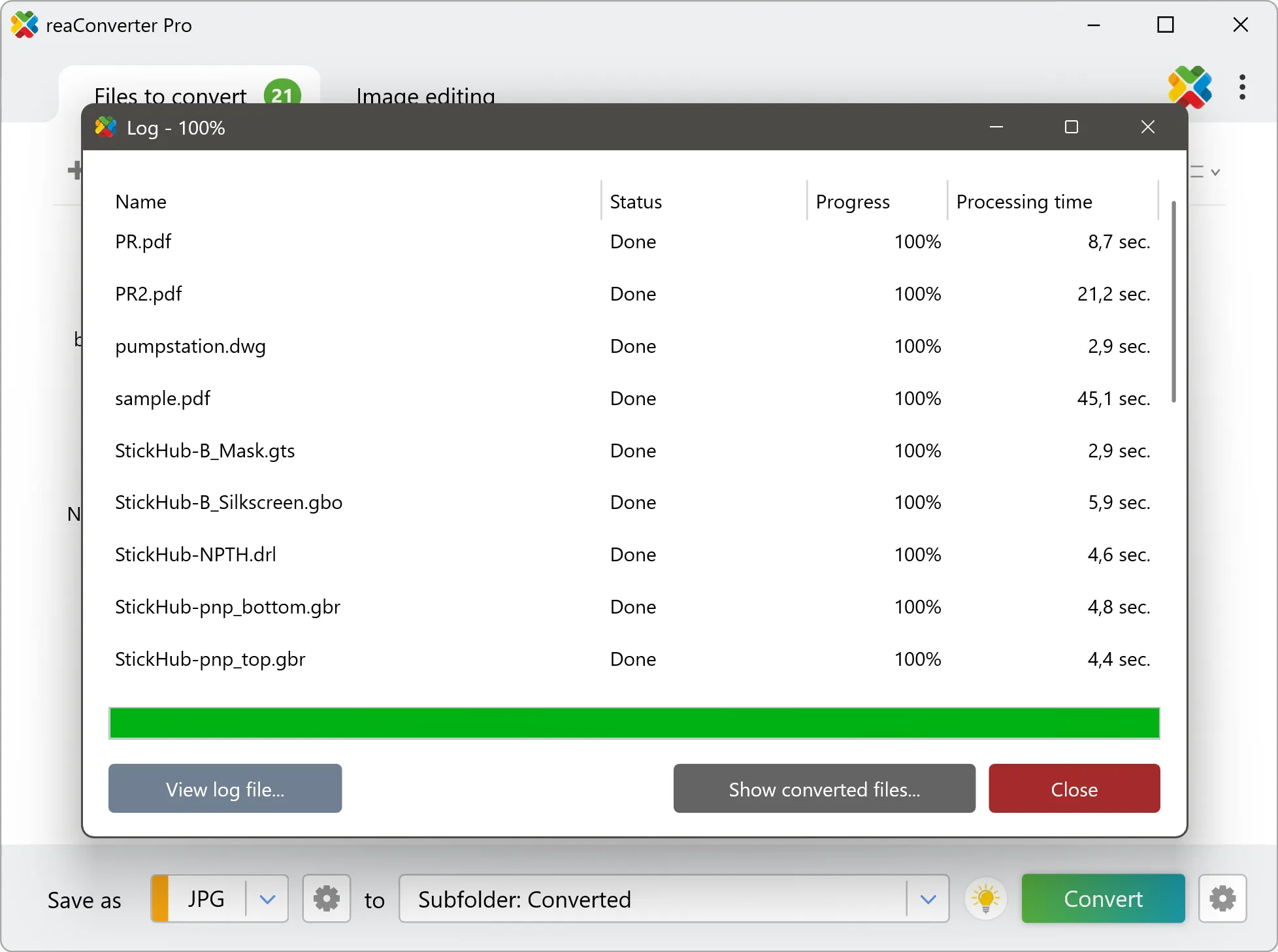
When the batch finishes, your WMZ files are ready in the destination folder you chose earlier.