FITS Contrast

How to Adjust FITS Image Contrast?
1. Add Your FITS Files
Open reaConverter and drag in one or more .fits files — commonly used in astronomy, scientific research, or thermal imaging.

2. Choose the Contrast Level
Go to Loading settings, select the FITS Contrast section, and choose one of the two options:
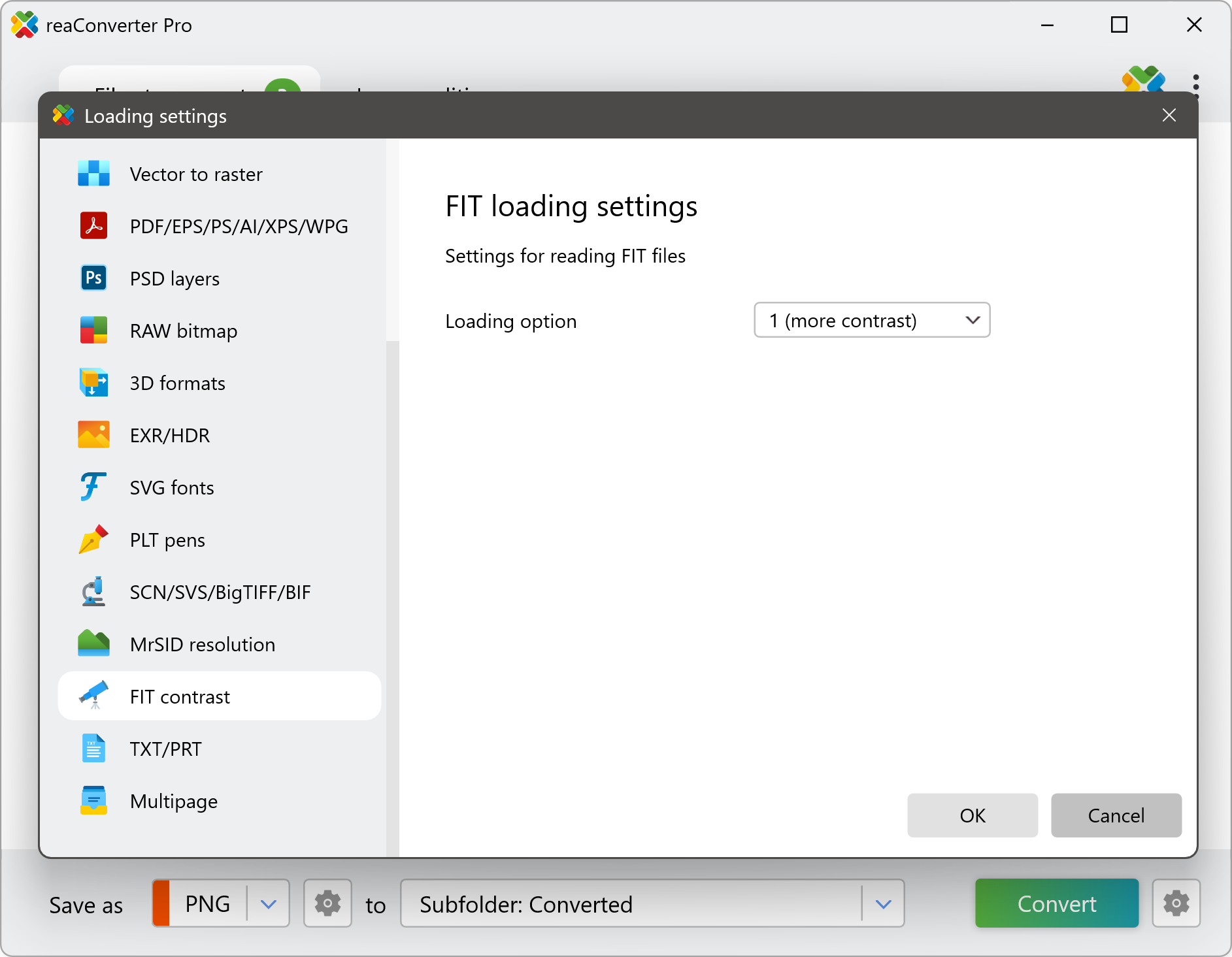
- More Contrast — highlights details and enhances brightness for better visibility of faint stars or structures.
- Less Contrast — softens brightness, reducing glare in high-dynamic-range images.
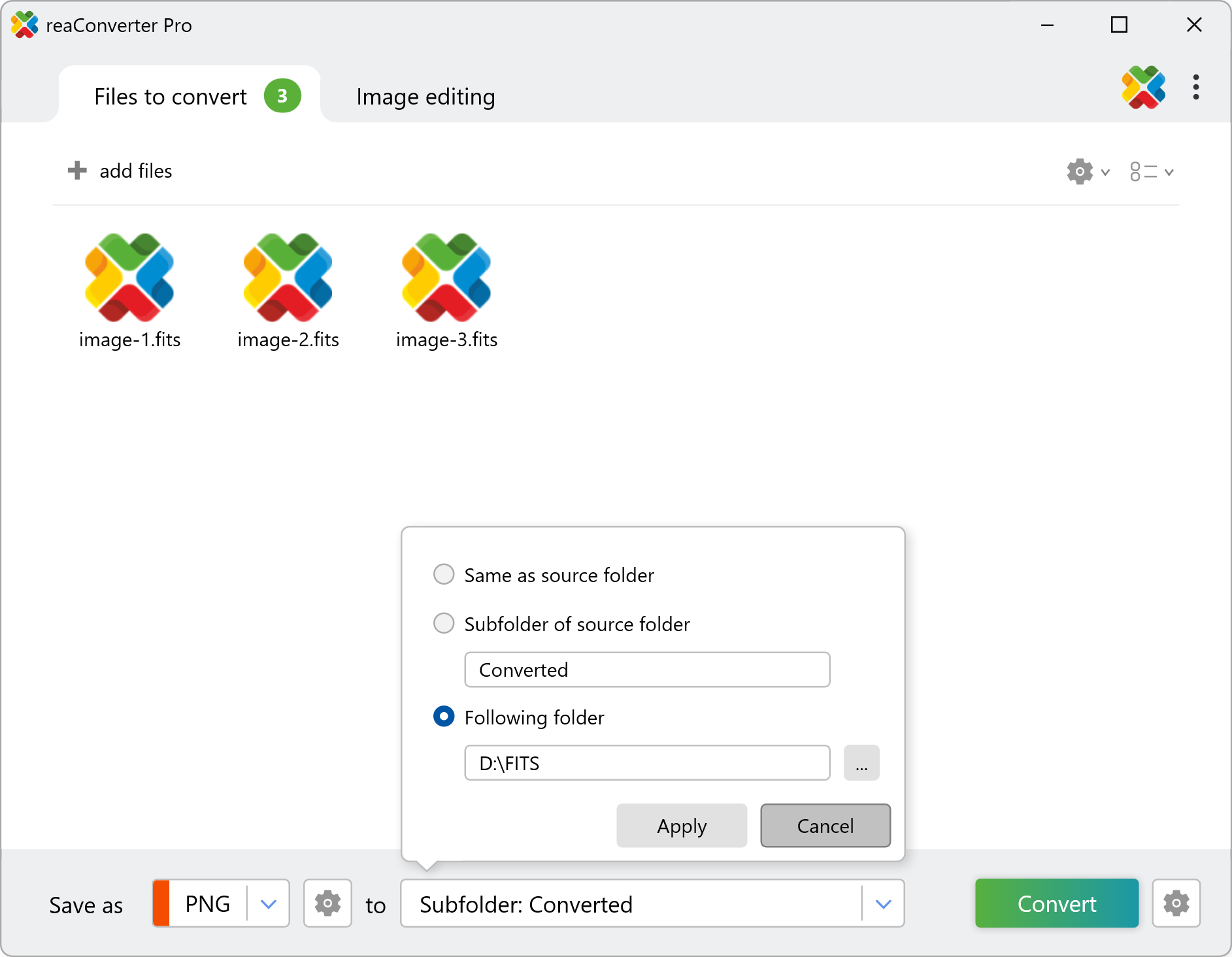
Watch How It Works
Convert FITS on Your PC
Load and process large batches of FITS images with your preferred contrast settings — quick, easy, and fully automated with reaConverter.
Command line
Convert FITS images with command-line tool
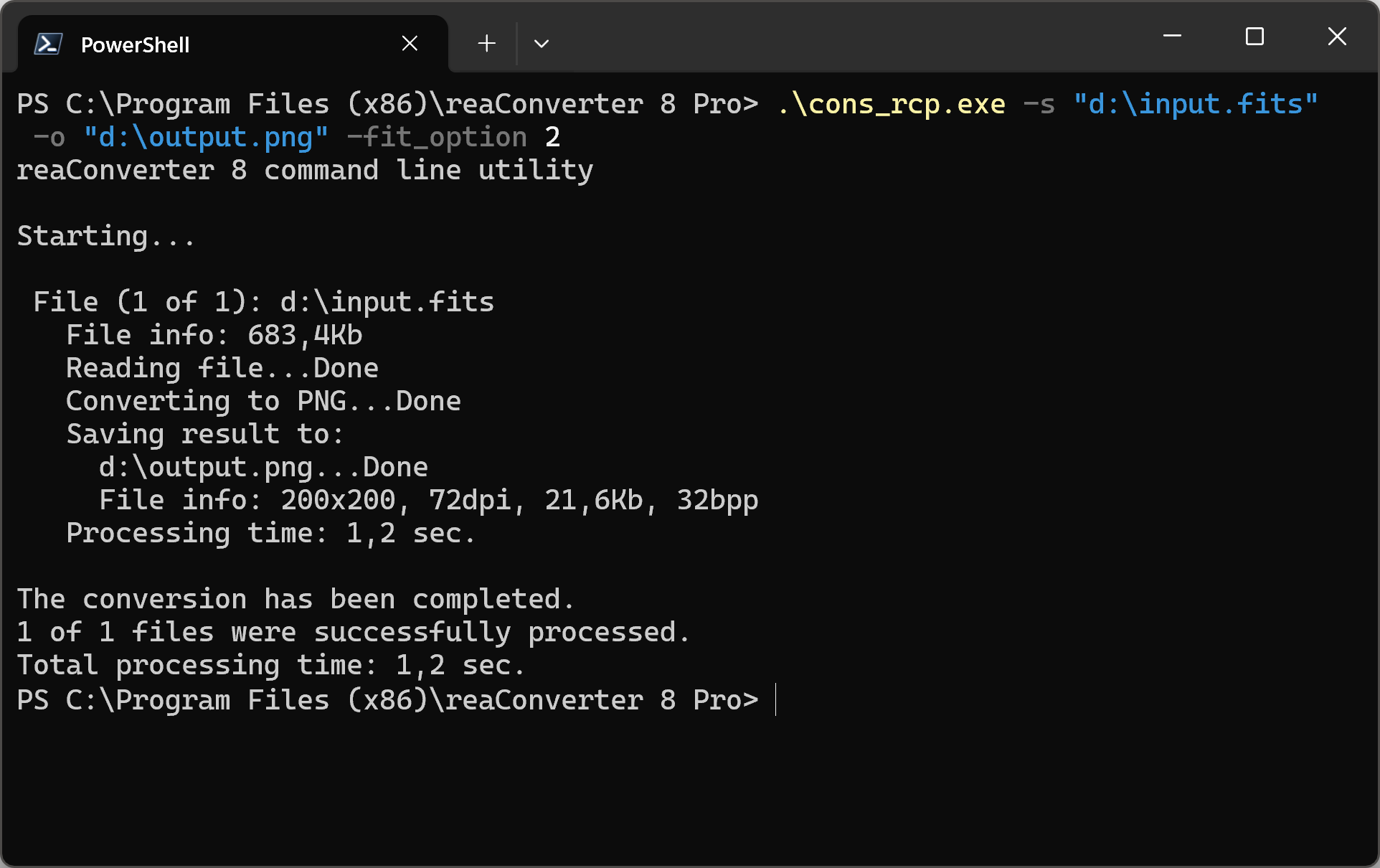
You can also convert .fit using command-line interface, either manually or through automated scripts. reaConverter Pro includes a command-line tool called cons_rcp.exe — an advanced feature designed for professional use, available exclusively in the Pro edition.
FIT to PNG conversion example:
cons_rcp.exe -s "C:\Path_to\input_file.fit" -o "C:\Path_to\output_file.png" -fit_option 2
Manual
-fit_option
  where value = option for loading FIT/FITS/FTS files (1 - hight contact or 2 - less contact)
You are welcome to contact our technical support when you have any questions about reaConverter.
Discover More
More than a converter
Advanced batch processing and editing for 800+ file formats, including CAD, medical imaging, and GIS. No cloud, no upload limits.