PST Format Loading Settings

How to Convert Outlook PST Files to PDF?
1. Open PST Files
Load one or more .pst files you want to convert. You can select them individually from your computer, import entire folders, or simply drag and drop them into the reaConverter workspace. Both the older ANSI and the modern Unicode PST variants are supported.

reaConverter reads the mailbox directly from the file. Microsoft Outlook does not need to be installed, and no Outlook process is launched at any point.
2. Set PST Loading Preferences
Click the Menu button, then go to Loading settings and select PST loading settings to access loading options for Outlook mailboxes.
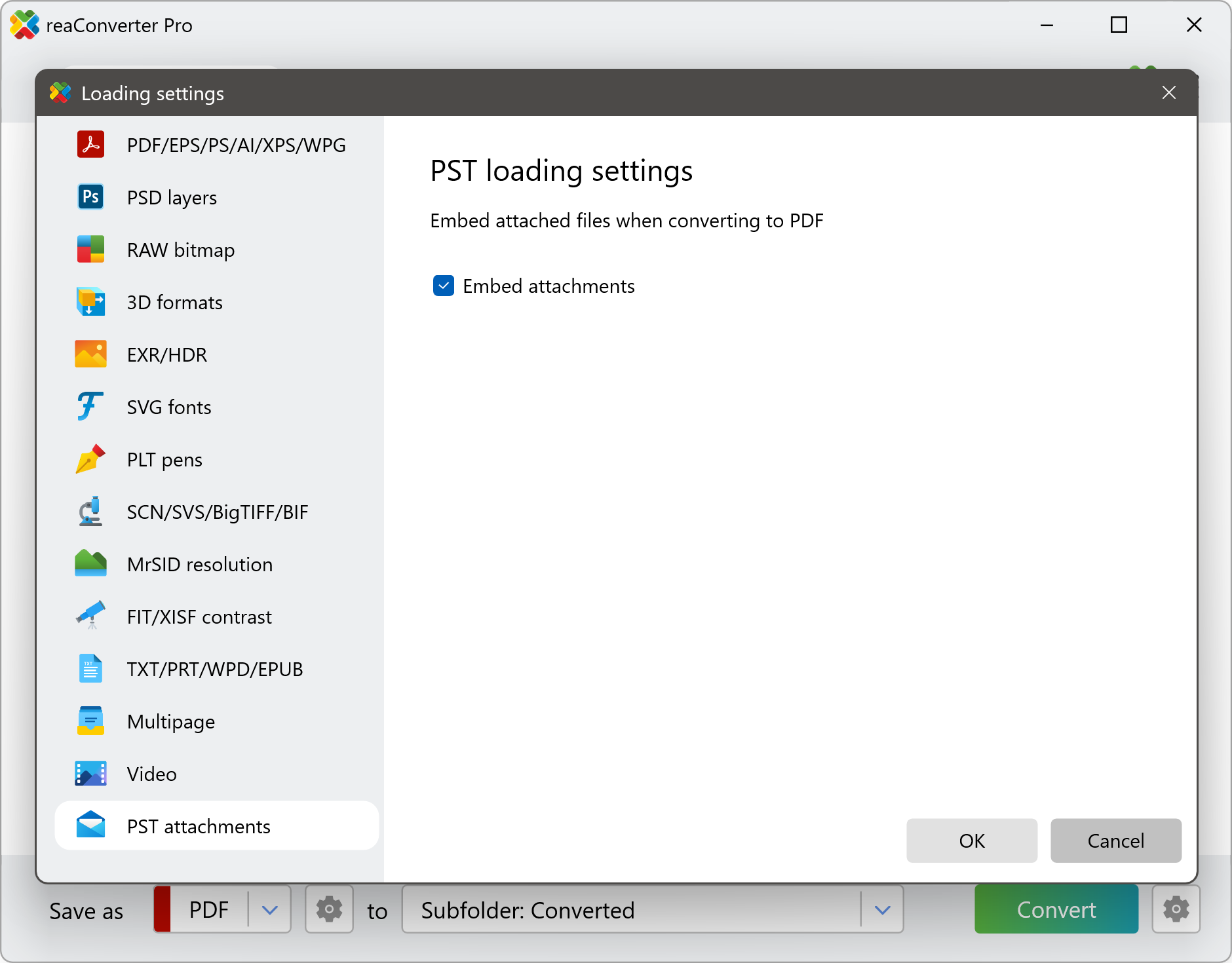
In this window, you can choose how the contents of a PST file should be handled before conversion:
Embed attachments
Each email’s original attachments are stored inside the converted PDF as real, openable files rather than being flattened into images or dropped. A contract, a signed agreement, or a spreadsheet arrives in the archive exactly as it was sent. This is what legal review, e-discovery, and compliance handovers need, since the evidence often sits in the attachment rather than in the message body.
Embed attachments turned off
Only the message text is converted. Attachments are skipped entirely, which makes the batch noticeably faster and produces a smaller output file. Choose this when you need a readable copy of the correspondence itself and the attached files are archived elsewhere.
Note: the interface spells this out as Embed attached files when converting to PDF, and that limit is literal. Embedding is a PDF capability, so the option has no effect on any other output format. Converting a PST to JPG, PNG, or TIFF renders the message content only, and the attachments are not carried over regardless of how the checkbox is set.
3. Select PDF as the Output Format
In the bottom panel, set Save as to PDF. The gear icon next to it opens the PDF format settings. There are no email-specific options in that window, but two of them are worth knowing for an email archive:
Create PDF/A document
Produces a preservation-grade file for long-term retention, compliance storage, and records that have to stay readable for years.
Document Open password and permissions
Locks the converted mailbox behind a password and restricts printing, copying, or editing. Useful when the archive holds sensitive correspondence that leaves your network.
Other format-specific saving settings apply to PST conversions the same way they apply to any other source format.
4. Save the Result
Next, head over to the saving section and choose a destination folder for the converted files. You can save them next to the original PST archives, keep the source folder structure, or write everything into one flat folder.
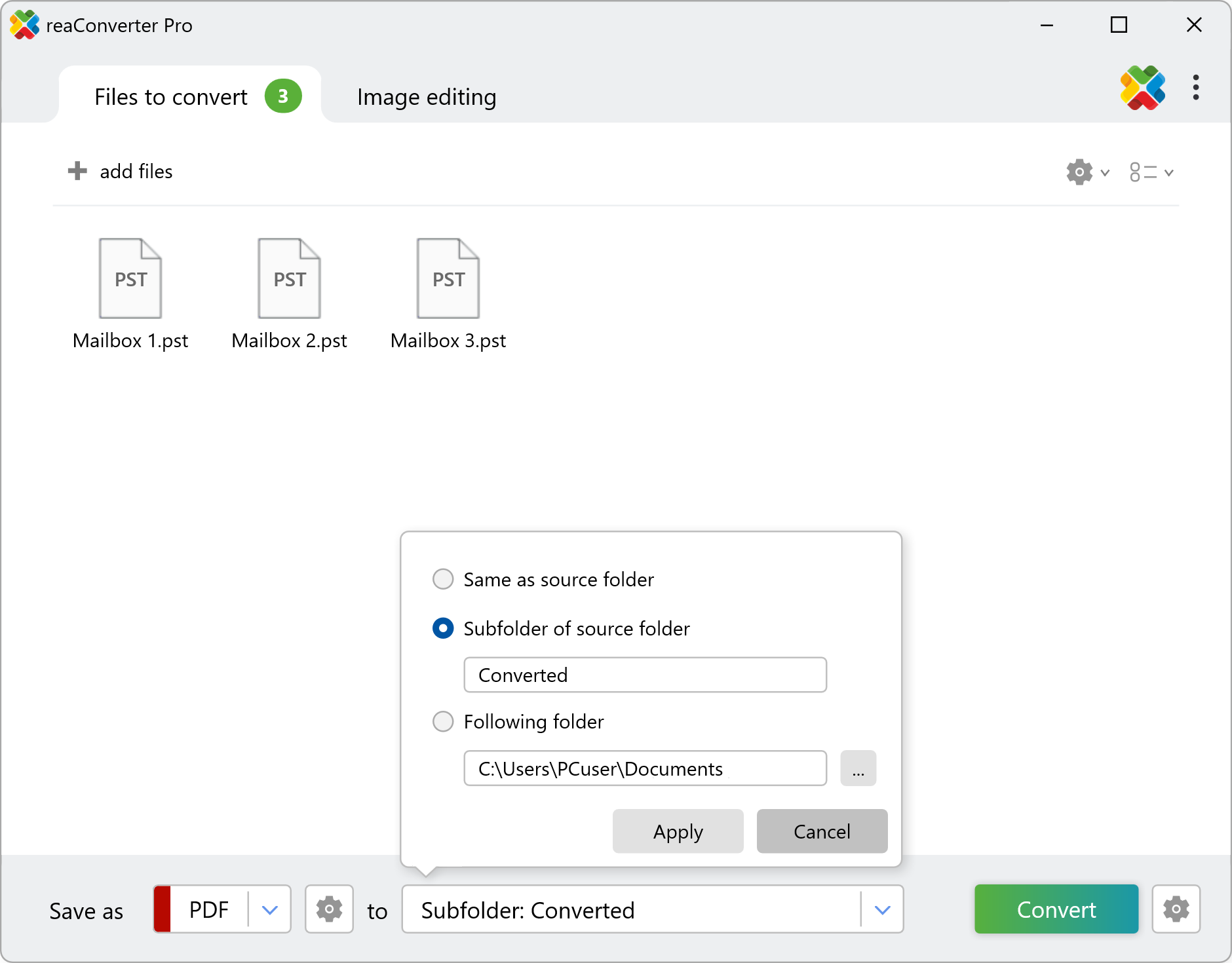
Finally, click Convert, and reaConverter will process the mailbox using the selected loading and output preferences. The conversion log reports progress message by message, and Show converted files takes you straight to the output folder.
5. Navigate the Converted PDF
The message text is written as selectable, searchable text, so the whole archive can be searched inside any PDF reader. On top of that, reaConverter builds two navigation layers into the document. Open it in Adobe Acrobat Reader to use them.
Three side panels are available in the converted file:
Comments
Lists every attachment in the archive together with the page it belongs to. Selecting an entry jumps straight to the email that carried that file, where the attachment is marked with a paperclip. Double-clicking the file name in the message text opens the attachment itself. This is the panel to use when you need to know which message an attachment came from.
Bookmarks
Reproduces the structure of the mailbox, giving you navigation by folder and then by year and month. It is filled in for every PST conversion, whether or not attachments are embedded.
Attachments
The reader’s standard panel, showing a flat list of every embedded file so you can open or save any of them in their native format. It carries no link back to the message, so use Comments when you need that context.
With Embed attachments turned off, the converted PDF contains only the Bookmarks panel, since there are no attached files to reference.
A note on readers. Some lightweight and in-browser PDF viewers do not display embedded files or comments at all, even when they are present in the document. The data is in the PDF either way, so reopening the same file in Acrobat Reader will show it.
Watch How It Works
Converting PST Files on Your PC
The fast and easy way to convert PST files is to use reaConverter. The software runs entirely offline, so a mailbox that holds privileged or regulated correspondence never leaves your own hardware.
Command line
Use PST loading settings from command-line
You can convert PST mailboxes using the command-line interface, either manually or through automated scripts. reaConverter Pro includes a command-line tool called cons_rcp.exe, an advanced feature designed for professional use and available exclusively in the Pro edition.
PST conversion example:
cons_rcp.exe -source_folder "C:\Mail\" -source_ext pst -dest_path "C:\Output\" -dest_ext pdf -pst_attachments 1 -read_subfolders 1 /hide
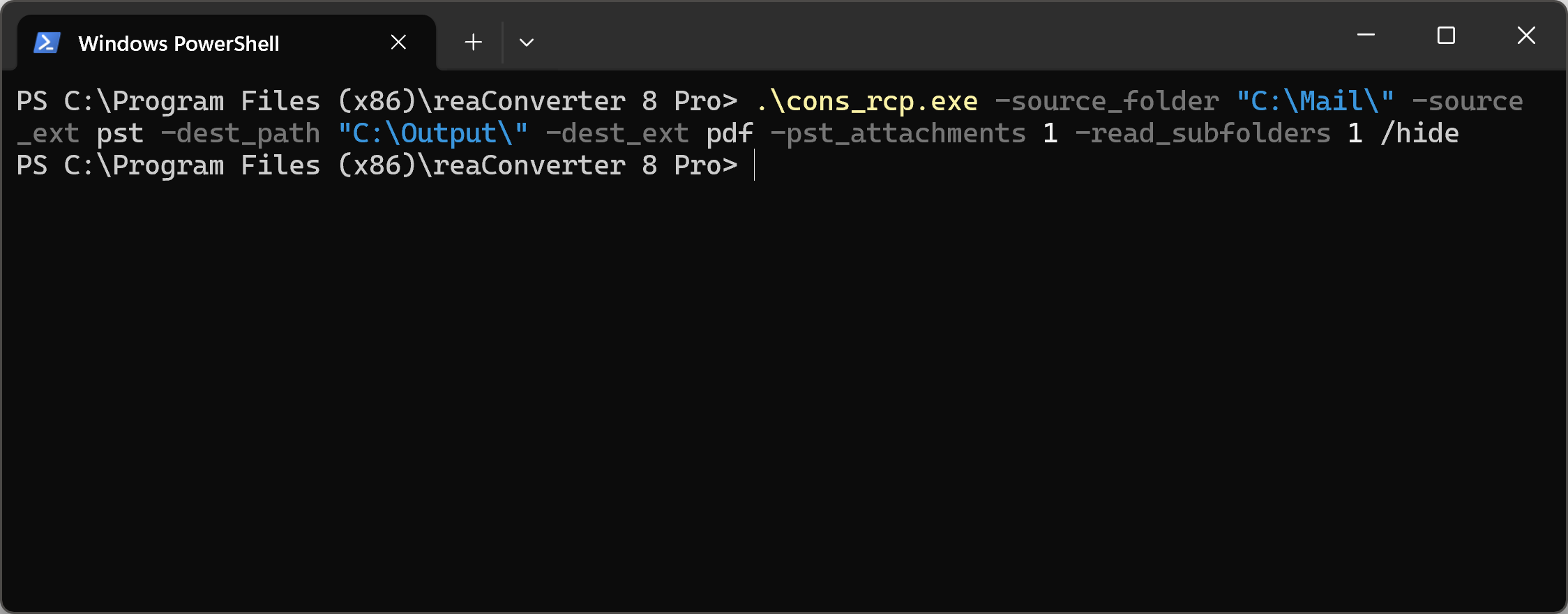
This walks every .pst file in the source folder and its subfolders and writes a PDF for each mailbox with the attachments embedded. Add /hide to suppress the console window and append > "C:\Logs\pst_to_pdf.txt" to capture the conversion log. Saved as a .bat file and pointed at Windows Task Scheduler, this becomes a hands-off nightly archival job.
Merge several mailboxes into one PDF:
cons_rcp.exe -source_folder "C:\Mail\" -source_ext pst -dest_path "C:\Output\" -dest_ext pdf -pst_attachments 1 -multipage_option 2
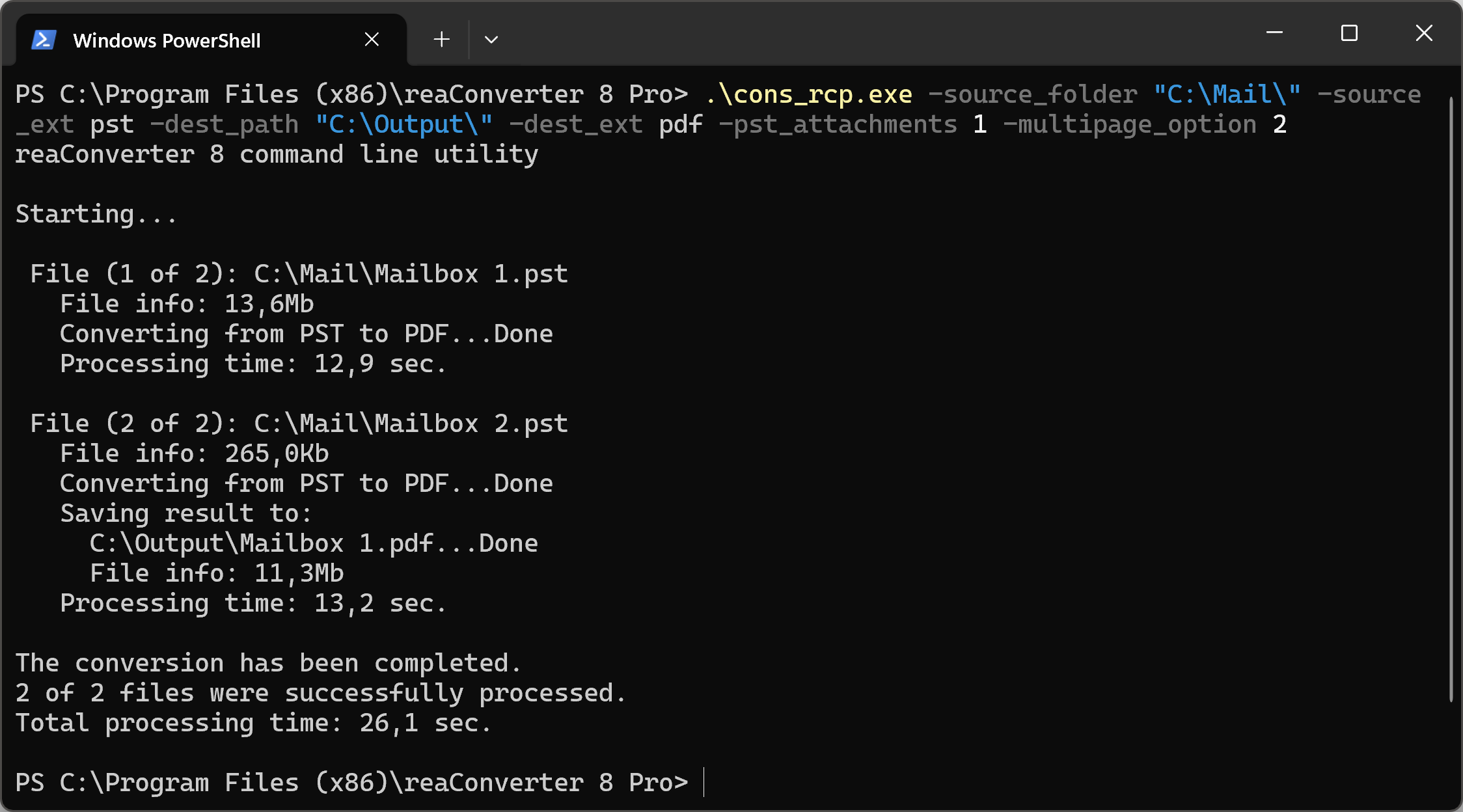
Without -multipage_option each PST is converted into its own PDF, which is the default behavior. Passing 2 collects everything processed in the run into a single document instead.
Manual
-pst_attachments
  where value = 1 if you want to embed attached files in the PDF when converting to PDF and = 0 otherwise

-multipage_option
  where value = 1 if you want to convert each multipage file to another, = 2 to save all processed files to one multipage file, = 3 to save every page of converted file as a separate file, and = 4 if you want to save group of files to one file
Recurring jobs can also run without any scripting. Watch Folders turn a local directory into a hot folder: drop a PST in, and the converted PDF appears in the output folder automatically.
You are welcome to contact our technical support when you have any questions about reaConverter.
Discover More
More than a converter
Advanced batch processing and editing for 800+ file formats, including CAD, medical imaging, and GIS. No cloud, no upload limits.