

How to Convert Multiple GM4 Files to TIFF?
1. Download and Install reaConverter
reaConverter is a standalone Windows app — download, install, and start converting GM4 files in under two minutes.

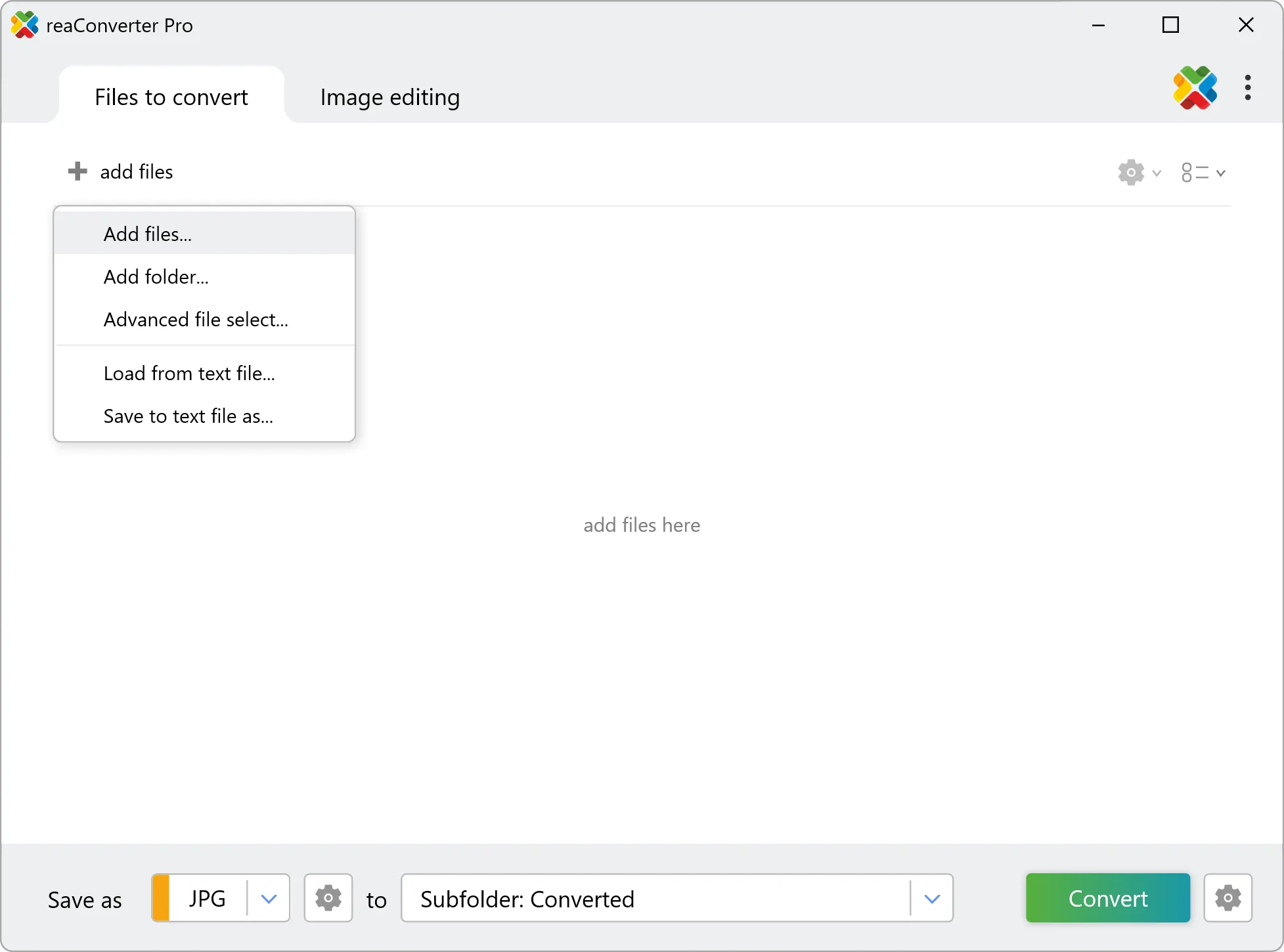
2. Load your GM4 files
Open reaConverter and import your .gm4 files. No file limits, no slowdowns. Add as many as you need.
Drag files into the window, use the Add Files button, or select entire folders.
3. Select TIFF as output format
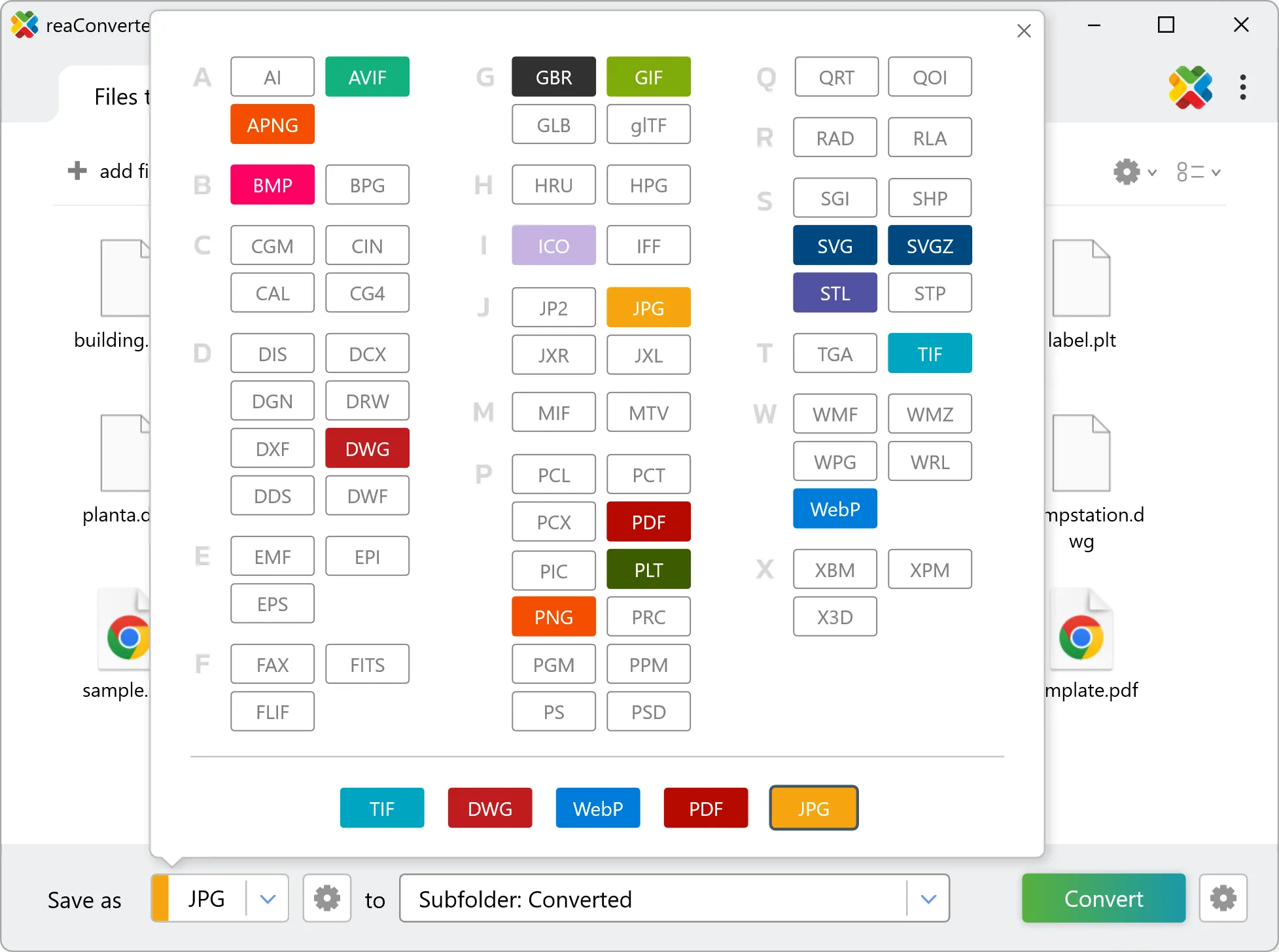
Select TIFF as target format and pick where to save results. You can keep default settings or fine-tune the output.
4. Start GM4 to TIFF conversion
Hit Convert to process your files. The log window shows progress, timing, and status for every file.
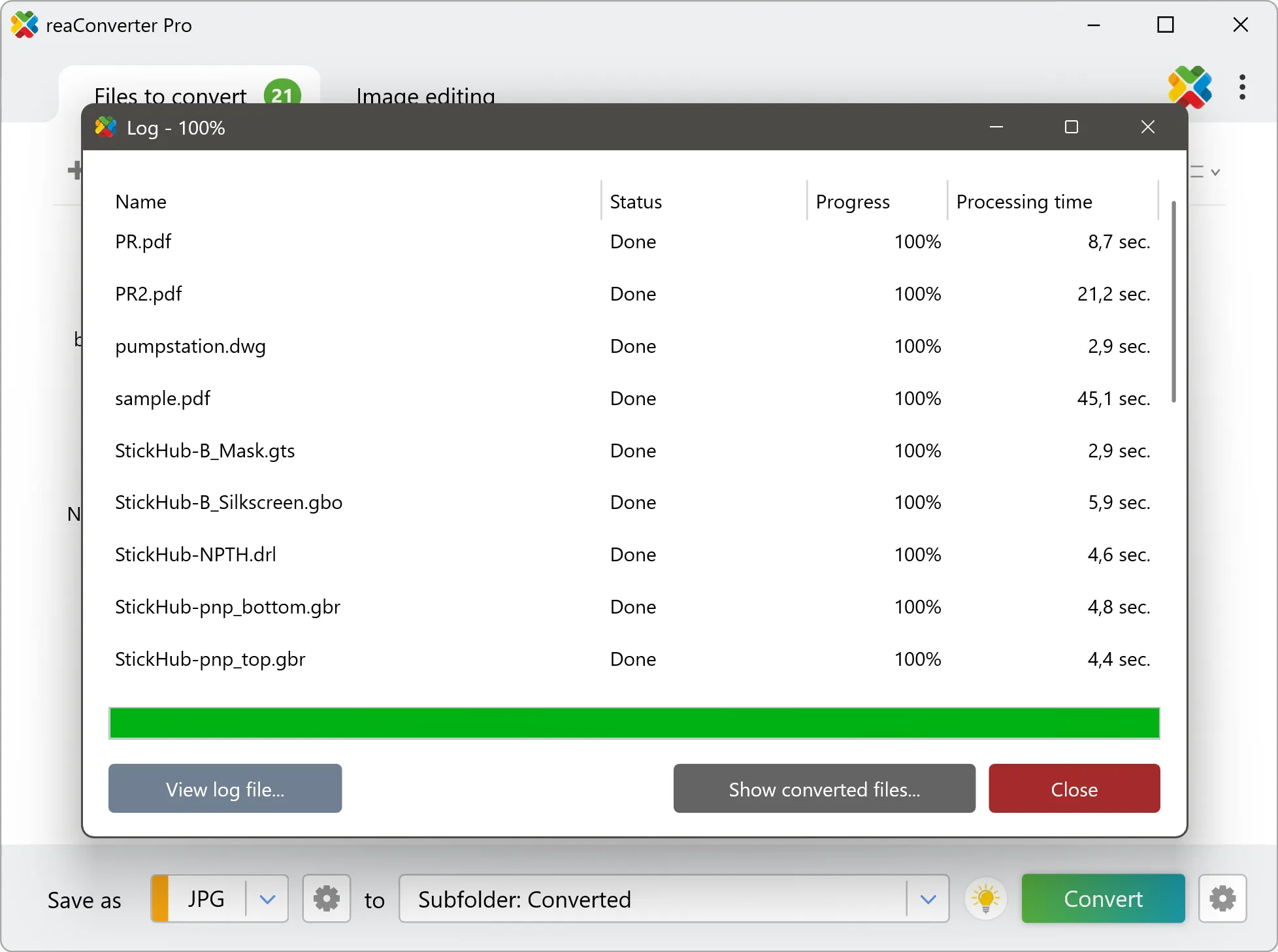
Conversion complete? Your TIFF files are saved to the destination folder, ready to use.