FAQ
HEIF to SVGZ Conversion
What are HEIF files?
HEIF (High Efficiency Image File Format) - is a media container for images and image series. Format was developed by the Moving Picture Experts Group (MPEG). Main advantages of HEIF is efficient storage of image bursts and data encoding, which makes HEIF format a good and easy solution to distribute images and image collections.
What are SVGZ files?
SVGZ is an extension attached to SVG (Scalable Vector Graphics) images with GZIP compression. Such files can contain animations or interactive graphics, including vector objects, images and text, while supporting layer rendering, transparency, filter effects and several other features. As a version of SVG, the SVGZ format is based on an open standard and uses the XML markup language, being supported by most web browsers. The main advantage of SVGZ over its uncompressed variant is size, which can be 20 to 50 percent smaller.
Can reaConverter convert HEIF to SVGZ?
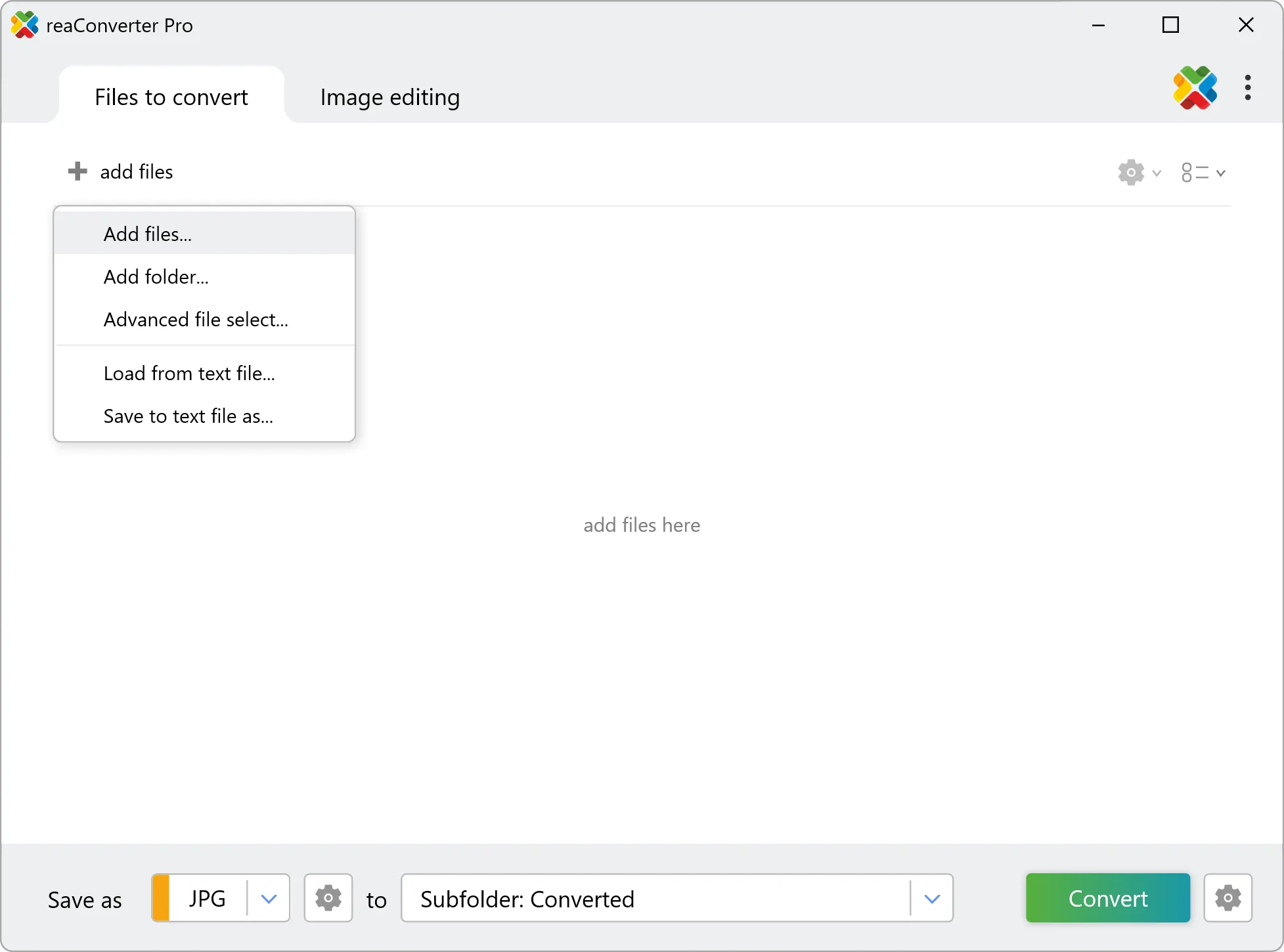
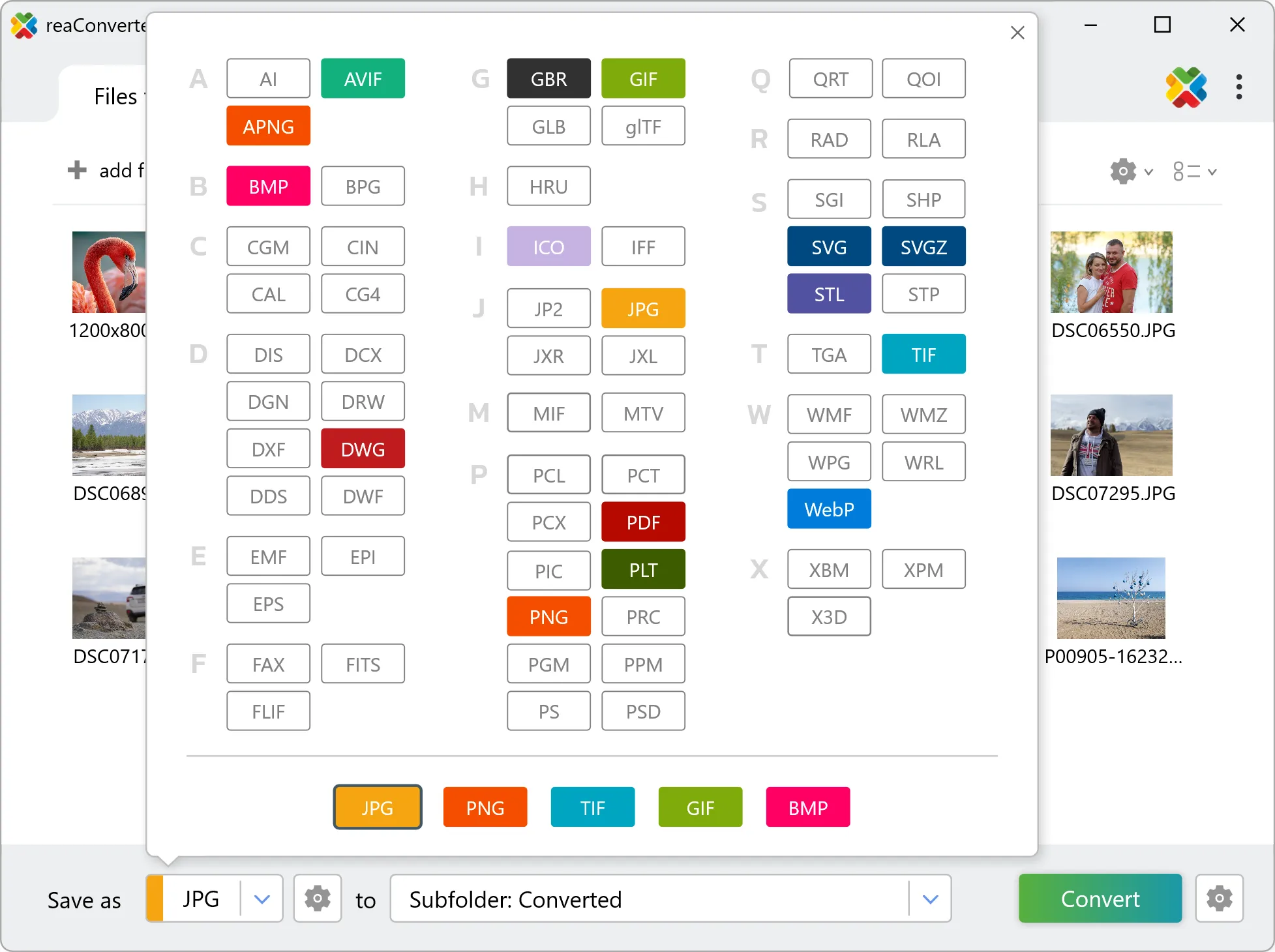
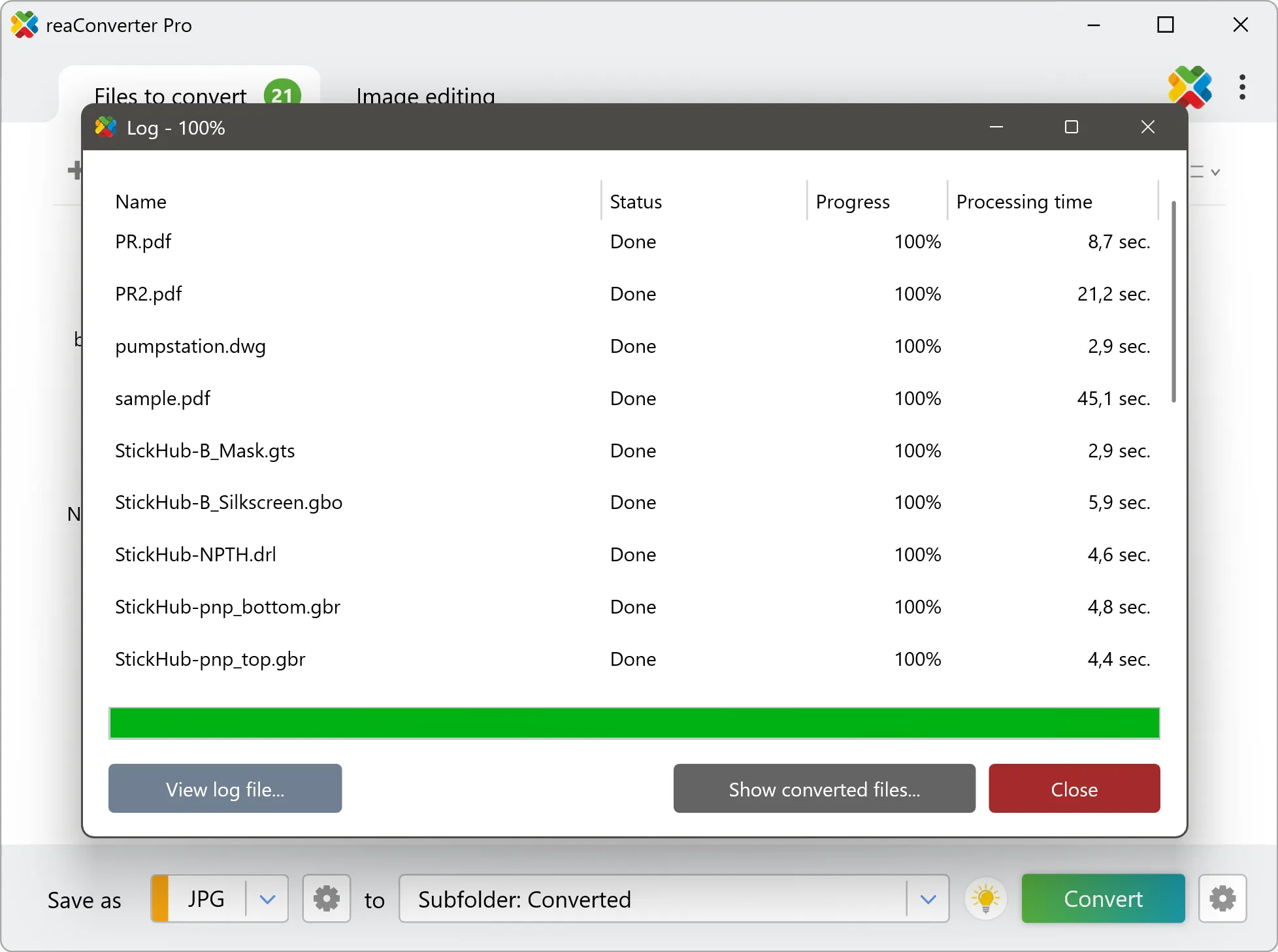
Yes! reaConverter instantly converts .heif to .svgz with perfect quality preservation. With its batch processing feature, you can convert multiple files at once in just a few clicks. You can even convert images directly from Windows Explorer using the right-click menu — fast and convenient.
What is reaConverter used for?
reaConverter is a software program used for converting images and other types of files from one format to another. It supports a wide range of file formats and allows users to convert multiple files at once, making it a valuable tool for graphic designers, photographers, and other professionals who work with digital images. reaConverter also includes features for resizing, cropping, and editing images, along with batch processing capabilities that help automate repetitive tasks.
Can I convert HEIF to SVGZ online?
If you only need to convert a few HEIF files to SVGZ format, feel free to try our free online free online HEIF to SVGZ converter — perfect for small batches with no installation needed!
How can I turn HEIF files into SVGZ on my computer?
The best way to change HEIFs to SVGZs on your PC is to install a quality piece of software, such as reaConverter. This software is extremely efficient in managing a wide range of batch files conversions, including conversion from HEIF to SVGZ.
How can I automate HEIF to SVGZ files conversion?
reaConverter supports all the most useful automation features such as right-click сonversion and Watch Folders for the most efficient automated files conversion in any software of this type.
Is there a way to convert HEIF files to SVGZ using the command prompt?
reaConverter provides full access to all its features via Windows command line, including a high-performance command-line heif to svgz converter for batch processing.
What else can I do with reaConverter?
Convert Gerber imagesChange image color spaceConvert RAW formatsConvert CAD formatsSet file date
Related conversions
Other ways to convert HEIF files, and other sources that convert to SVGZ.