


How to Convert Multiple .jp2 Images to .fits?
1. Download and Install reaConverter
First, grab reaConverter from the download button below. Installation is fast, and the software runs offline — no account or signup needed. reaConverter also includes editing tools: resize, crop, rotate, and more.

2. Load your JP2 files
Add your JP2 files to reaConverter. Whether it's a handful or an entire archive, the batch engine processes them efficiently.
Browse for files, drag them in, or add entire folders at once. reaConverter queues everything automatically.

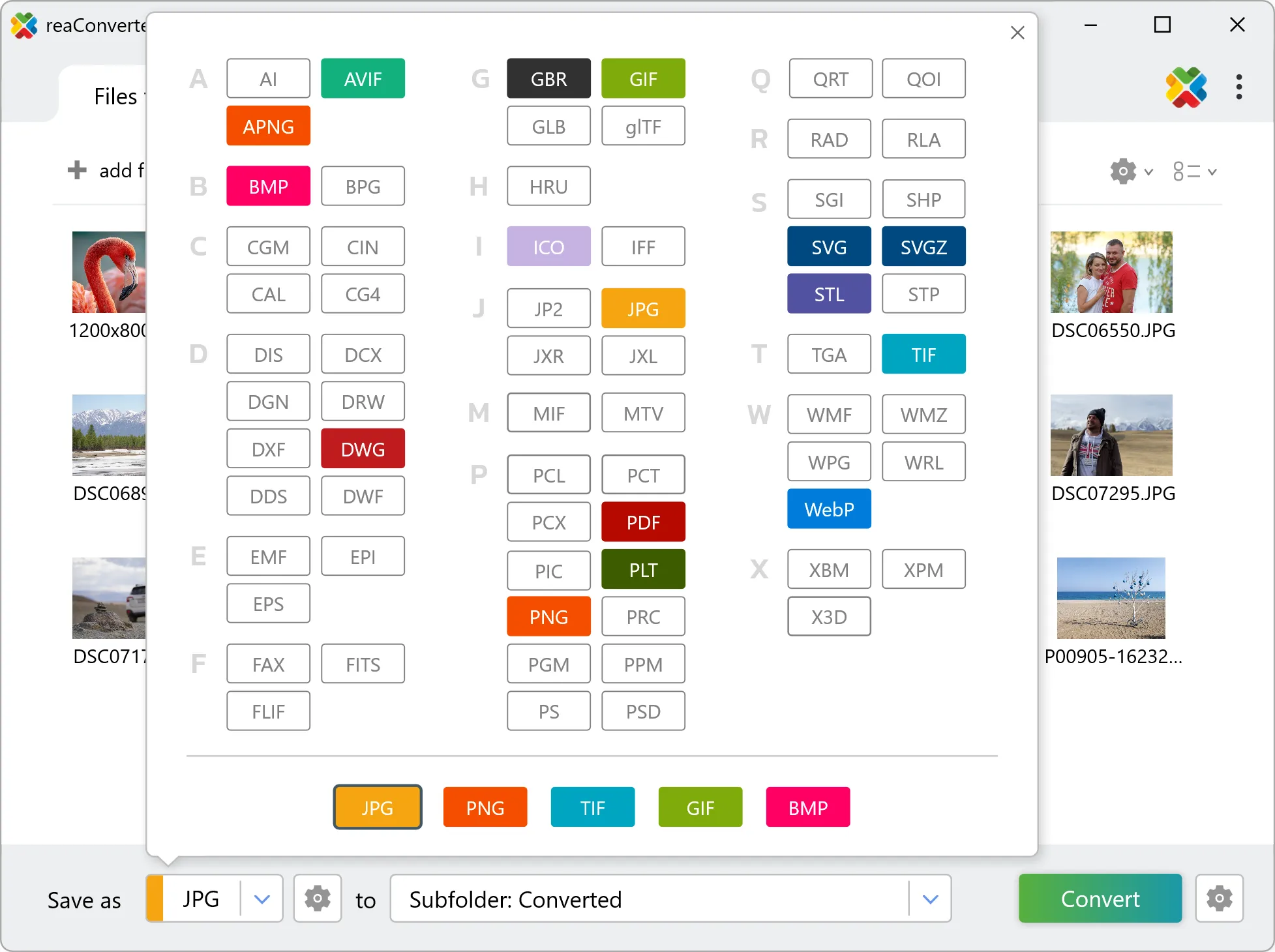
3. Select FITS as output format
Pick FITS as the output format. Set the destination folder and optionally configure resolution, quality, or file naming.
4. Start JP2 to FITS conversion
Start the conversion with one click. reaConverter handles everything and notifies you when it's done.

When the batch finishes, your FITS files are ready in the destination folder you chose earlier.