

How to Convert Multiple .pspimage Files to .tiff?
1. Download and Install reaConverter
First, grab reaConverter from the download button below. Installation is fast, and the software runs offline — no account or signup needed.

2. Load your PSPIMAGE files
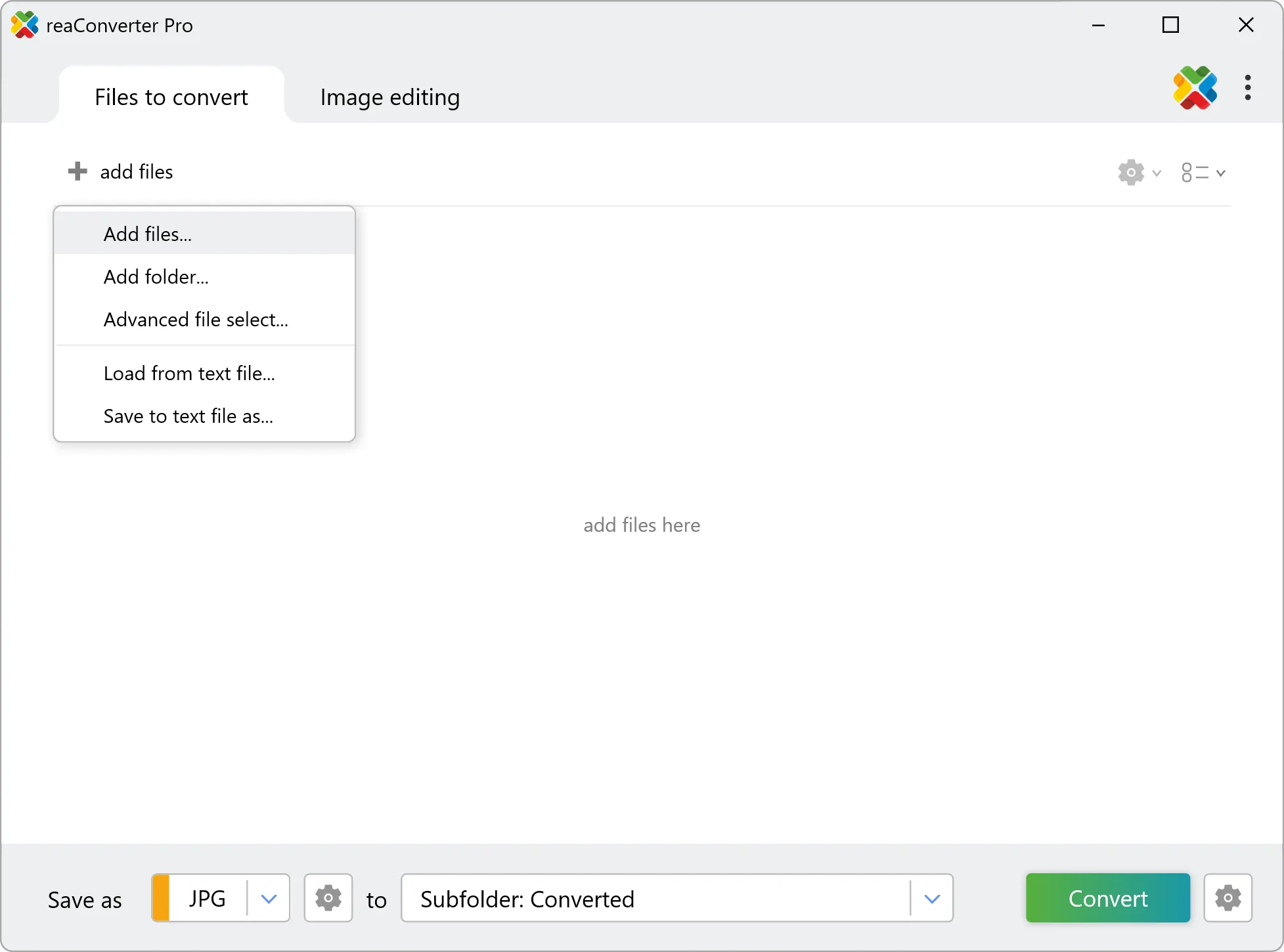
Load your PSPIMAGE files into reaConverter. You can add individual files or point to folders, and the software will queue everything automatically.
Select PSPIMAGEs from a folder or drag-and-drop them directly into the reaConverter window.
3. Select TIFF as output format
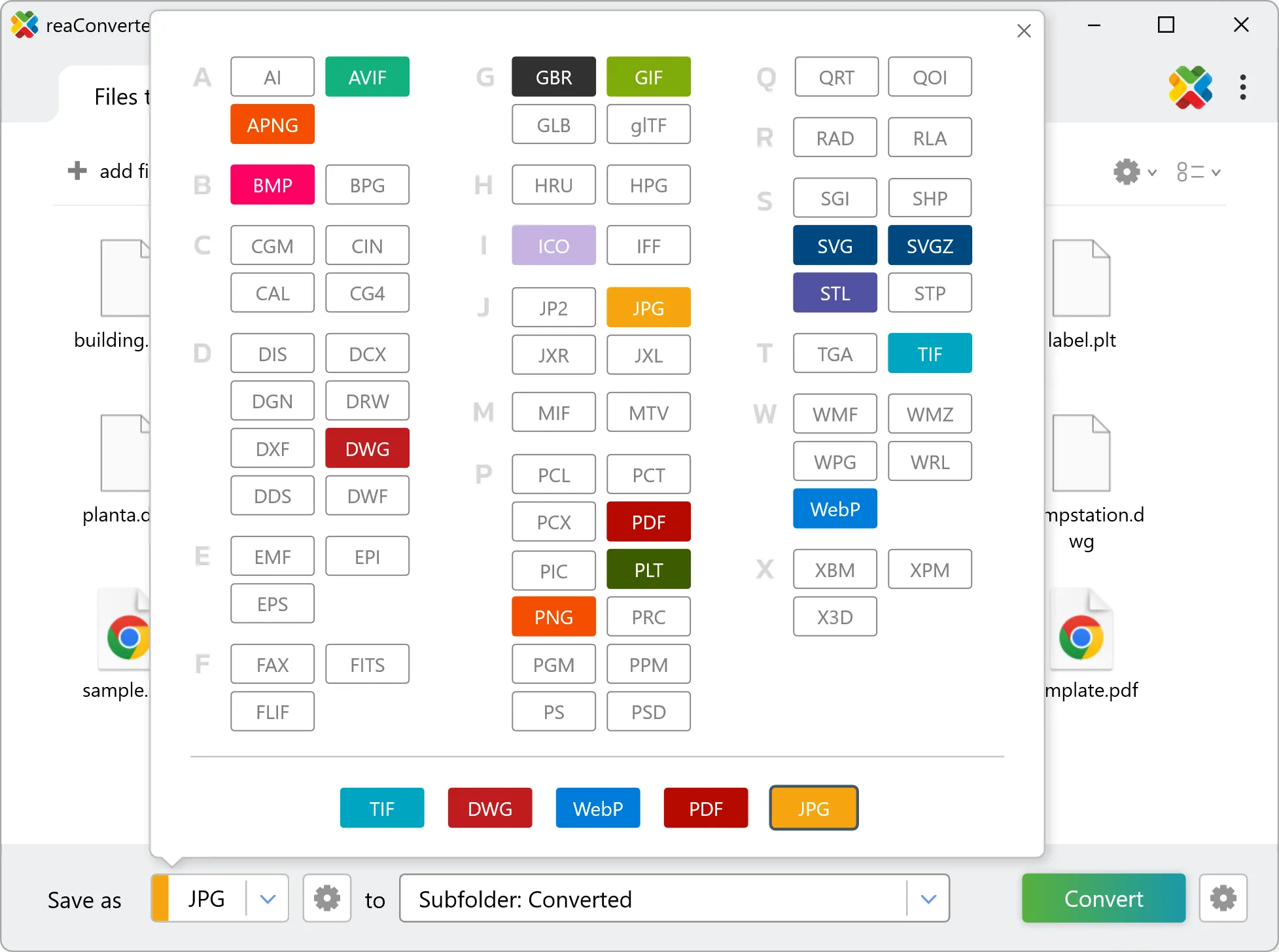
Choose TIFF for output and set your save location. reaConverter lets you customize quality and apply edits before conversion.
4. Start PSPIMAGE to TIFF conversion
Press the Convert button and reaConverter takes care of the rest. Processing time depends on file size and volume.
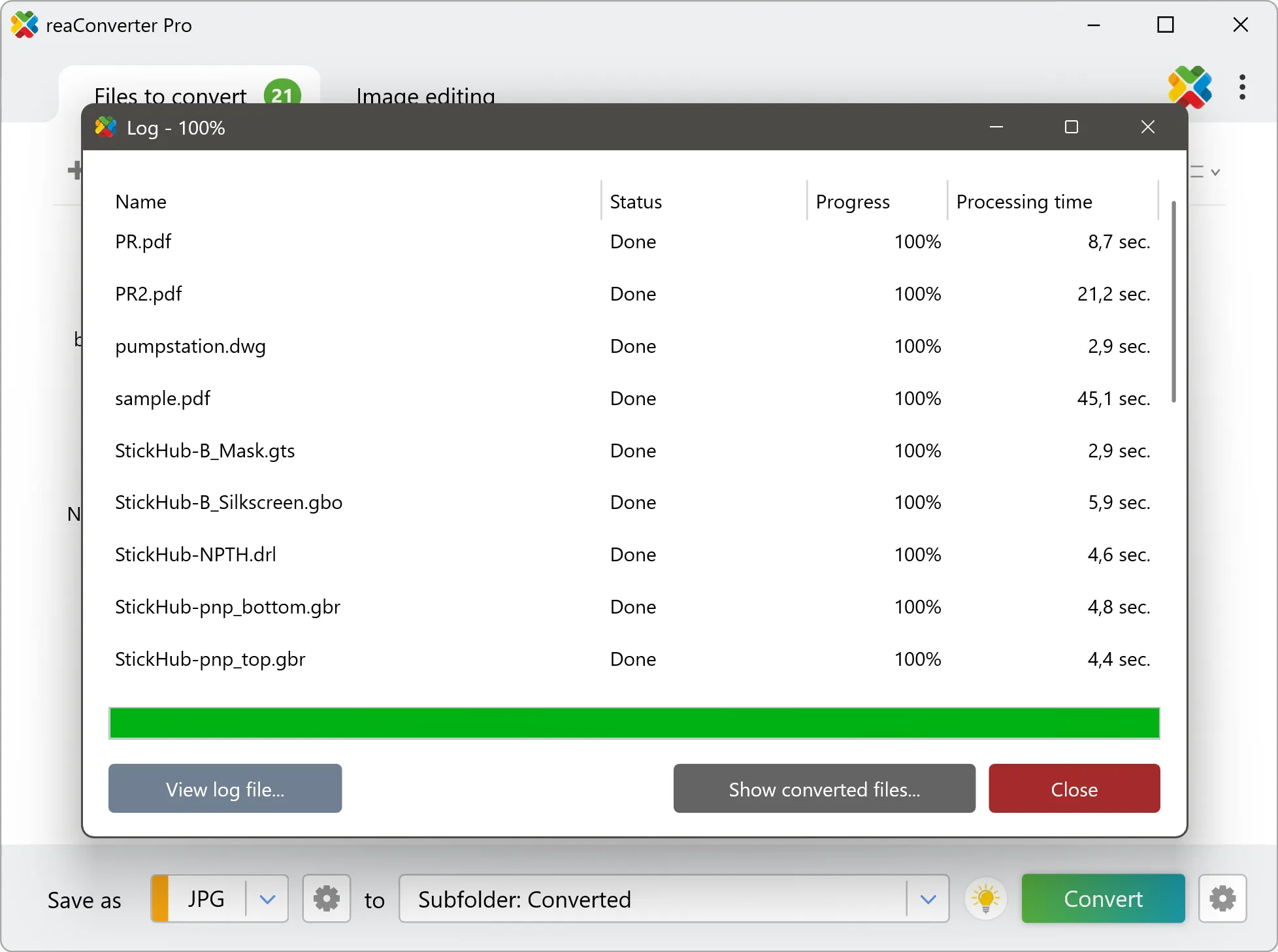
After processing, find all your new .tiff files in the output location. The log shows details for each conversion.