
Convert Q0 to PDF

Batch convert Q0 to PDF with consistent settings. reaConverter handles documents offline with full control over output quality.

Online converters too slow for your Q0 files? reaConverter works locally and handles unlimited batches. All processing runs locally on your PC, so your files stay private and secure. Multi-page documents handled with options for page selection and quality.

Convert

How to Convert Multiple Q0 Files to PDF?

1. Download and Install reaConverter

First, grab reaConverter from the download button below. Installation is fast, and the software runs offline — no account or signup needed.

2. Load your Q0 files

Add Q0 files to reaConverter. One file or a thousand, the process is the same. Everything runs locally on your machine.

You can drag-and-drop files, browse to a folder, or add entire directory trees including subfolders.
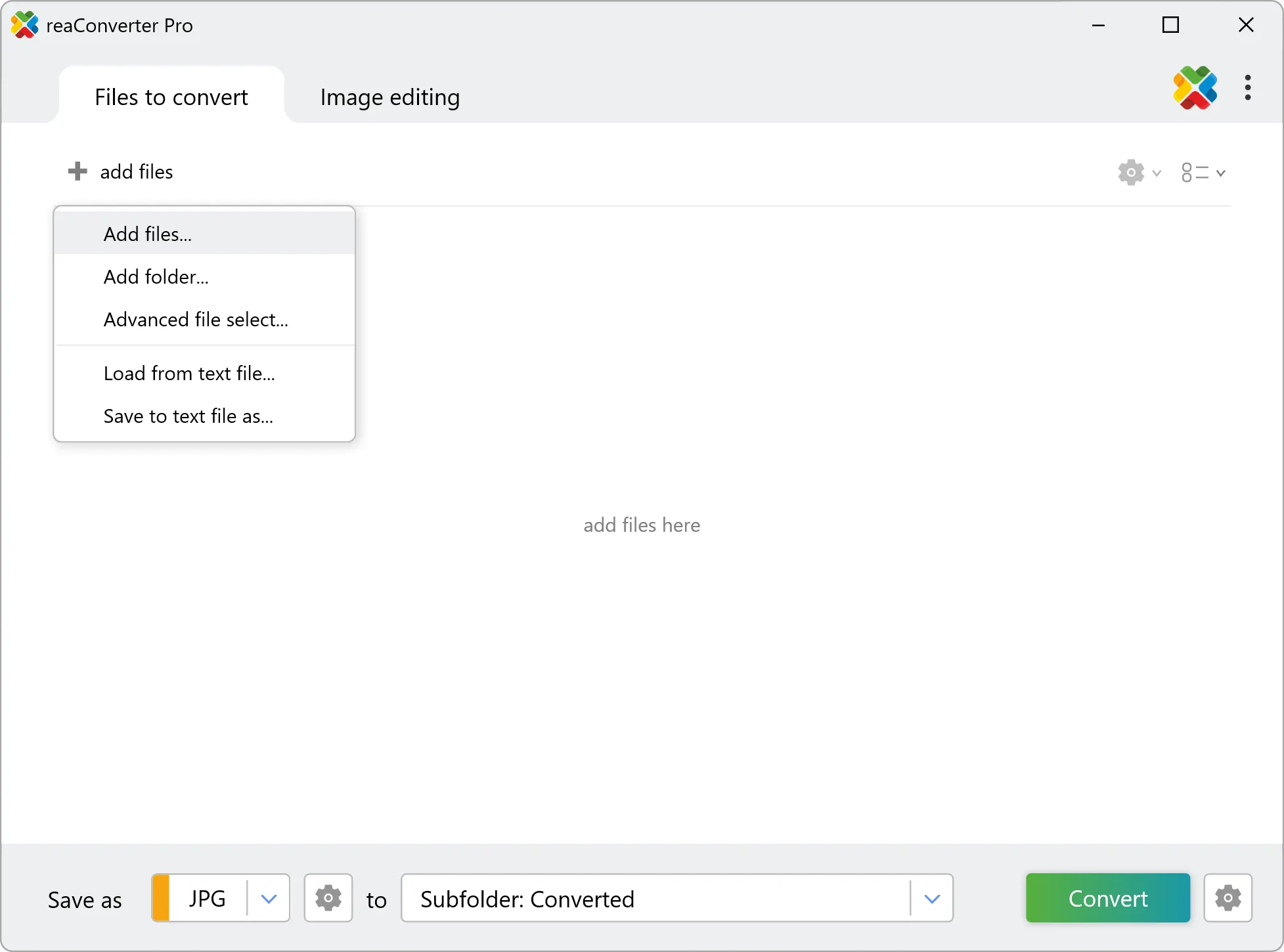
Load your Q0 files into reaConverter

3. Select PDF as output format

Pick PDF as the output format. Set the destination folder and optionally configure resolution, quality, or file naming.
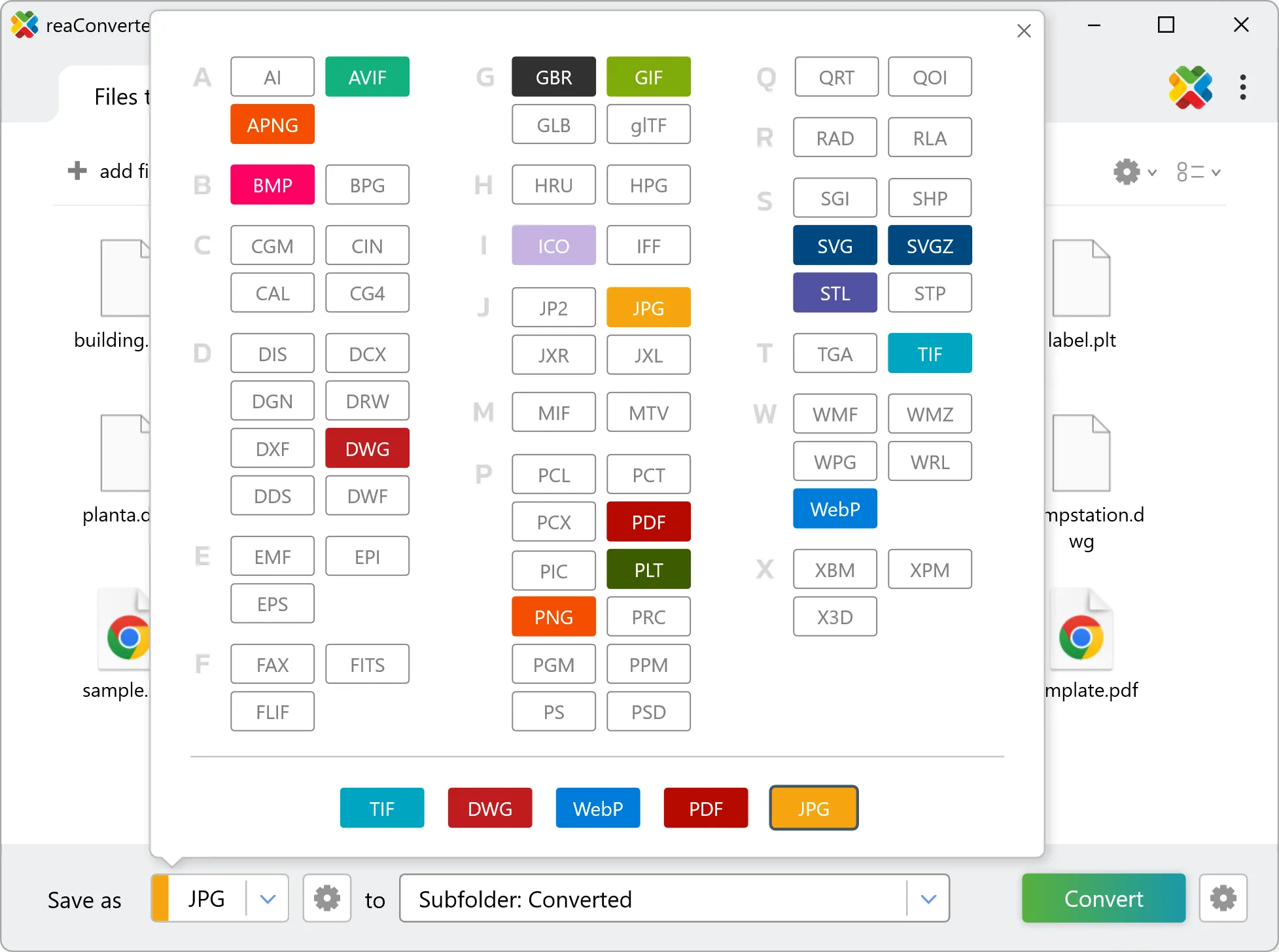
Select PDF as output format

4. Start Q0 to PDF conversion

Click the Convert button to start. reaConverter will process all your files with the settings you selected.
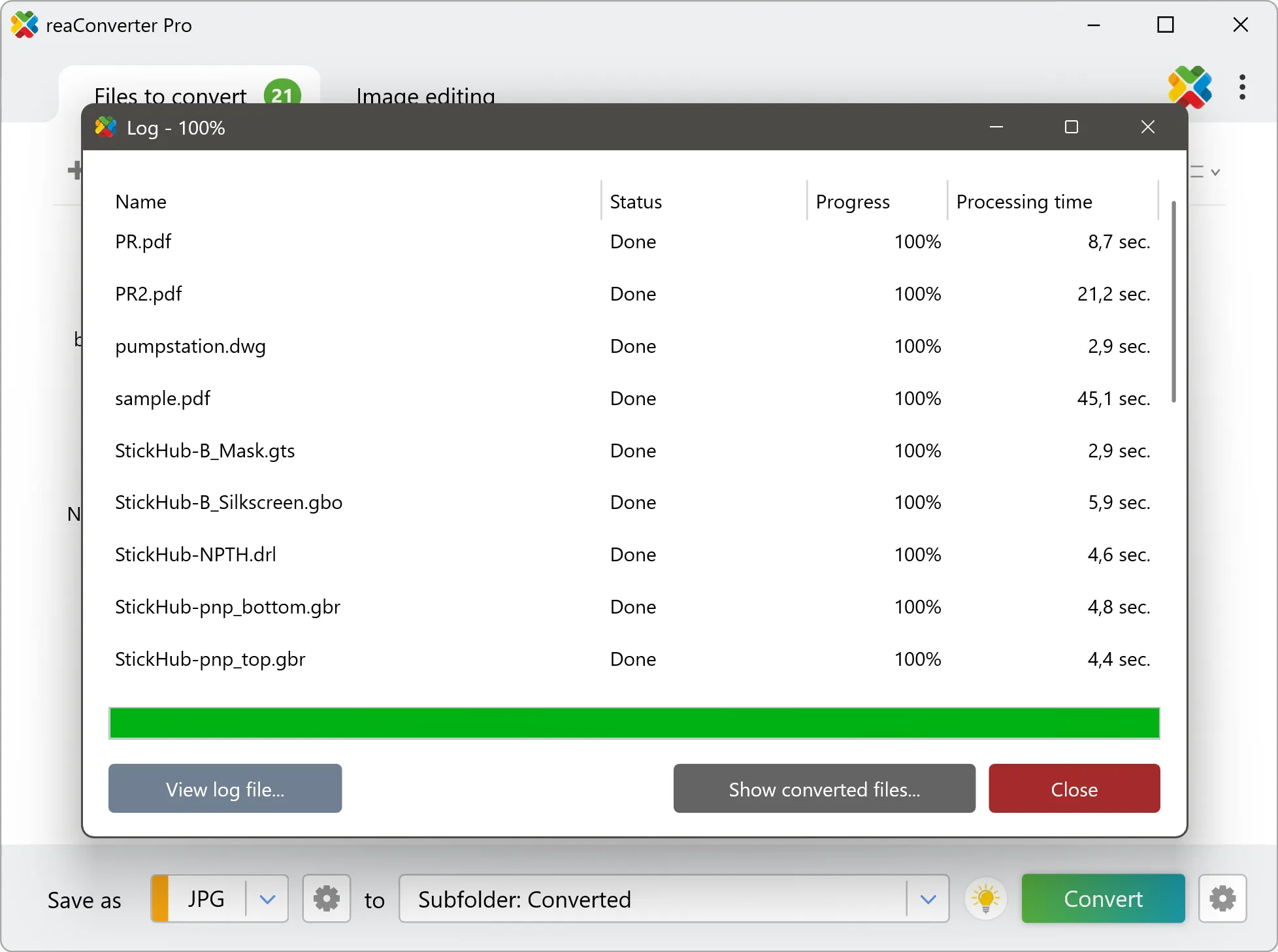
Start Conversion

When finished, your new .pdf files will be waiting in the destination folder.
Q0 to PDF Converter

reaConverter offers the fastest, simplest solution for converting your Q0 files into PDF in seconds - all files processed on your PC for maximum privacy and speed.

Do more with your files

Converting Q0 files for use in a workflow? reaConverter offers many ways to process files, so you can customize them according to your requirements.

Our range of editing options includes auto-processing options such as auto-rotate, auto-crop, watermarking and more. Change Color Space, copy Metadata, set DPI, manage ICC Profile, control Bit Depth.

Image editing

User Reviews

Average User Rating:
Last updated on January 23, 2026
"PDF → JPG in seconds online—so easy! 👏 Why complicate things with extra software?"
Zachary D.
Zachary D.
Satisfied Customer
"I've been searching for reliable software like this forever — finally found one that works smoothly without lag. After installing, I converted PDFs to JPEGs with perfect quality retention. Exactly what I needed!"
Richard Jones
Richard Jones
Digital Marketing Manager
"After testing numerous converters, this is the first solution that maintains 100% image quality during PDF to JPG conversion while operating seamlessly — no crashes or slowdowns even with batch processing."
Kenneth H.
Kenneth H.
Satisfied Customer
"This article was a lifesaver! I quickly converted multiple JPG files to PDF with ease. Other sites I visited only offered downloadable programs, but your online converter delivered instant results — way more efficient!"
Luis Perez
Luis Perez
Happy Online User
"I’ve tried dozens of converters, but reaConverter stands out. The OCR feature for scanned PDFs works flawlessly, and the software never crashes."
Emily K.
Emily K.
Satisfied Customer
"Convert PDFs instantly via right-click context menu — no need to open extra apps!"
Jessica M.
Jessica M.
Satisfied Customer

Q0 to PDF Conversion: FAQ

Can reaConverter convert Q0 to PDF?

Yes! reaConverter instantly converts .q0 to .pdf with perfect quality preservation. With its batch processing feature, you can convert multiple files at once in just a few clicks. You can even convert images directly from Windows Explorer using the right-click menu — fast and convenient.

Can I convert Q0 to PDF online?

If you only need to convert a few Q0 files to PDF format, feel free to try our free online free online Q0 to PDF converter — perfect for small batches with no installation needed!

How can I turn Q0 files into PDF on my computer?

The best way to change Q0s to PDFs on your PC is to install a quality piece of software, such as reaConverter. This software is extremely efficient in managing a wide range of batch files conversions, including conversion from Q0 to PDF.

How can I automate Q0 to PDF files conversion?

reaConverter supports all the most useful automation features such as right-click сonversion and Watch Folders for the most efficient automated files conversion in any software of this type.

Is there a way to convert Q0 files to PDF using the command prompt?

reaConverter provides full access to all its features via Windows command line, including a high-performance command-line q0 to pdf converter for batch processing.

What else can I do with reaConverter?

Convert PDFWatermark photosConvert vector imagesConvert picture color spaceConvert Gerber images

Find out more

Get advanced software for file conversion, processing, and editing, giving you complete, precise control over your work.
reaConverter software