FAQ
GTIFF to ICO Conversion
What are GTIFF files?
GeoTIFF (.gtiff) is a georeferenced image format used for storing raster graphics with embedded geographic metadata. Common in GIS and remote sensing, it allows precise alignment with map coordinates, making it ideal for satellite imagery, terrain models, and aerial photography. GeoTIFF files are widely supported by mapping software and can be converted or edited without losing their spatial reference.
What are ICO files?
ICO files contain the images used as icons for files, folders or programs on the Microsoft Windows platform. The icons appear on the desktop, in Windows Explorer or in the Start Menu and help identify each item. ICO images are generally of a small size, are scalable, and they can also serve as website logos or symbols that appear in the web browser next to the URL. The equivalent of ICO files on Mac computers is called ICNS.
Can reaConverter convert GTIFF to ICO?
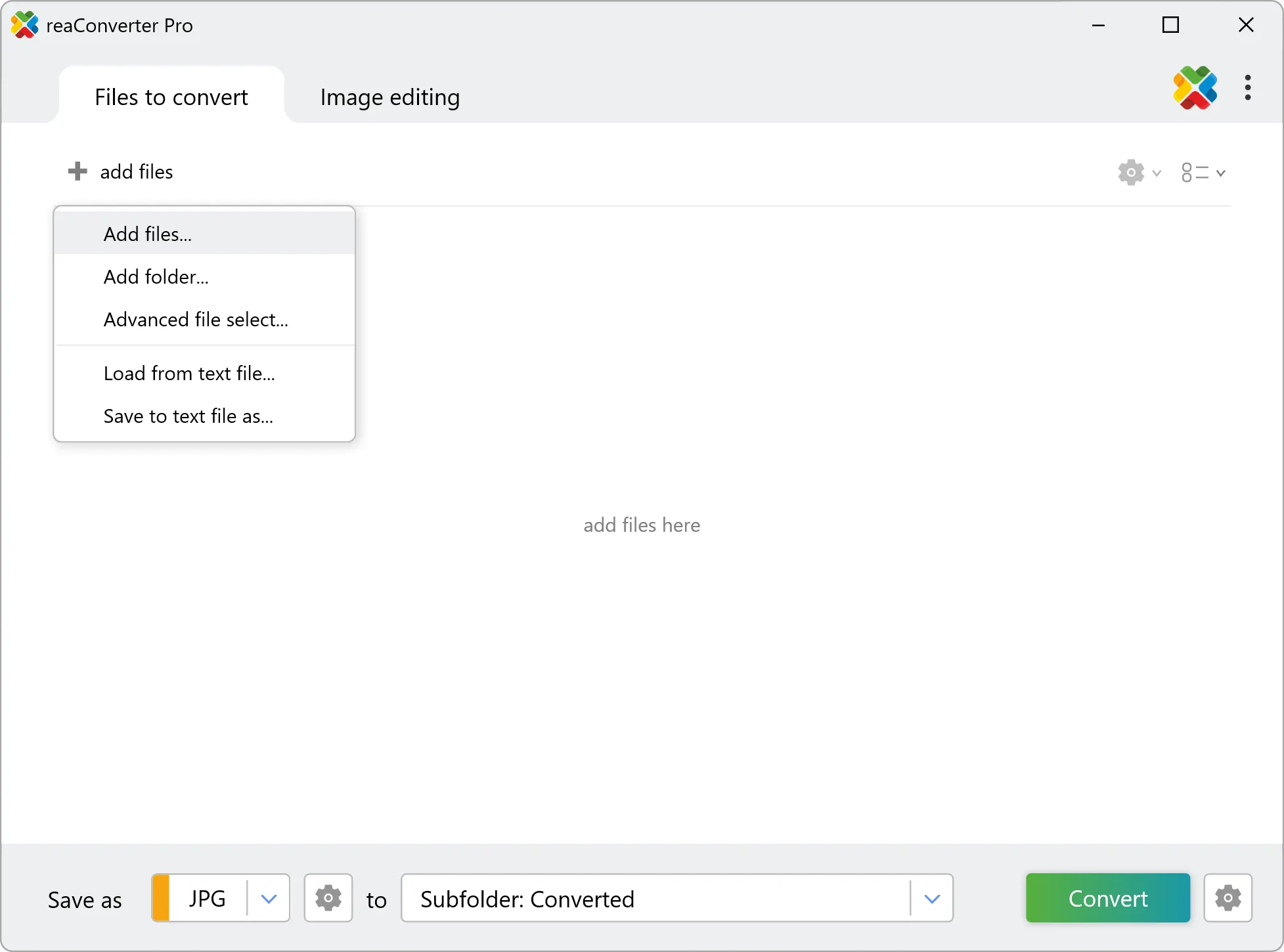
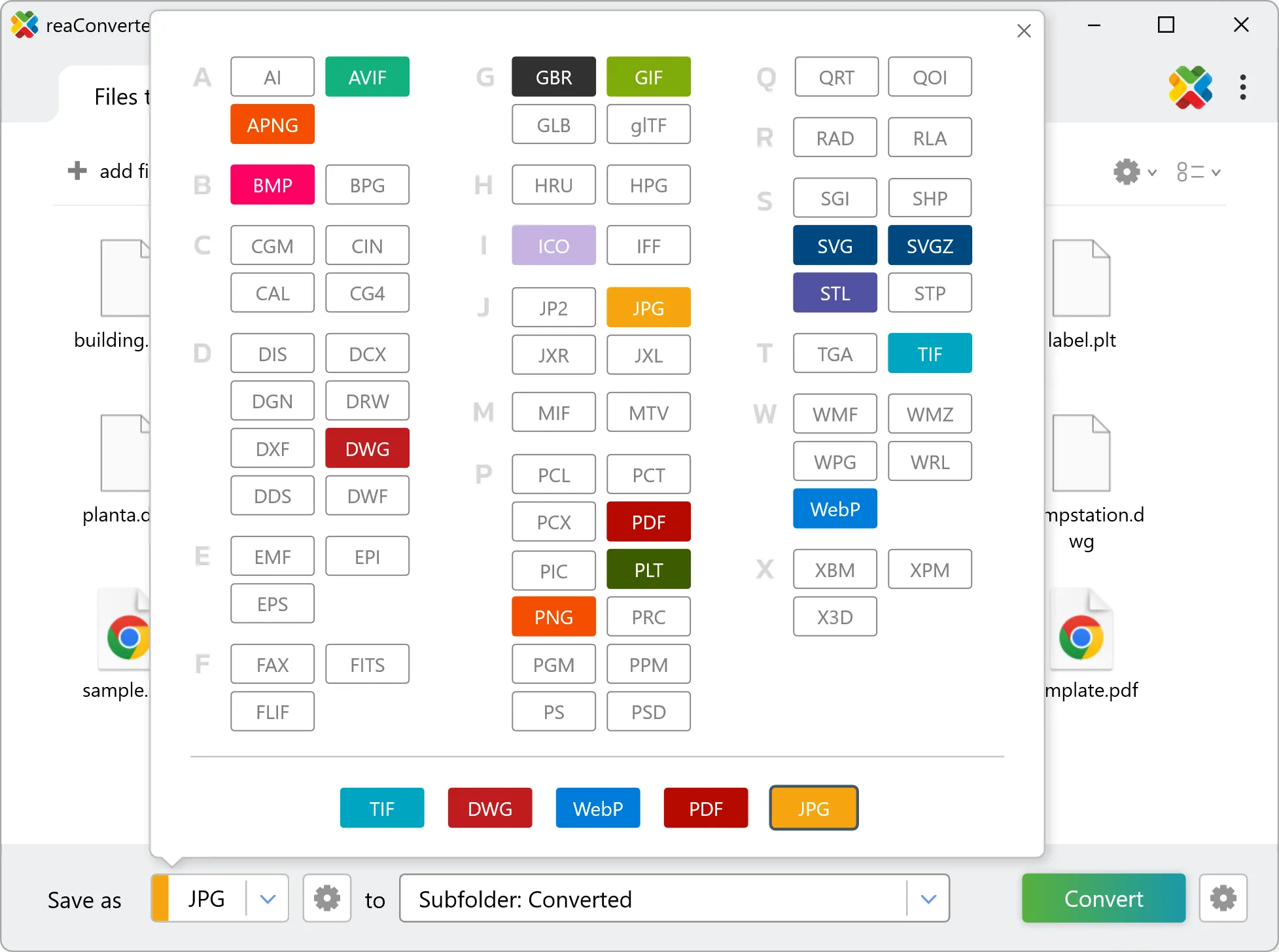
Yes! reaConverter instantly converts .gtiff to .ico with perfect quality preservation. With its batch processing feature, you can convert multiple files at once in just a few clicks. You can even convert images directly from Windows Explorer using the right-click menu — fast and convenient.
Can I convert GTIFF to ICO online?
If you only need to convert a few GTIFF files to ICO format, feel free to try our free online free online GTIFF to ICO converter — perfect for small batches with no installation needed!
How can I turn GTIFF files into ICO on my computer?
The best way to change GTIFFs to ICOs on your PC is to install a quality piece of software, such as reaConverter. This software is extremely efficient in managing a wide range of batch files conversions, including conversion from GTIFF to ICO.
How can I automate GTIFF to ICO files conversion?
reaConverter supports all the most useful automation features such as right-click сonversion and Watch Folders for the most efficient automated files conversion in any software of this type.
Is there a way to convert GTIFF files to ICO using the command prompt?
reaConverter provides full access to all its features via Windows command line, including a high-performance command-line gtiff to ico converter for batch processing.
What else can I do with reaConverter?
Convert GIS filesConvert Gerber imagesConvert RGB to CMYKTrace images to vectorChange image bit depth
Related conversions
Other ways to convert GTIFF files, and other sources that convert to ICO.