
How to Convert Multiple IFL Files to SVG?
1. Download and Install reaConverter
Download reaConverter and install it in seconds. The setup is straightforward — no complex configuration, no extra software required.

2. Load your IFL files
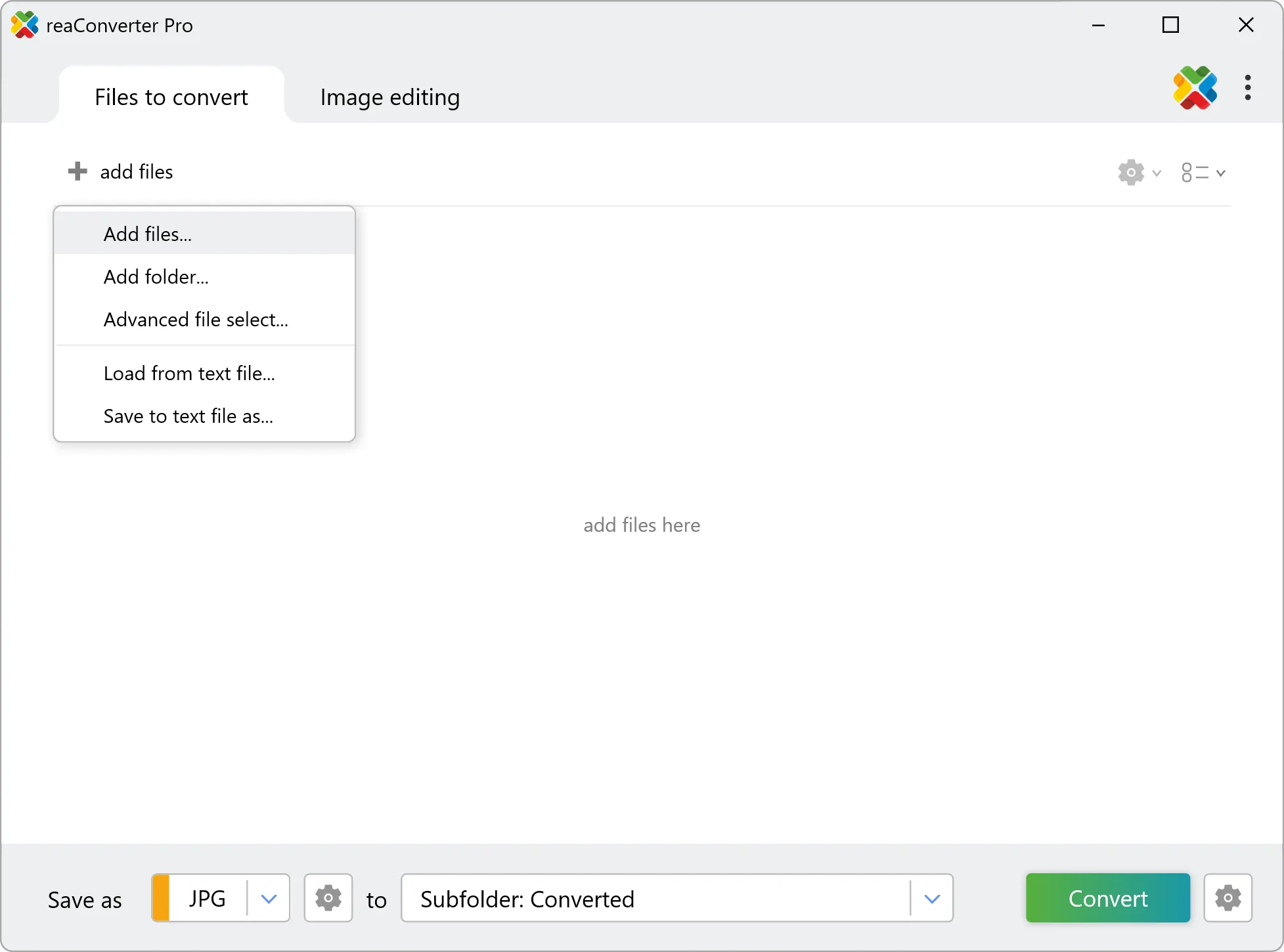
Load your IFL files into reaConverter. You can add individual files or point to folders, and the software will queue everything automatically.
Select IFLs from a folder or drag-and-drop them directly into the reaConverter window.
3. Select SVG as output format
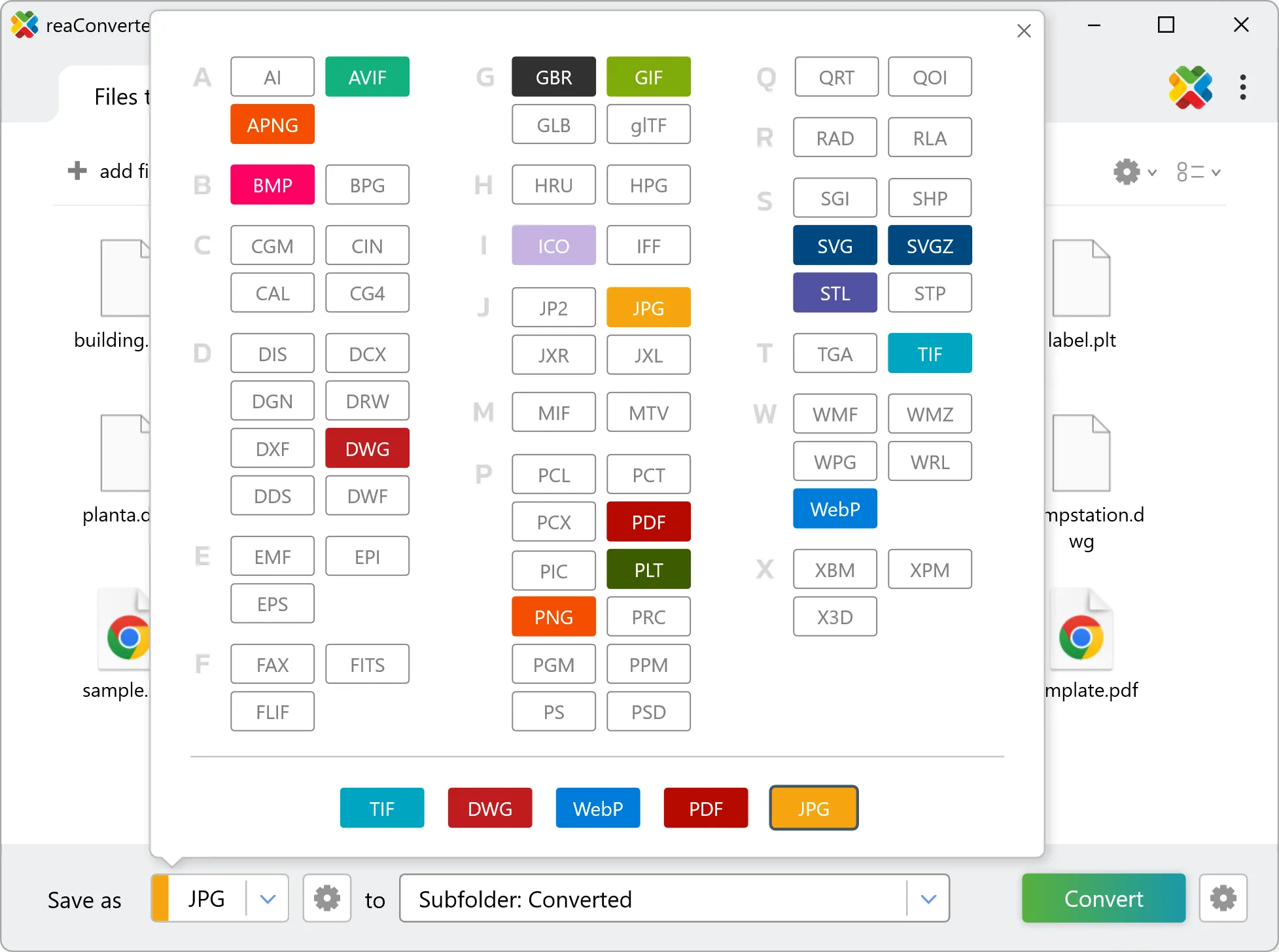
Pick SVG as output format and choose the destination folder where you want to save new .svg files.
4. Start IFL to SVG conversion
Press the Convert button and reaConverter takes care of the rest. Processing time depends on file size and volume.
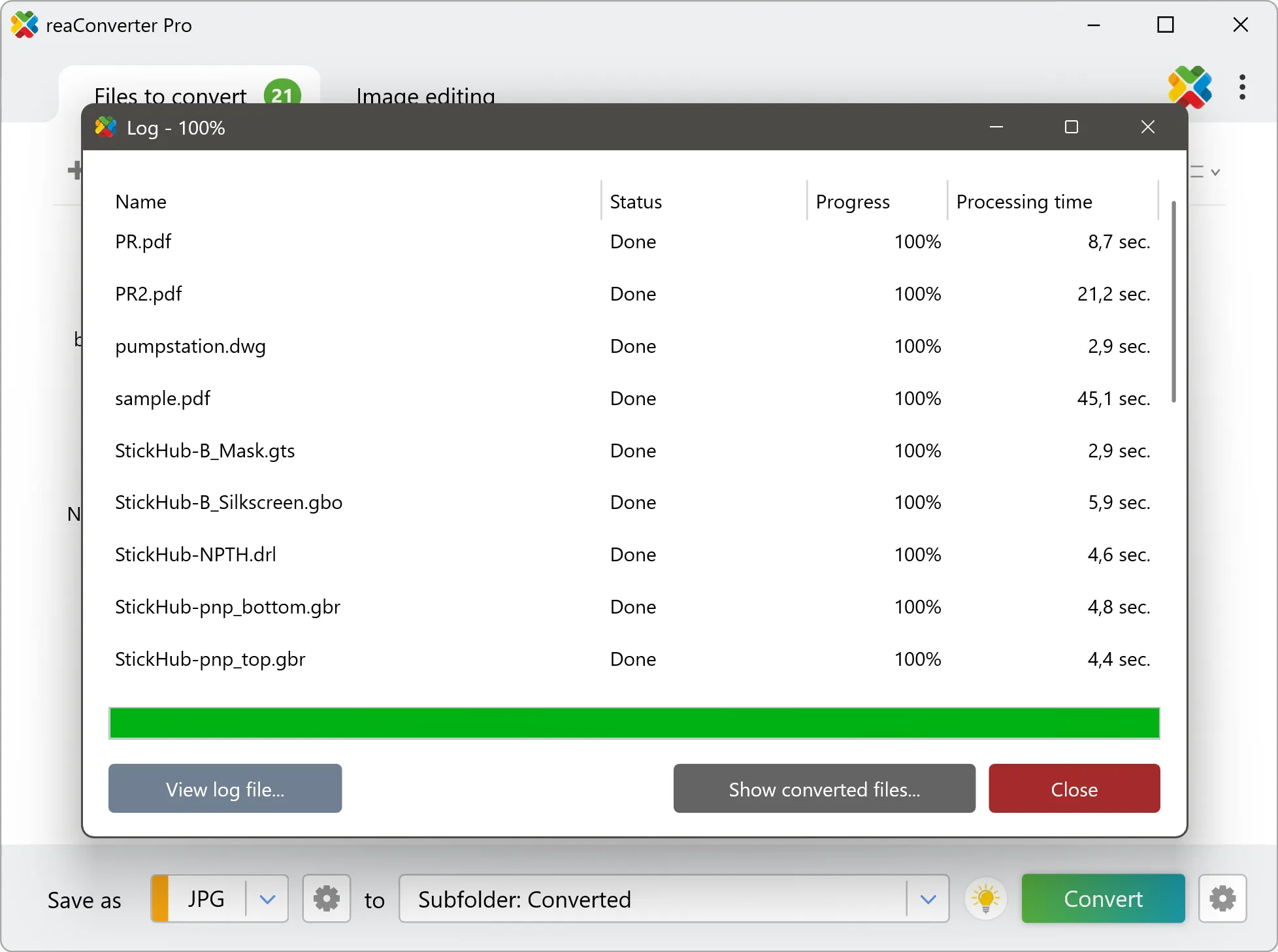
After processing, find all your new .svg files in the output location. The log shows details for each conversion.