FAQ
QTK to HRU Conversion
What are QTK files?
QTK is the proprietary format used by Apple QuickTake cameras for shooting in RAW mode. QuickTake was an innovative digital camera released by Apple in 1994 — it represented one of the first models which could store digital photos and connect to an Apple computer to download them. Nowadays, however, QuickTake cameras are not directly compatible with the Mac OS X platform due to the absence of an old Apple Serial protocol. QTK images can be downloaded using special applications or programs, and converted to more accessible formats.
What are HRU files?
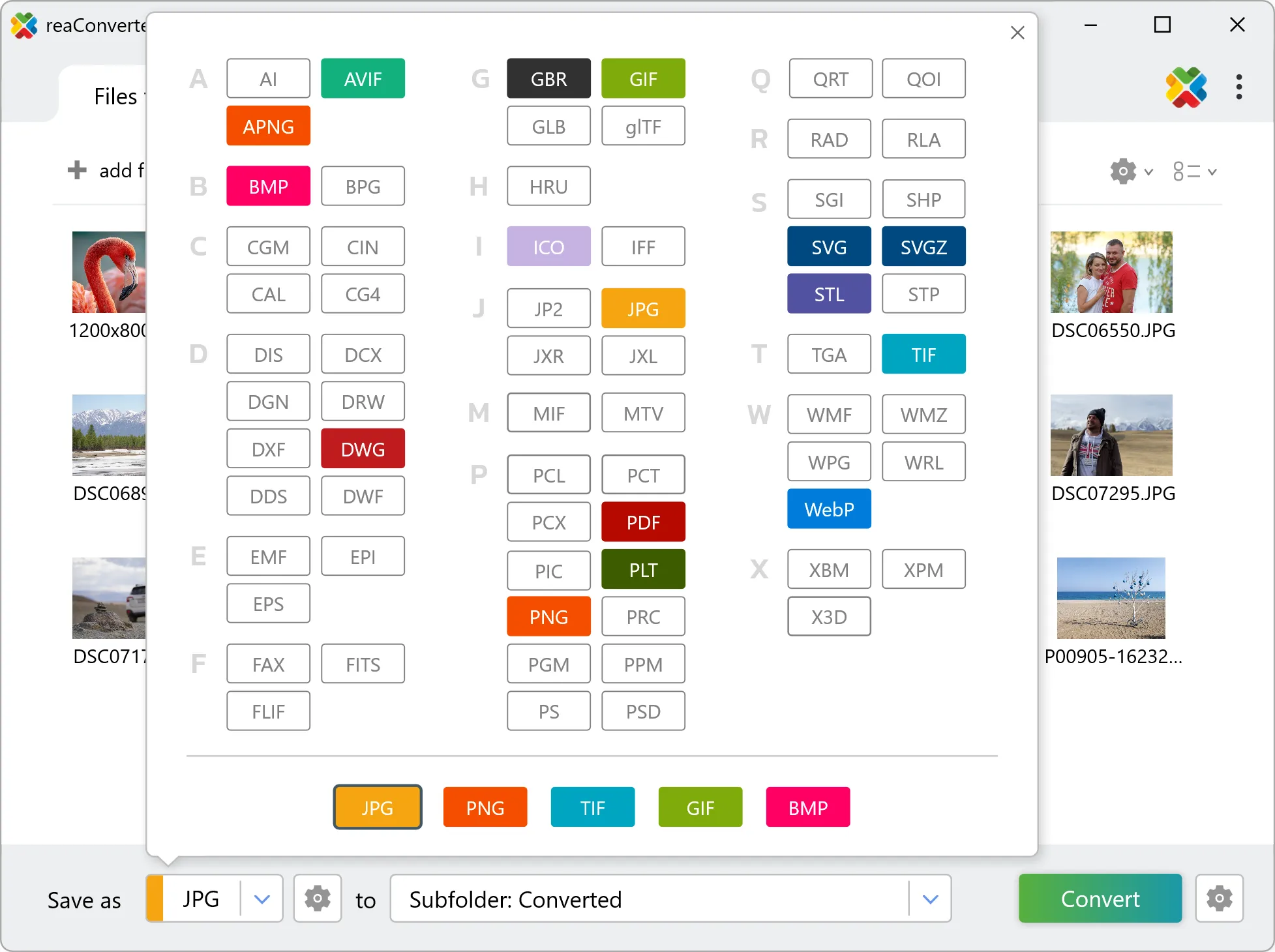
The HRU file format is a bitmap image format associated with the Soil and Water Assessment Tool (SWAT), which is a model developed through the SWAT-CUP program in Microsoft Windows. This software generates a detailed simulation model aimed to assess the result of various land management techniques in the case of large-size watersheds. HRUs represent output files containing detailed information compiled through SWAT, generally under the form of extensive tables with a large number of variables.
Can reaConverter convert QTK to HRU?
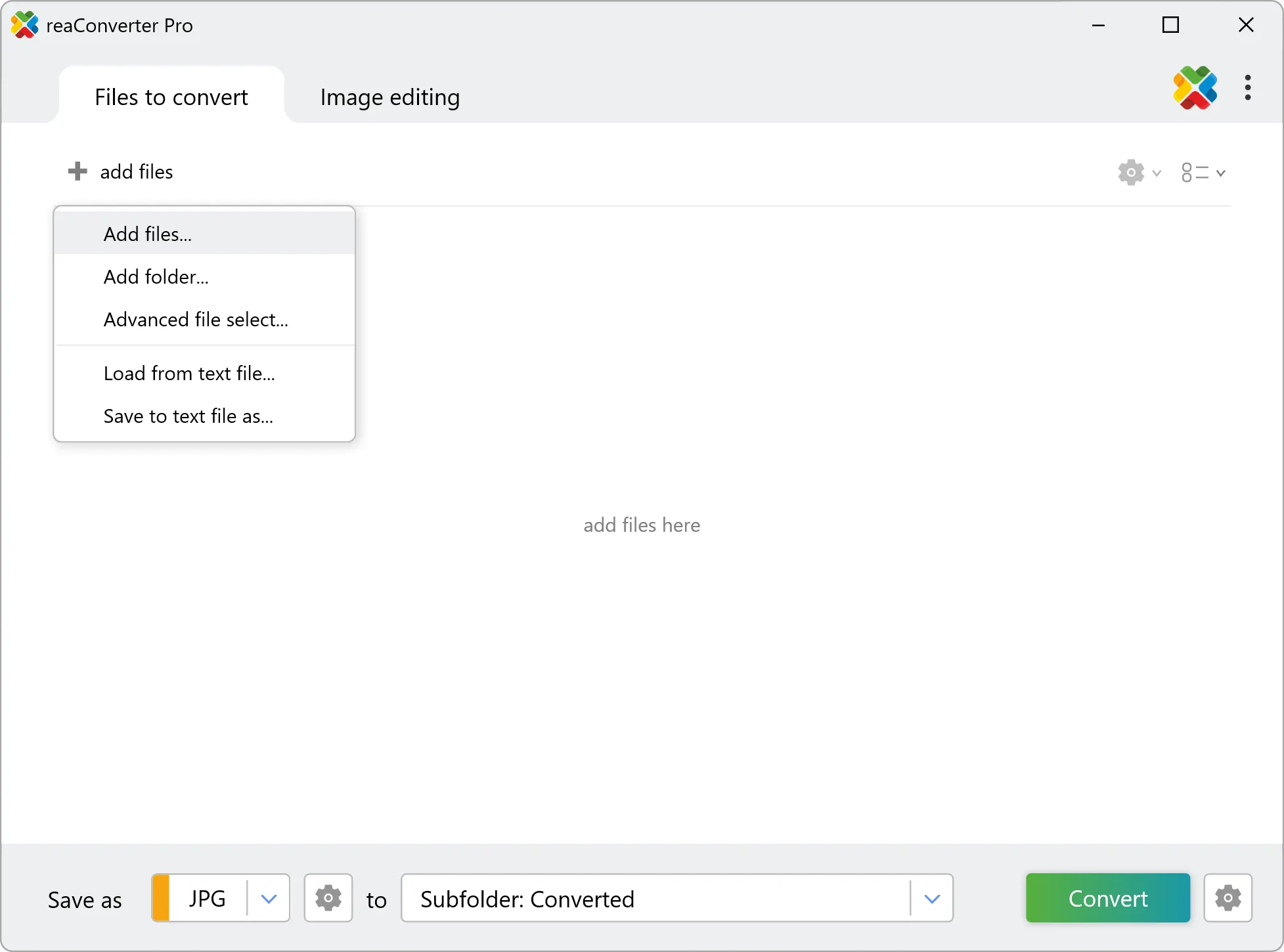
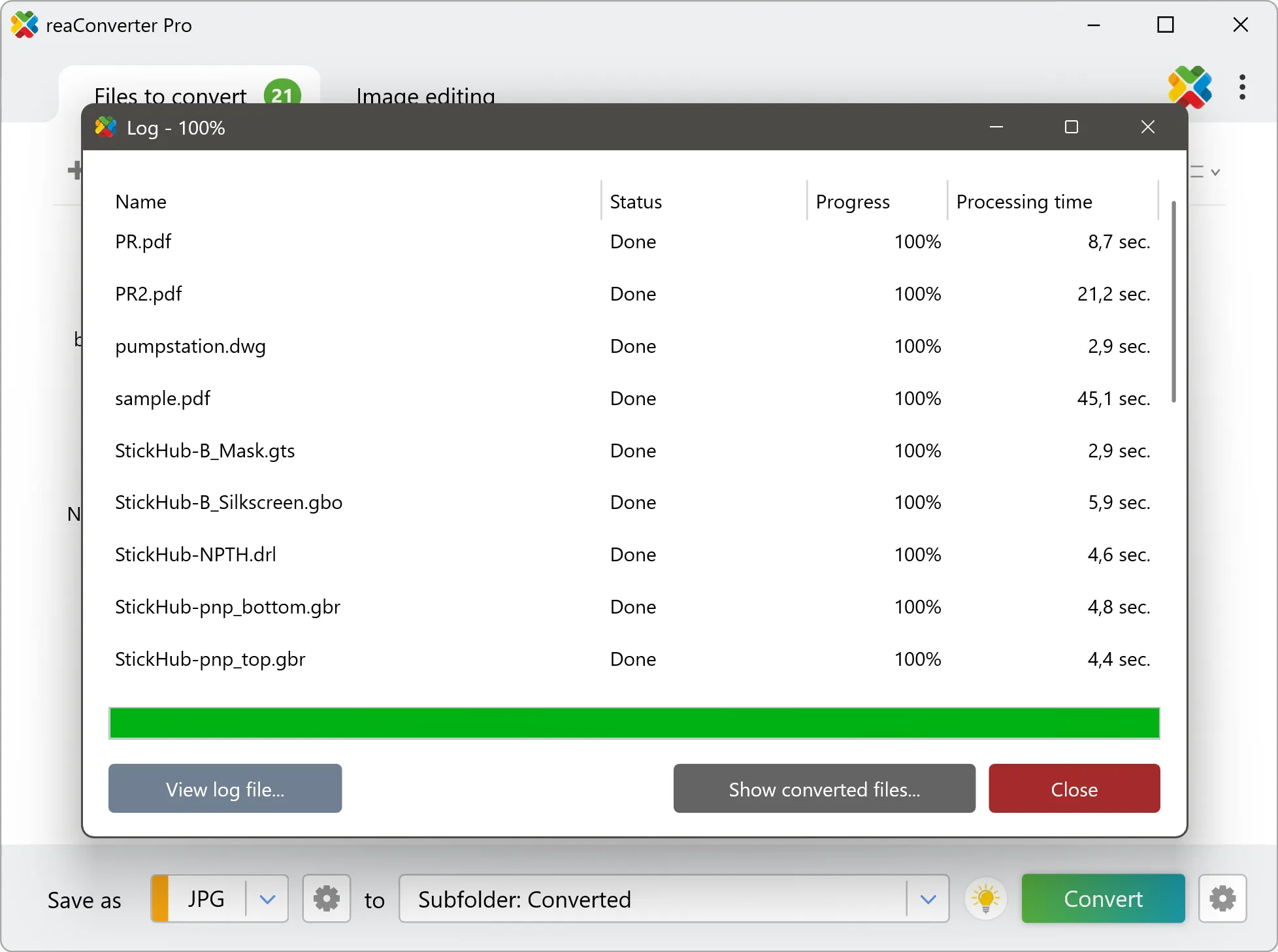
Yes! reaConverter instantly converts .qtk to .hru with perfect quality preservation. With its batch processing feature, you can convert multiple files at once in just a few clicks. You can even convert images directly from Windows Explorer using the right-click menu — fast and convenient.
What is reaConverter used for?
reaConverter is a software program used for converting images and other types of files from one format to another. It supports a wide range of file formats and allows users to convert multiple files at once, making it a valuable tool for graphic designers, photographers, and other professionals who work with digital images. reaConverter also includes features for resizing, cropping, and editing images, along with batch processing capabilities that help automate repetitive tasks.
Can I convert QTK to HRU online?
If you only need to convert a few QTK files to HRU format, feel free to try our free online free online QTK to HRU converter — perfect for small batches with no installation needed!
How can I turn QTK files into HRU on my computer?
The best way to change QTKs to HRUs on your PC is to install a quality piece of software, such as reaConverter. This software is extremely efficient in managing a wide range of batch files conversions, including conversion from QTK to HRU.
How can I automate QTK to HRU files conversion?
reaConverter supports all the most useful automation features such as right-click сonversion and Watch Folders for the most efficient automated files conversion in any software of this type.
Is there a way to convert QTK files to HRU using the command prompt?
reaConverter provides full access to all its features via Windows command line, including a high-performance command-line qtk to hru converter for batch processing.
What else can I do with reaConverter?
Convert medical imagesResize picturesConvert GIS filesConvert PDF filesAdd watermark on photo
Related conversions
Other ways to convert QTK files, and other sources that convert to HRU.