



How to Convert Multiple .dds Images to .dxf?
1. Download and Install reaConverter
Download reaConverter and install it in seconds. The setup is straightforward — no complex configuration, no extra software required. Apply image edits like resize, crop, or color adjustment while converting.

2. Load your DDS files
Add your DDS files to reaConverter. Whether it's a handful or an entire archive, the batch engine processes them efficiently.
Drag files into the window, use the Add Files button, or select entire folders.

3. Select DXF as output format
Select DXF as output format. Adjust scale and quality settings to get the right output for your CAD drawings.
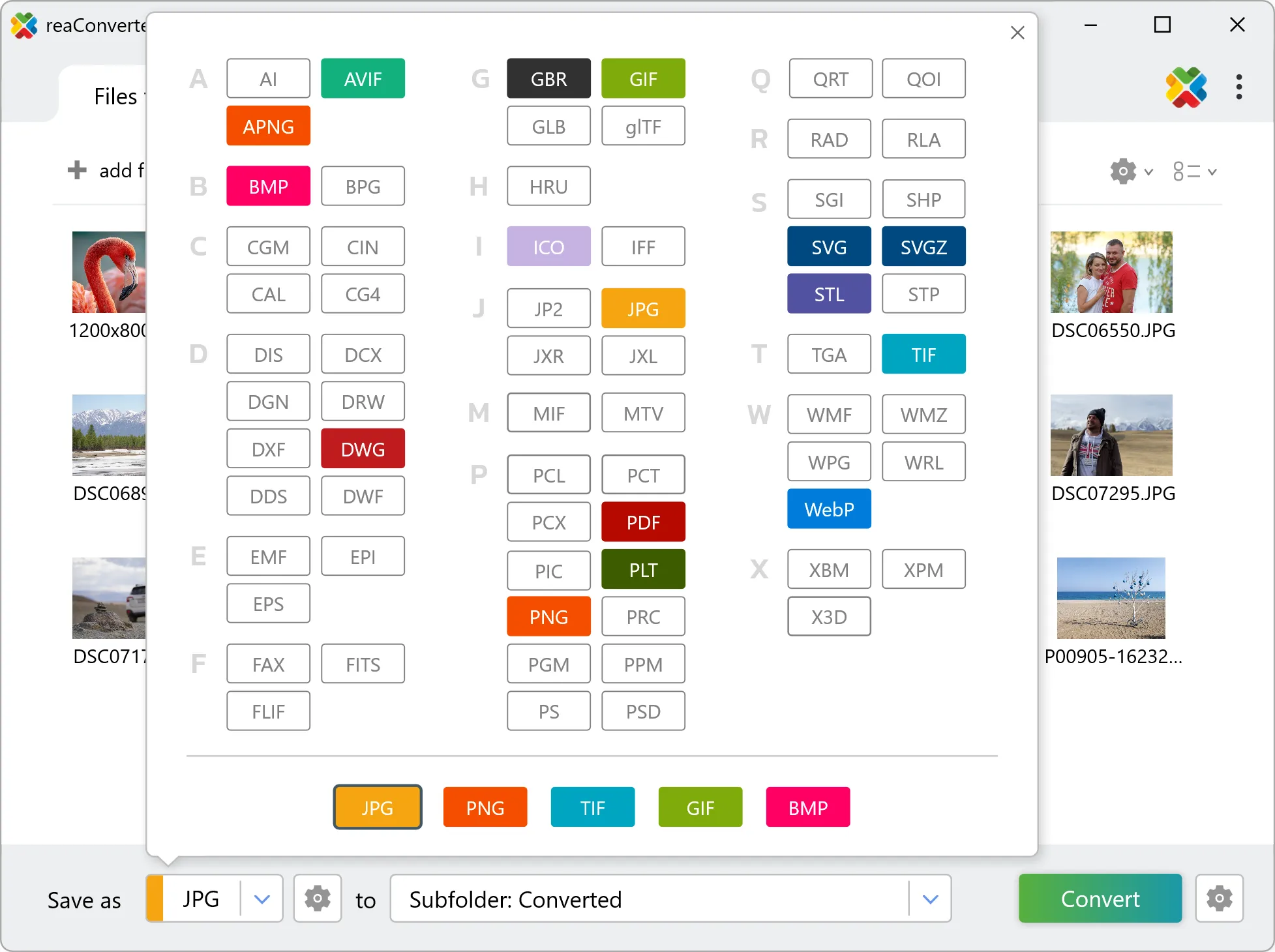
4. Start DDS to DXF conversion
Hit Convert to process your files. The log window shows progress, timing, and status for every file.

Conversion complete? Your DXF files are saved to the destination folder, ready to use.