

How to Convert Multiple .step Files to .psd?
1. Download and Install reaConverter
First, grab reaConverter from the download button below. Installation is fast, and the software runs offline — no account or signup needed.

2. Load your STEP files
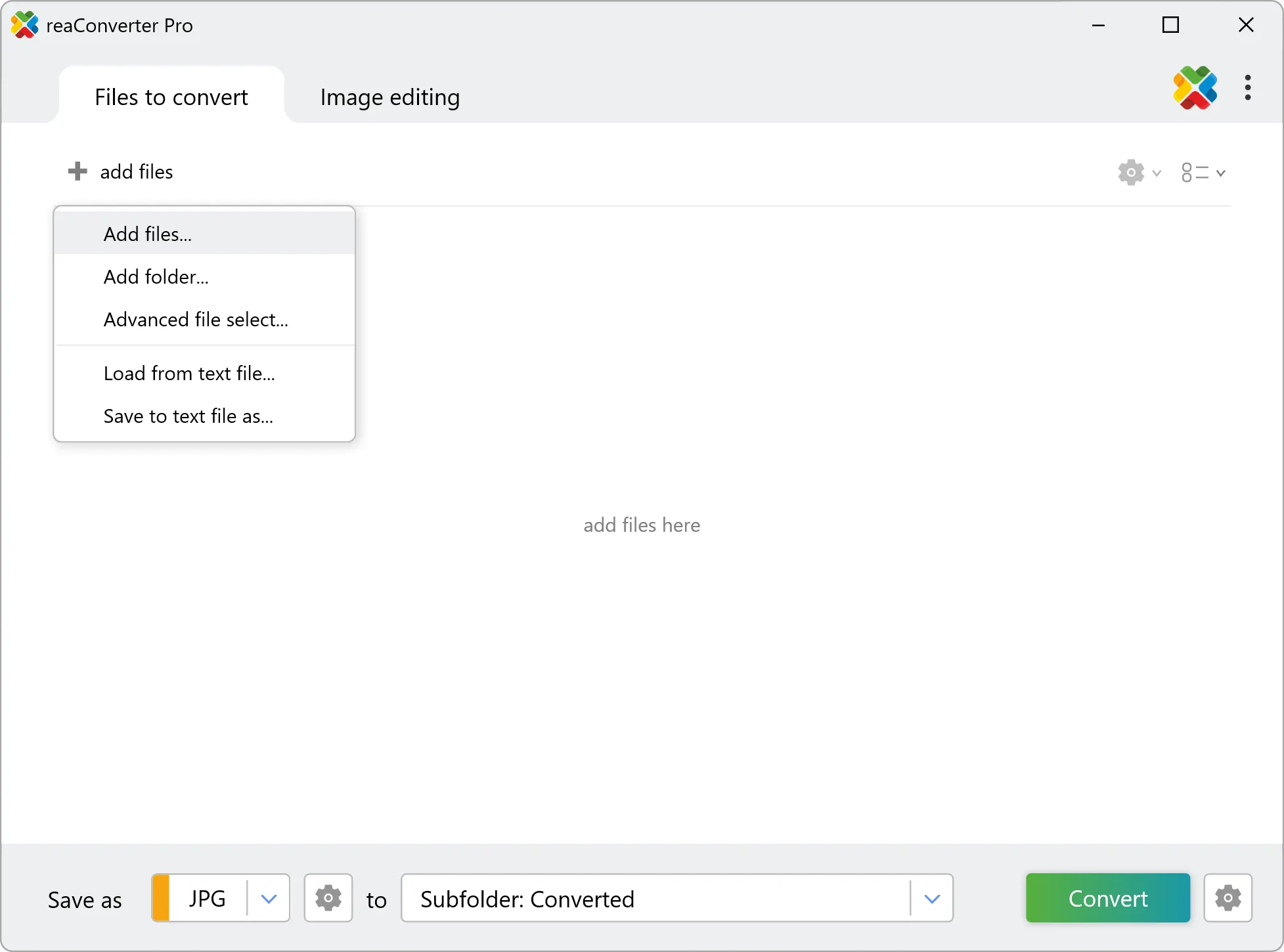
Open reaConverter and add your STEP files. You can load individual files, entire folders, or even nested subfolders.
Drop your STEP files into the window or use File menu to browse and select folders.
3. Select PSD as output format
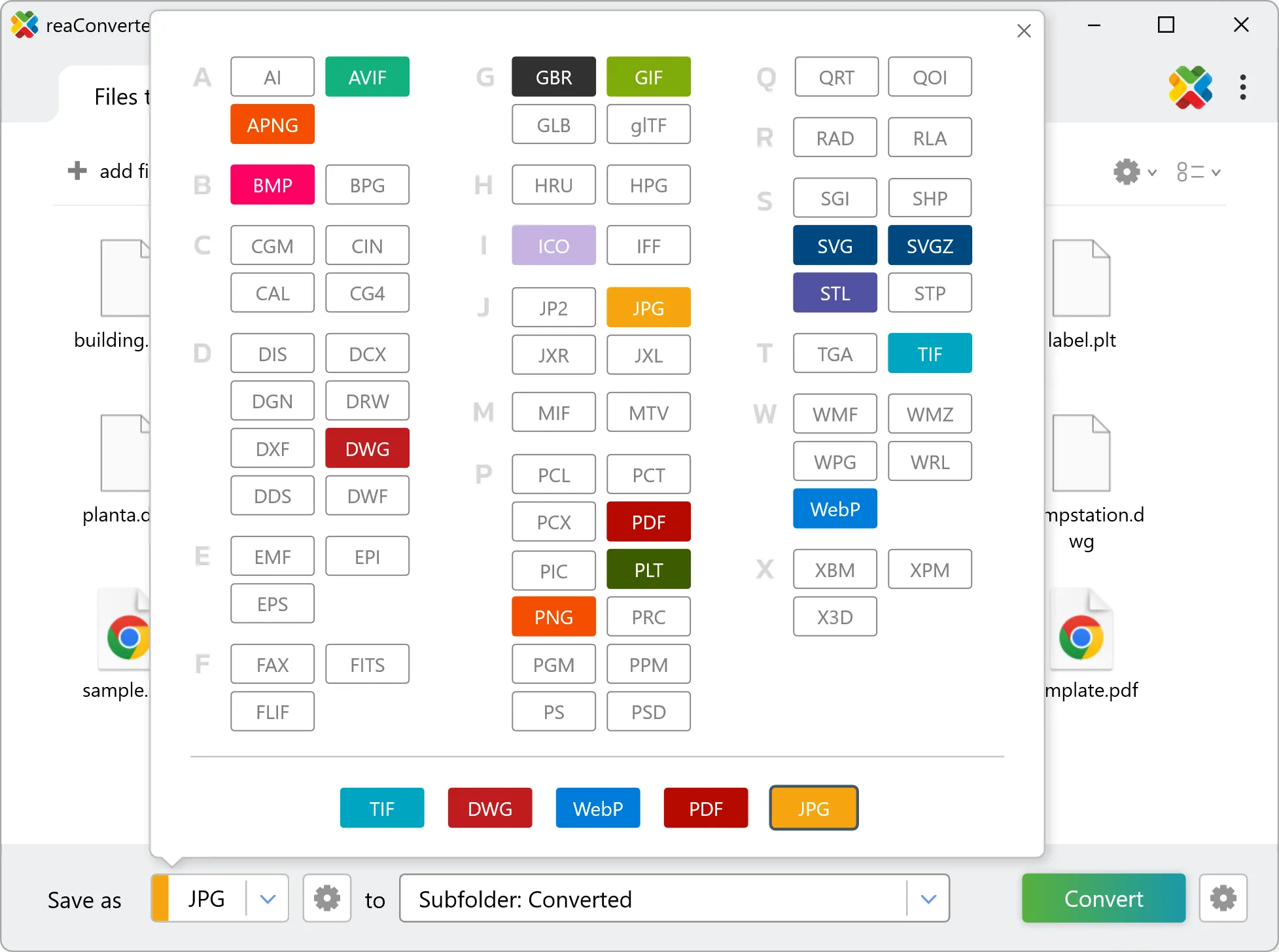
Choose PSD as the target format. Pick a destination folder or let reaConverter save files alongside the originals.
4. Start STEP to PSD conversion
Hit Convert and let reaConverter do the work. The progress window shows status for each file in real time.
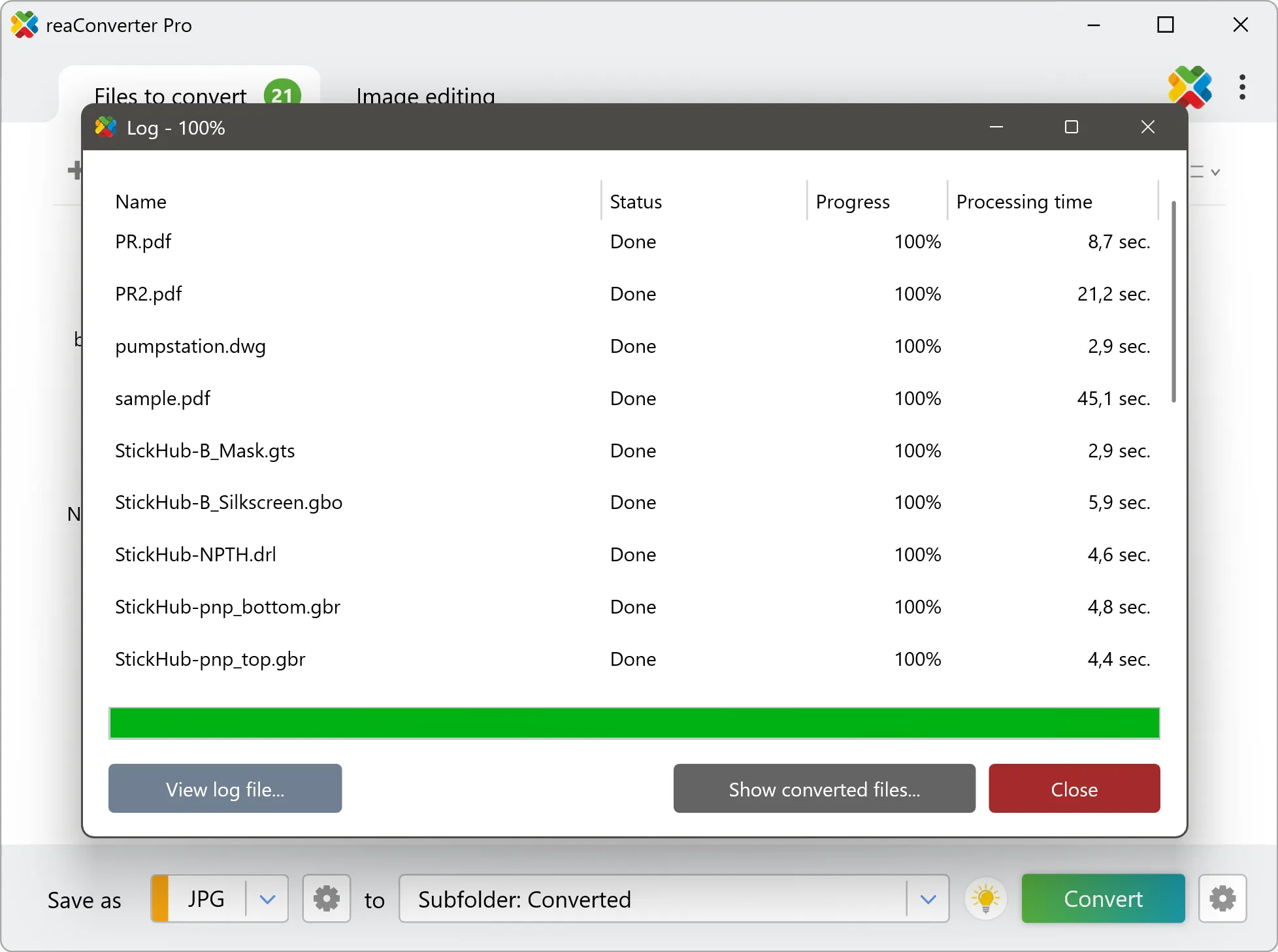
After conversion, find your PSD files in the output folder. Click 'Show converted files' to open it directly.